I won’t bore you with a lecture about why you need a social media content calendar.
You likely landed here because you’re looking for a content calendar template, a quick starting point for mapping out your content plan for the coming weeks or months.
I’ve worked as both a social media manager and content creator, and live by my social media content calendar.
My current favorite tool is (of course) Buffer, but there are loads of other options out there. If you’re looking for something lo-fi to get started, I've got you.
Here's a list of 11 calendar templates to help you be more efficient, plus how to build your own if none of them fit.
Key takeaways
- Choose the right tool: Select a format that fits your workflow, whether it's a spreadsheet (Google Sheets), a visual tool (Canva), or an automated scheduler (Buffer).
- Prioritize consistency: A sustainable posting cadence (e.g., three times per week) is more effective than random bouts of activity.
- Include essential data: Every calendar entry should track the posting date, platform, caption, media assets, and current status.
- Optimize timing: Use data-backed "best times to post" to get more eyes on your content.
- Centralize brainstorming: Use a dedicated space to separate your ideas from scheduled posts.
The quick version
A social media calendar template is a ready-made structure for planning what you'll post, where, and when, so you're not staring at a blank screen every week.
The fastest way to start: Pick a format that matches how you like to work (a spreadsheet like Google Sheets, a visual tool like Canva, a flexible workspace like Notion, or a scheduler like Buffer that also publishes for you), grab one of the 11 free templates below, and block 30 minutes to map out your next two weeks.
If you want to build one from scratch instead, skip to how to create a social media calendar.
11 free social media calendar templates
| # | Template | Format | Best for | Free? |
|---|---|---|---|---|
| 1 | Buffer social media calendar | Scheduling tool | Planning and auto-publishing in one place | ✅ |
| 2 | Best times to post calendar | Timing posts for reach | ✅ | |
| 3 | Simple weekly calendar | Mapping a single week | ✅ | |
| 4 | Simple monthly calendar | Big-picture month view | ✅ | |
| 5 | Canva calendars | Canva | Customizing the simple calendars visually | ✅ |
| 6 | Notion calendar | Notion | Storing captions + media in one place | ✅ |
| 7 | Google Sheets calendar | Google Sheets | Customizable, spreadsheet-based planning | ✅ |
| 8 | Simon's kanban calendar | Buffer | Organizing by content pillar | ✅ |
| 9 | Aiza's email × ChatGPT calendar | ChatGPT + email | Generating and scheduling ideas | ✅ |
| 10 | My TikTok consistency calendar | Buffer | Staying consistent on a single platform | ✅ |
| 11 | Kiran's personal-brand calendar | Notion | Building a personal brand | ✅ |
Jump to a section:
- 1. Buffer social media calendar
- 2. Social media calendar template with the best times to post
- 3. Simple weekly social media calendar template
- 4. Simple monthly social media calendar template
- 5. Canva social media calendar templates
- 6. Notion social media calendar template
- 7. Google Sheets social media calendar template
- 8. Simon Heaton’s kanban calendar
- 9. Aiza Coronado’s email x ChatGPT calendar
- 10. My simple calendar for TikTok consistency
- 11. Kiran Shahid’s calendar for personal brand-building
- How to create a social media calendar
- Social media success starts with a calendar
- Social media content calendar FAQs
- More social media marketing resources
1. Buffer social media calendar
This is not a downloadable template, per se, but Buffer is so easy to plug and play, it might as well be.
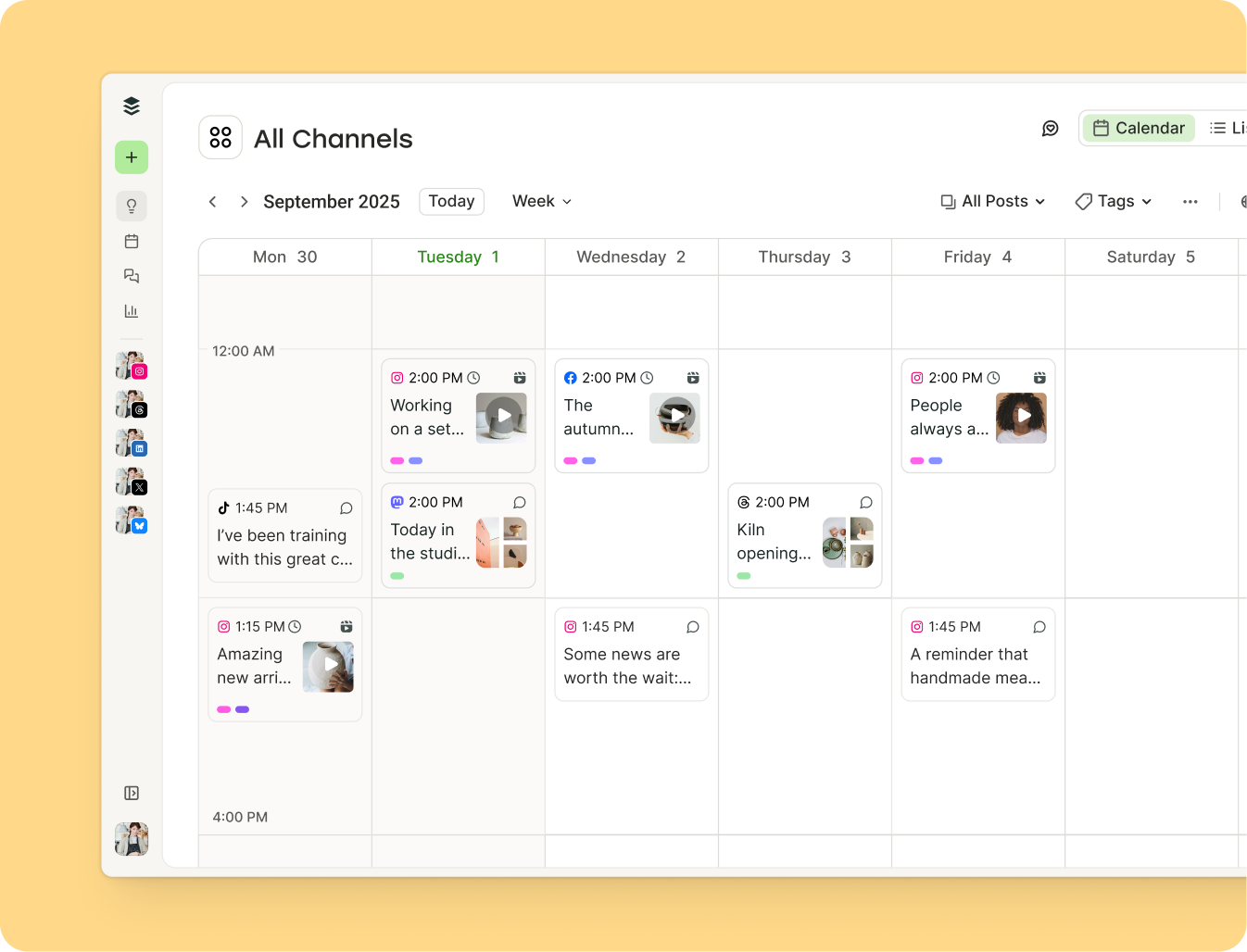
I'm definitely biased, but after trying just about every tool and template out there, Buffer's calendar is the one I keep coming back to — and honestly, I think you'll see why.
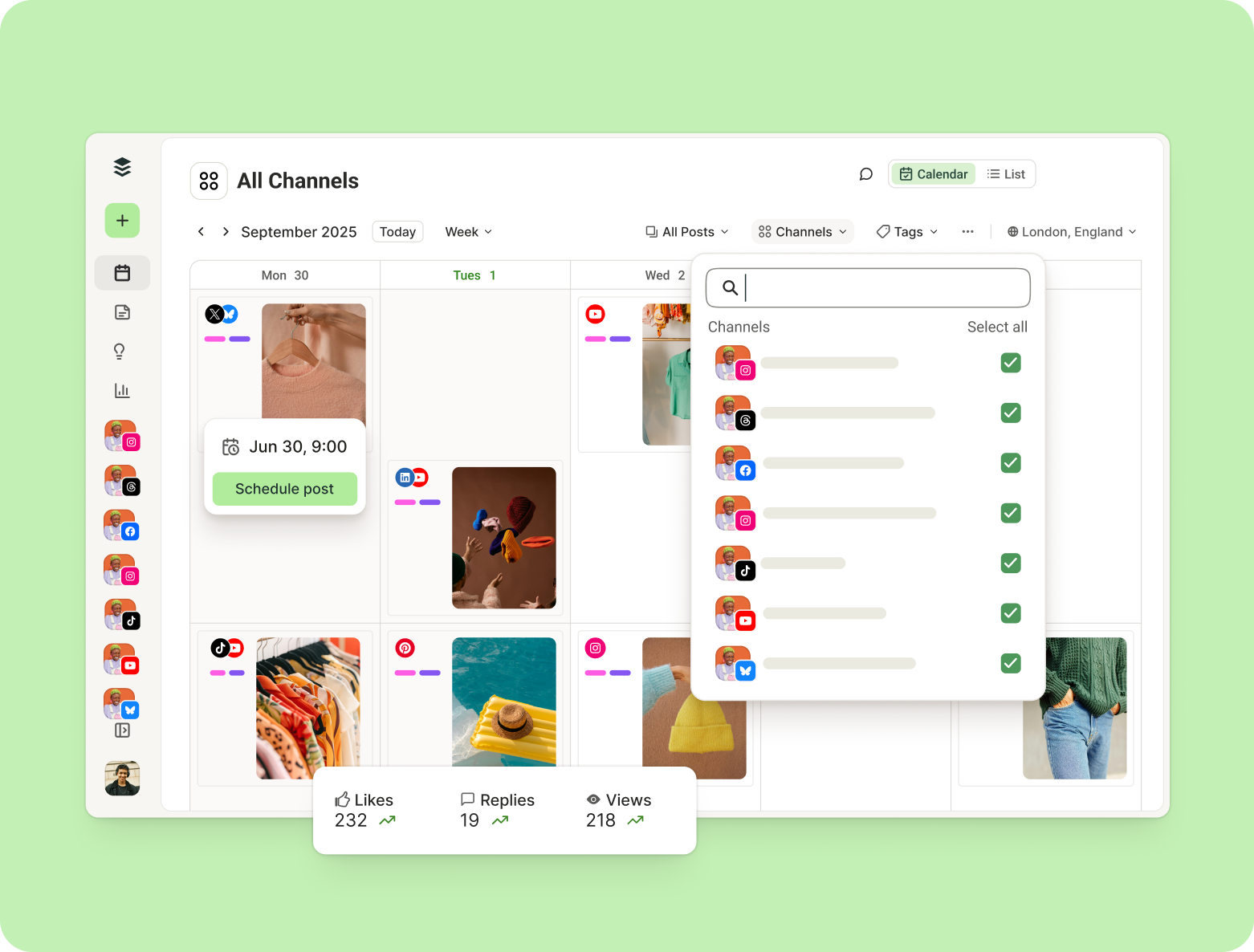
Let's start with the basics: Buffer’s content calendar features a weekly and monthly calendar view. You can drag and drop posts to easily change publish dates and times in real time.
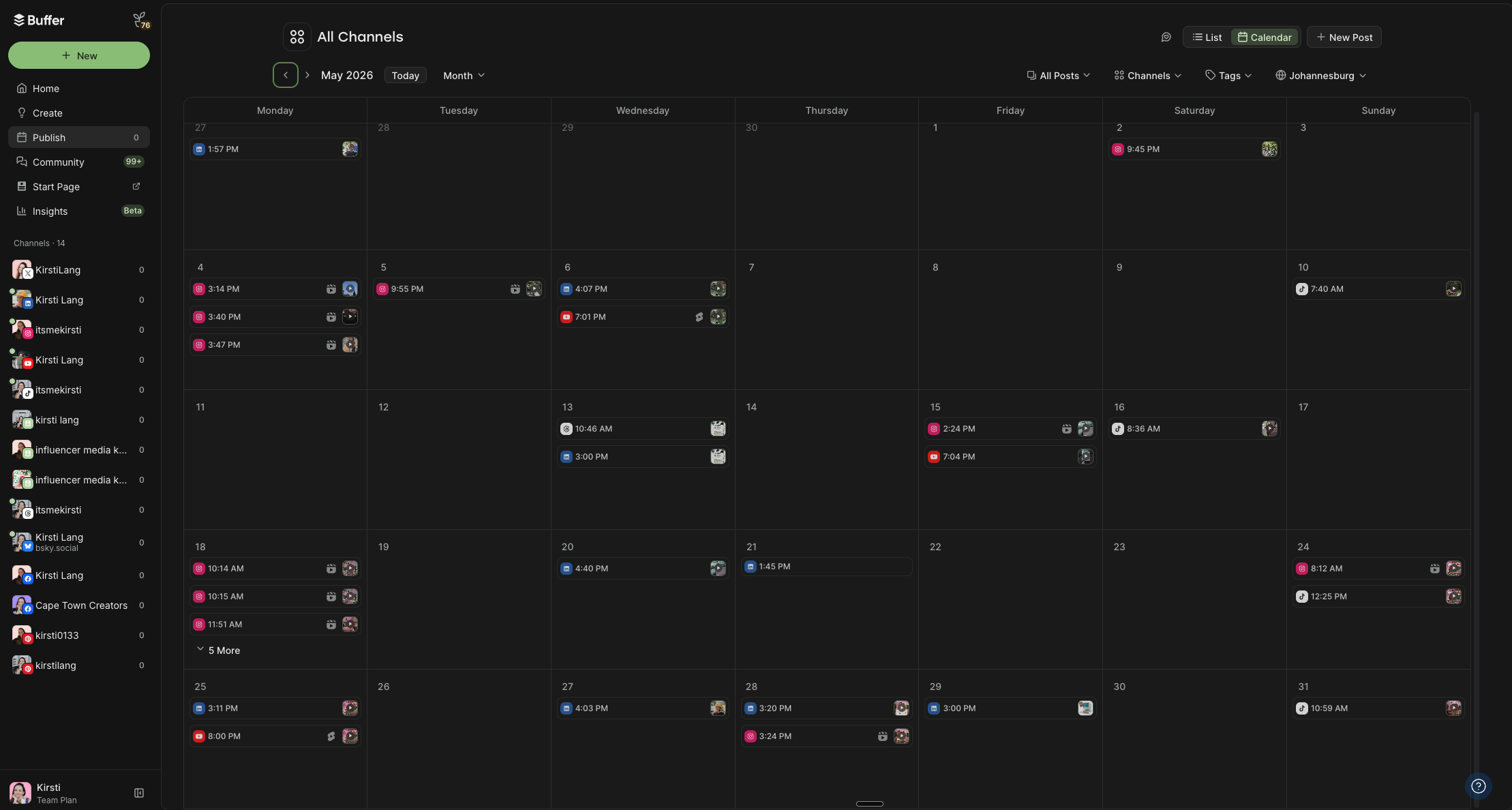
These views can be filtered by platform, so you can see all your posts in a list if you prefer. You can even optimize your posting schedule according to the best time to post on each platform (more on this below).
The Tags feature allows for custom social content categories and color coding (my personal favorite feature). You can organize your posts by status, content strategy pillars, target audience, marketing goals, or type of content, whatever works best for your content strategy.
The benefits of mapping out your content in Buffer go way beyond just planning. Buffer is a social media scheduling tool, not just a social media planning tool.
This calendar is the only one on this list that will publish the posts for you.
Buffer can automatically schedule your social media posts (whether they're text, photos, or videos) on all major platforms to go live at precisely the time you want them to. If you're juggling several accounts, it also makes it far easier to manage multiple social media accounts from one calendar.
It's an excellent option for both solo creators and social media teams, too, with handy collaboration features like approval workflows and smart permissions.
And here's the part that saves the most time: once your posts are in the calendar, Buffer takes care of the publishing for you. No jumping between platforms, no manual posting.
Buffer connects with Facebook, Instagram, TikTok, YouTube, LinkedIn, Twitter/X, Pinterest, Threads, Bluesky, Mastodon, Google Business, and more.
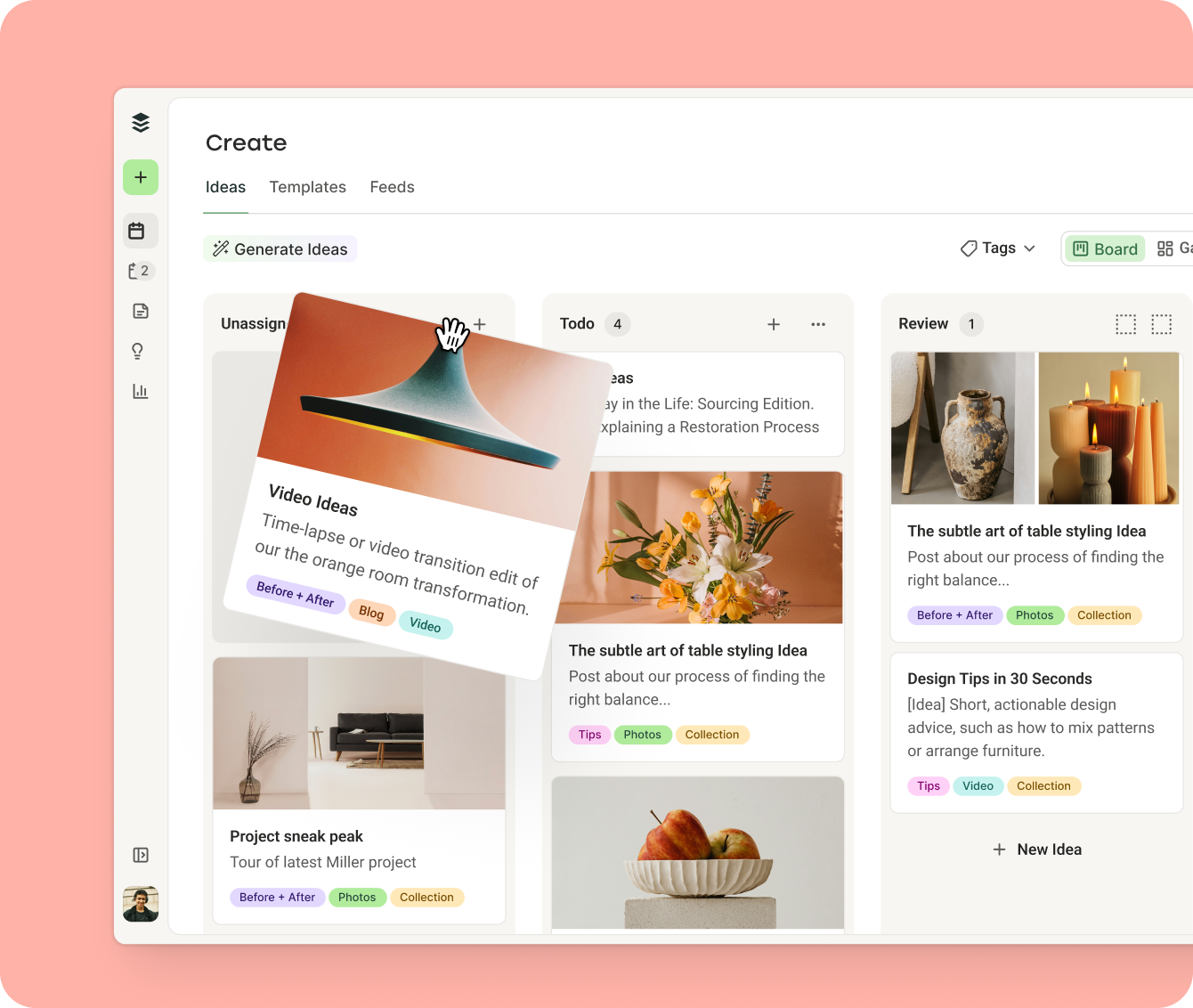
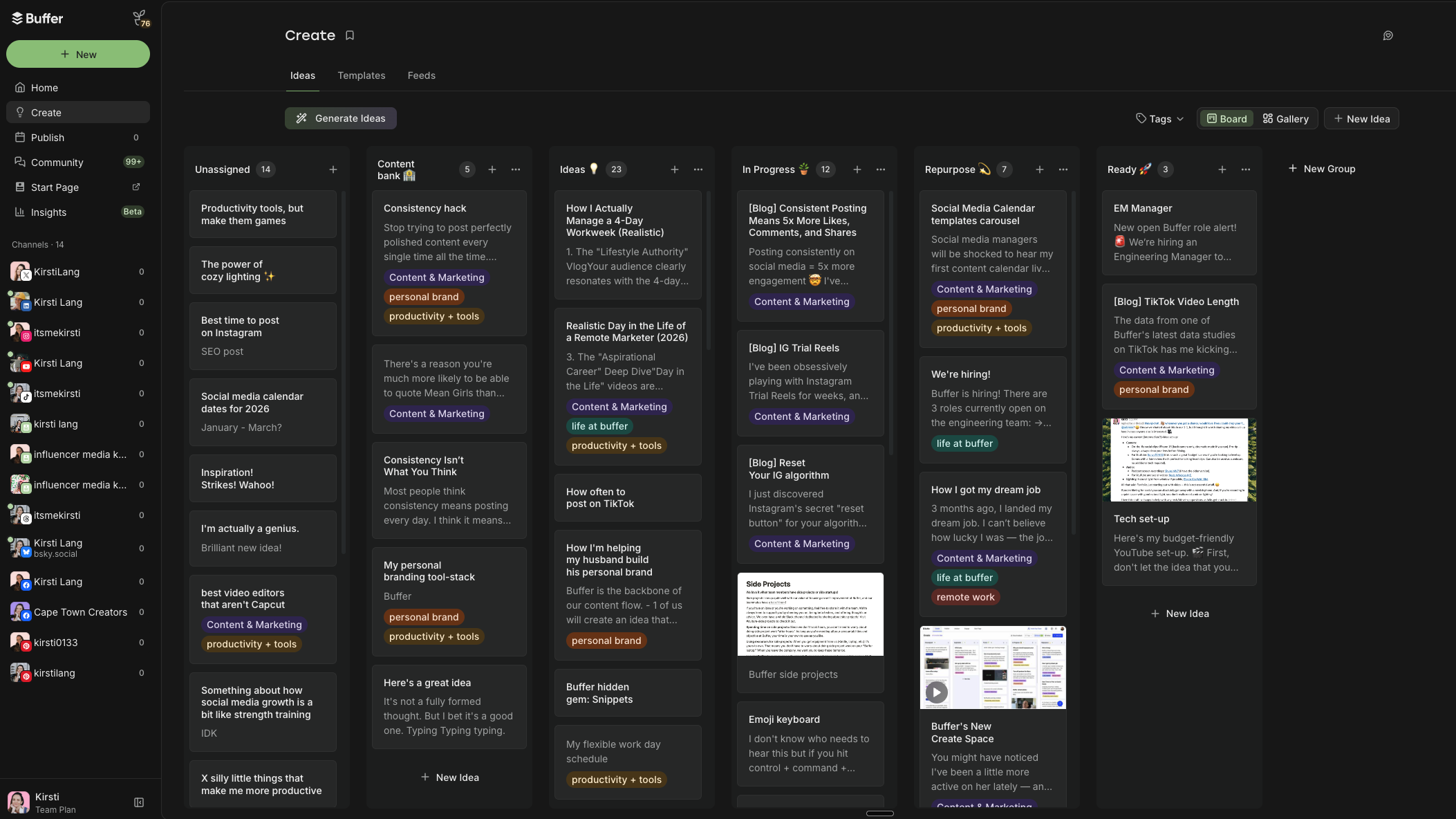
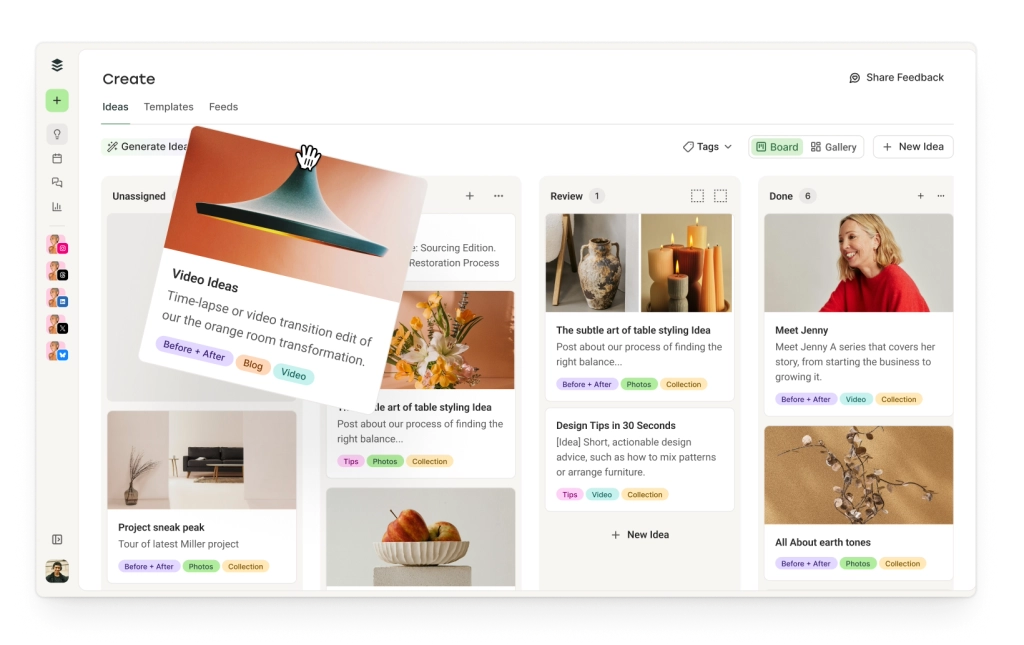
Outside the calendar, there’s the Create Space to help you brainstorm and organize your ideas, engagement tools to help you manage replies to comments, and Insights to check in on metrics at a glance.
2. Social media calendar template with the best times to post
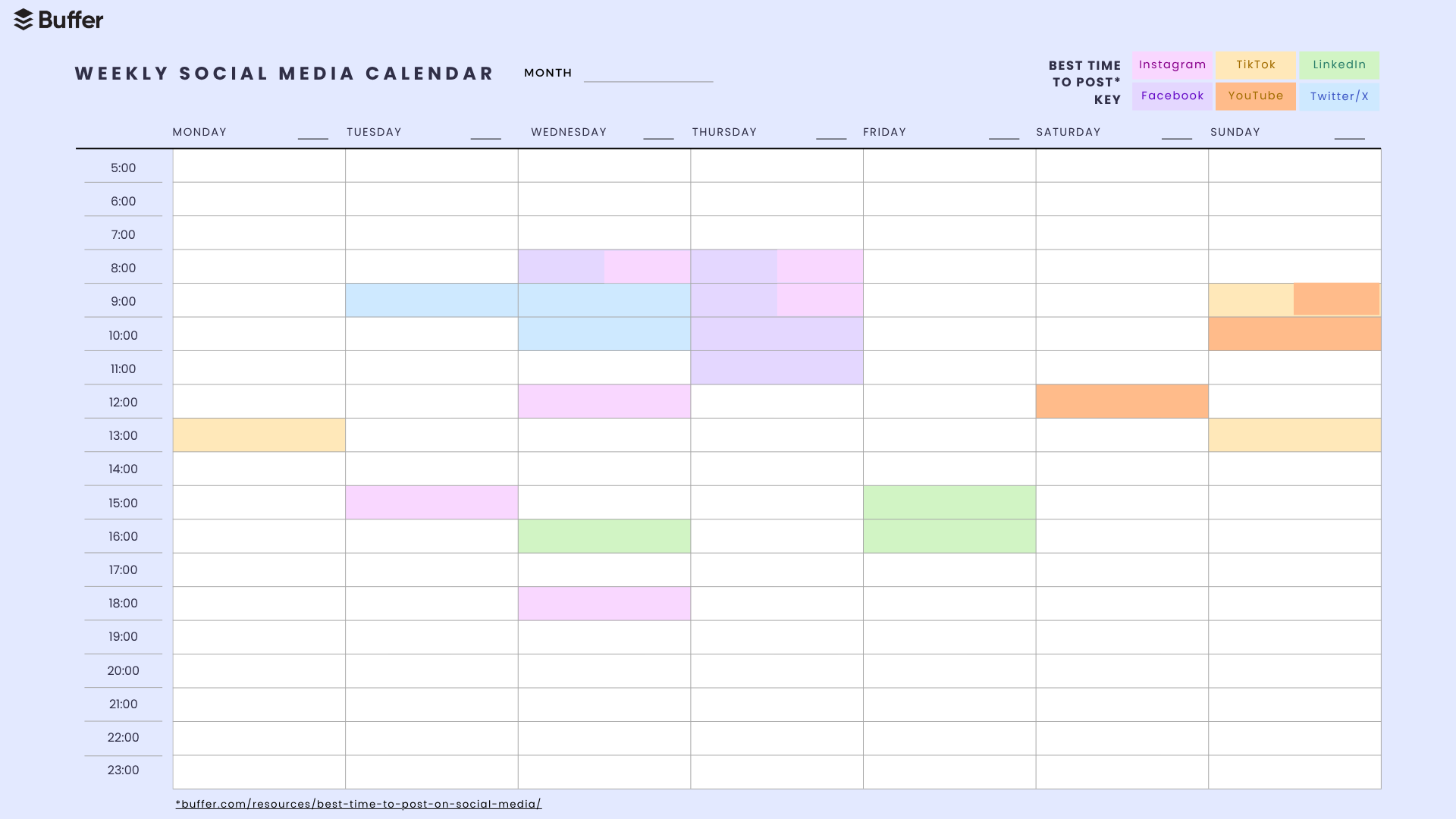
Posting at the right time can make a real difference for your reach and engagement, which is why we dug into data from millions of posts in Buffer to find those sweet spots for you.
Thanks to this analysis, we’ve pinpointed several posting times for each social media platform during which posts get more engagement or views. I’ve highlighted these times for Facebook, Instagram, TikTok, LinkedIn, YouTube, and Twitter/X in this downloadable PDF calendar.
How to use this calendar
- Download the ‘Best Time to Post’ calendar template.
- Once downloaded, right-click on the file and open it with Adobe Reader or another PDF reader.
- Click Fill & Sign.
- Click within the time slot you want to use to start typing.
- Alternatively, you can always print these pages and fill them out with a good old-fashioned pen and paper.
- The social media content calendar template is yours to edit as you see fit.
⏰ Get ‘Best Time to Post’ calendar template
There’s a whole lot more nuance in figuring out the best time to post for your audience. I’d recommend checking out these resources:
- The Best Time to Post on Facebook
- The Best Time to Post on Instagram
- The Best Time to Post on TikTok
- The Best Time to Post on LinkedIn
- The Best Time to Post on YouTube
- The Best Time to Post on Twitter/X
3. Simple weekly social media calendar template
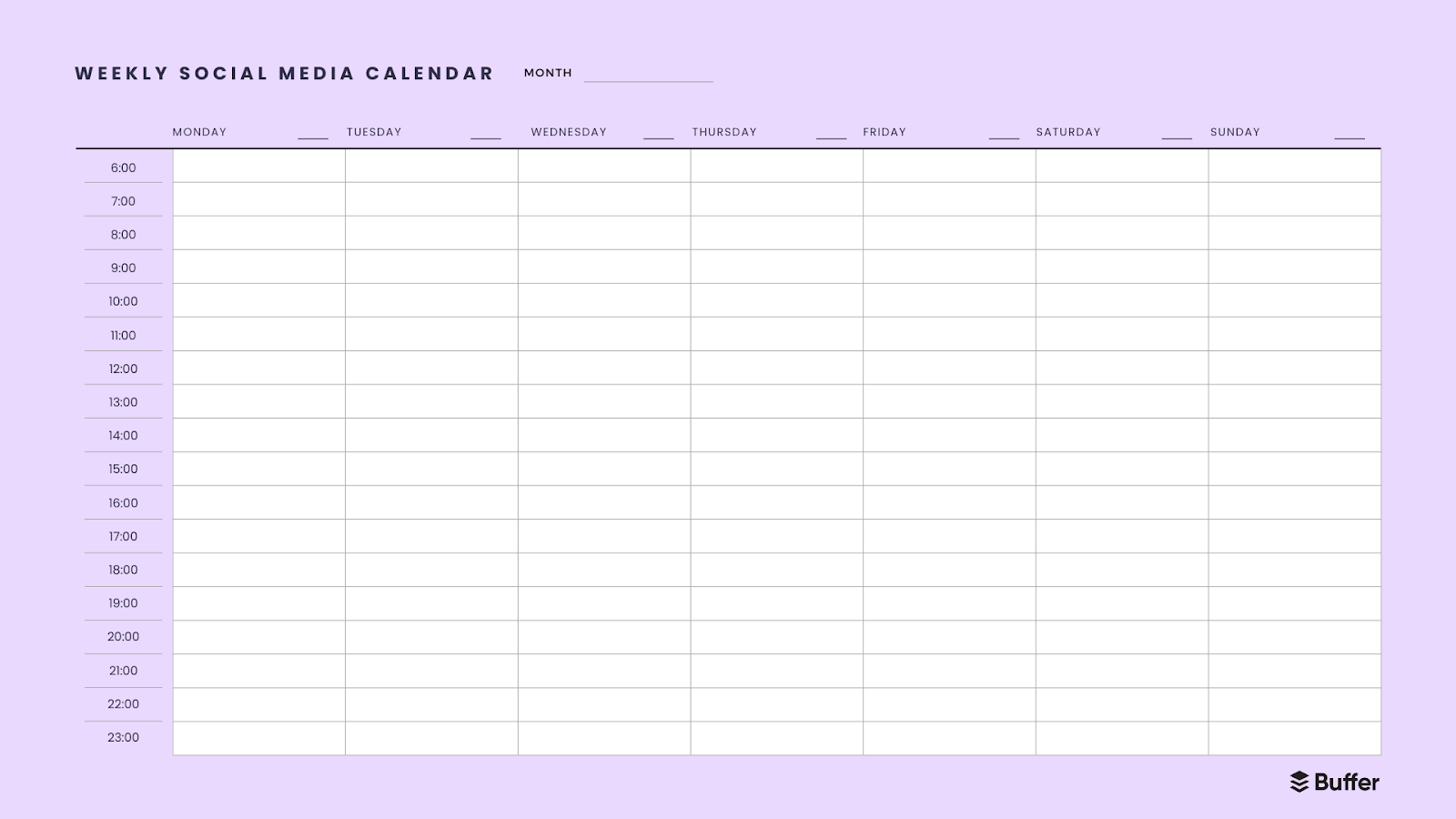
This free content calendar template features the same layout as the one above, with publishing schedule time slots from 6 a.m. to 11 p.m., just without highlights for the best times to post on each platform.
How to use this calendar
- Get the simple weekly calendar.
- Open with Adobe Reader.
- Click Fill & Sign.
- Click within the time slot you want to use to start typing.
- Alternatively, you can always print these pages and use pen and paper to fill yours out.
- The social media content calendar template is yours to edit as you see fit.
🗓️ Get the simple weekly calendar
4. Simple monthly social media calendar template
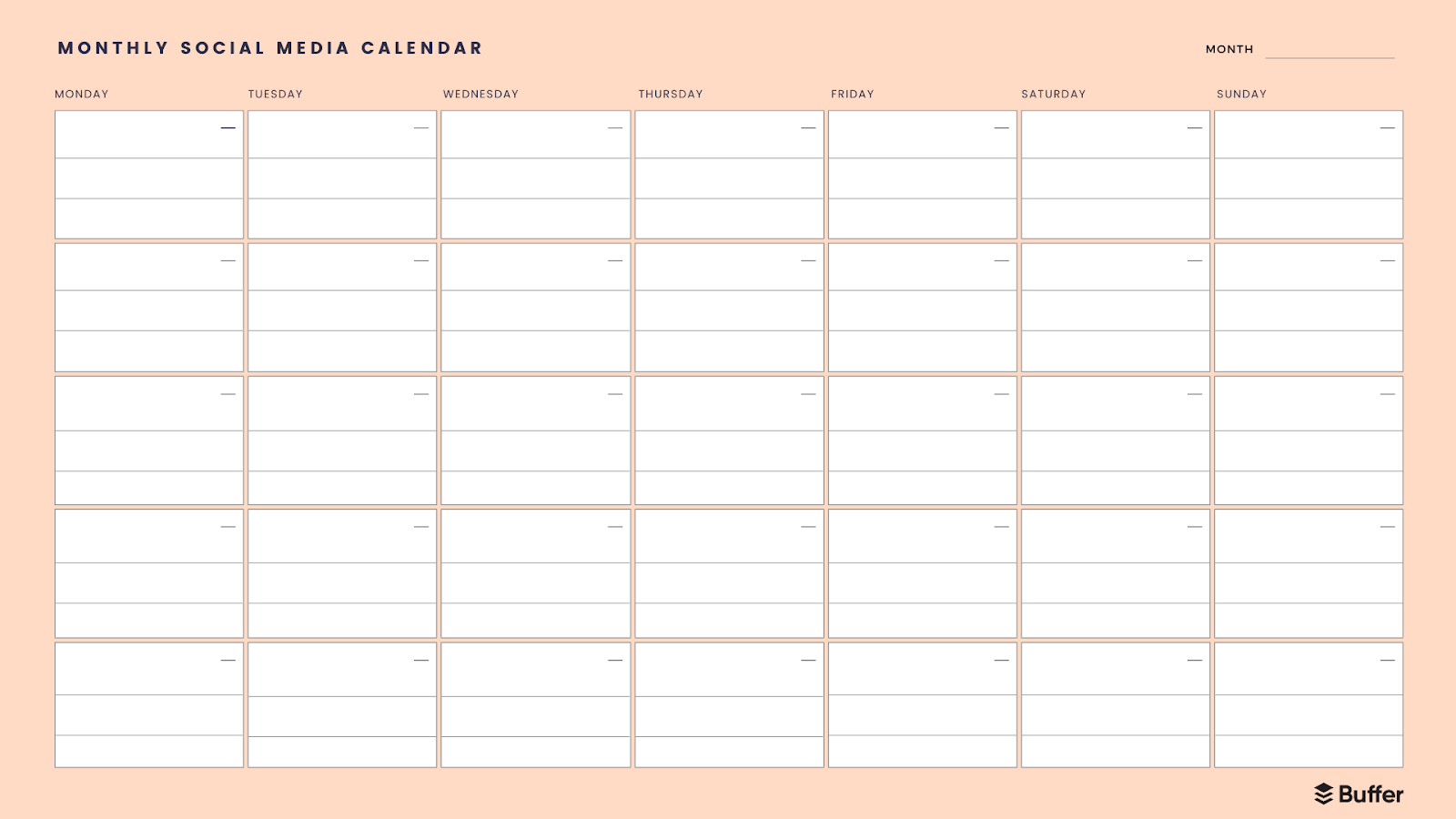
If you want to map out an entire month at a glance, this content calendar template is for you. Think of this calendar as your big-picture view. It can be helpful to map out the month in broad strokes by publish date using a layout like this one to help you prioritize tasks.
How to use this calendar
- Get the simple monthly social media calendar.
- Open with Adobe Reader.
- Click Fill & Sign.
- Click within the time slot you want to use to start typing.
- Alternatively, you can always print these pages and use a good ol' pen and paper to fill yours out.
- The social media content calendar template is yours to edit as you see fit.
📅 Get the simple monthly social media calendar
5. Canva social media calendar templates
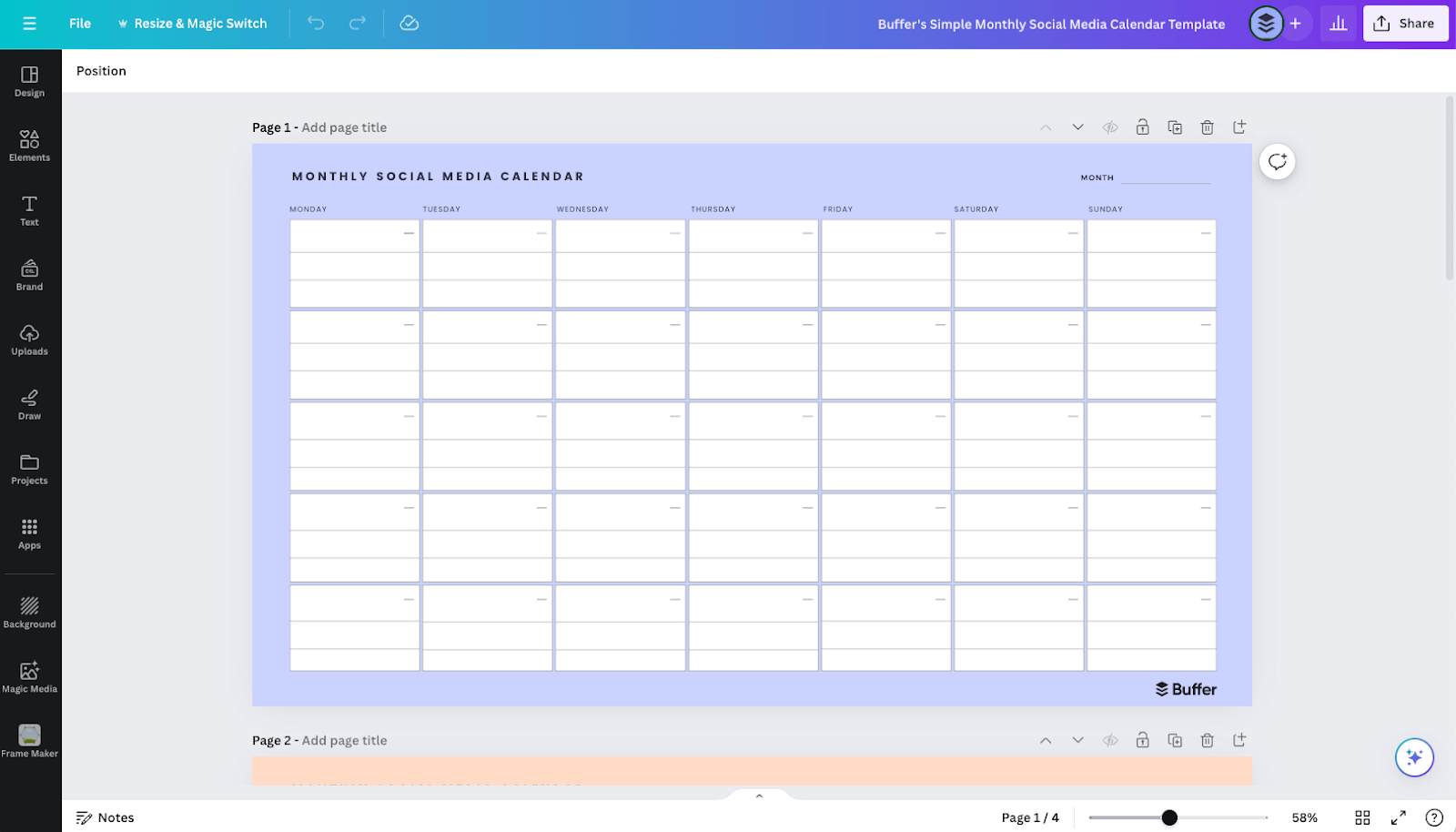
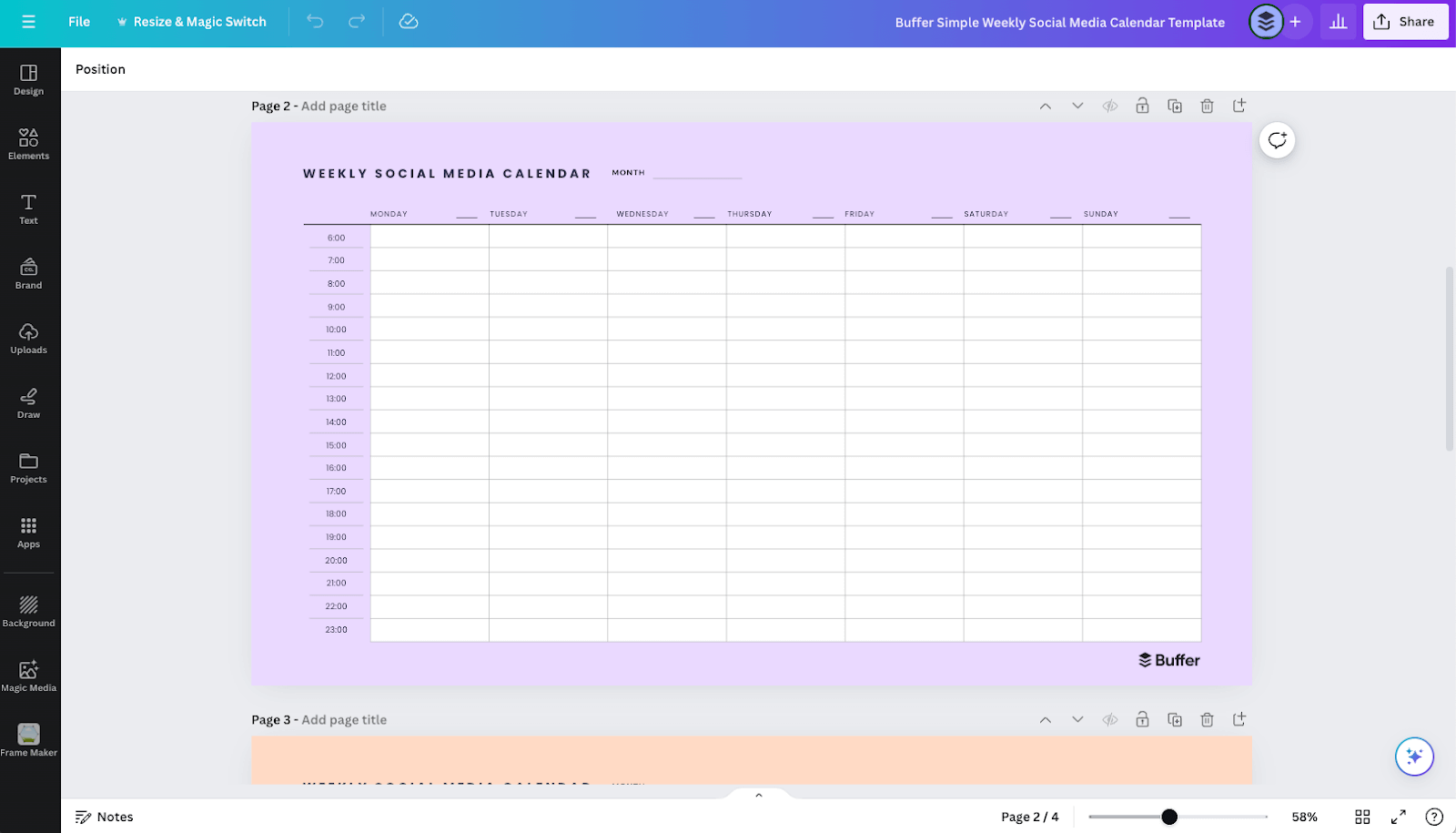
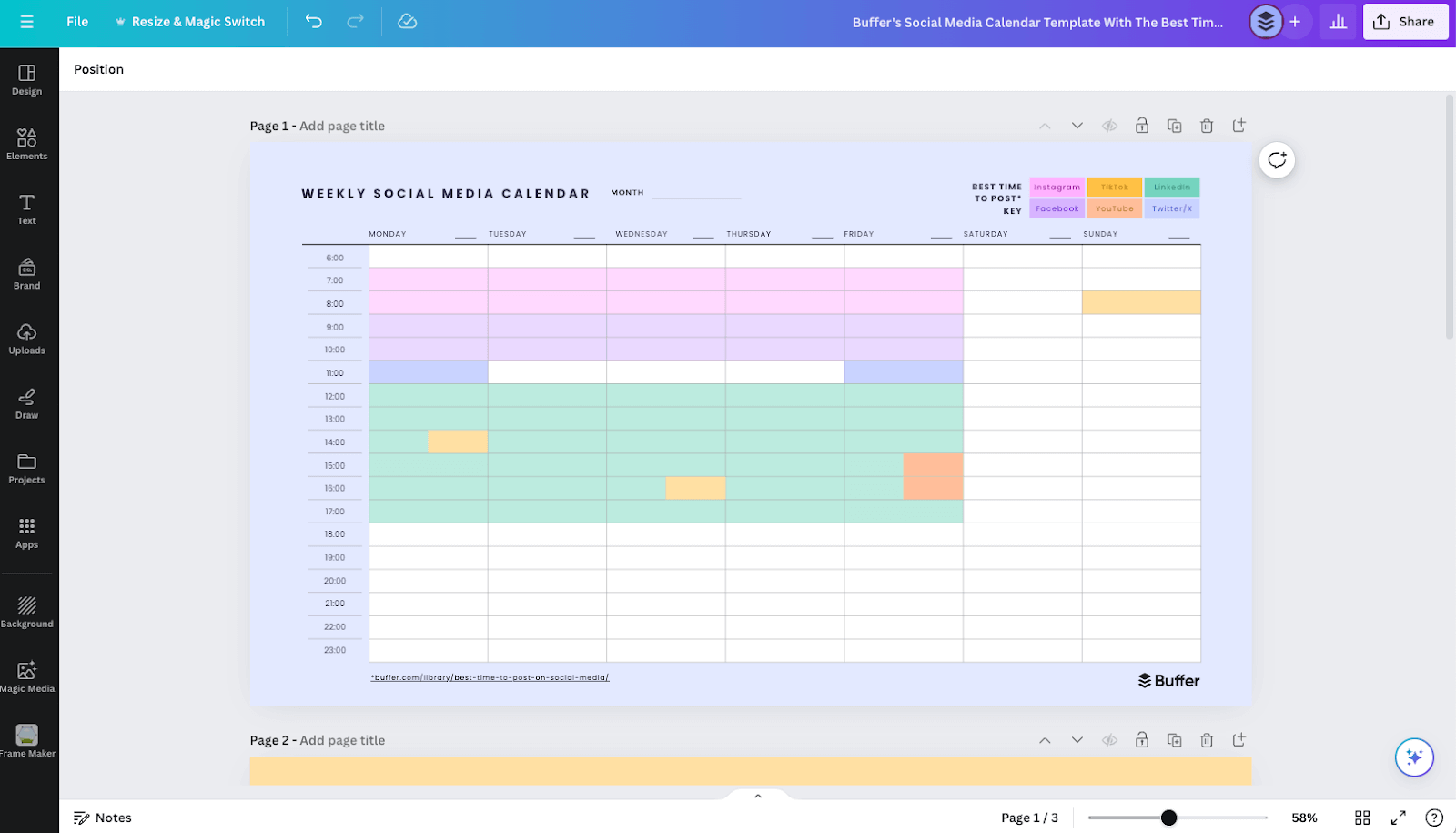
If you’d like to customize the simple calendars above to better suit you, here are the editable versions in Canva (links below). You’ll need a free Canva account to tweak them.
⏰ Get the best times to post calendar
🗓️ Get the simple weekly calendar
📅 Get the simple monthly calendar
6. Notion social media calendar template
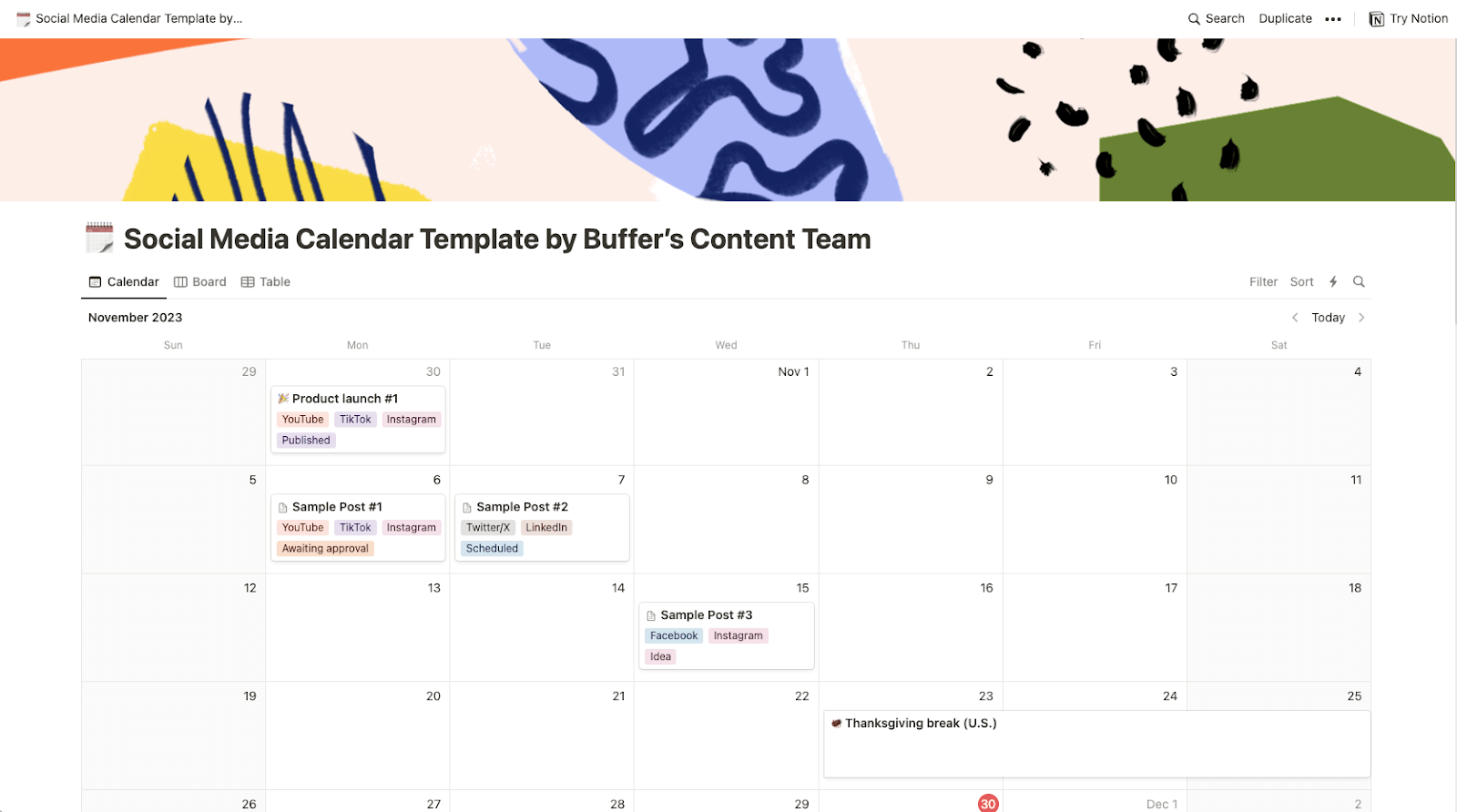
Notion is a flexible project management tool. Unlike some of the simple content calendar templates above, you can easily store the text, captions, and media you plan to use for each post in the calendar itself.
You can also view all your posts in different views, like a list, table, Kanban board, or Gantt chart, which can be useful in planning. It’s a great choice for a content marketing or editorial calendar template too, as you can map out newsletters, blog posts, and other digital marketing campaigns.
How to use this calendar
- Get the Notion template.
- Click on the Duplicate button (the juxtaposed squares icon) in the top right corner.
- Create a free Notion account if you don’t have one already.
- The social media content calendar template is yours to edit as you see fit.
7. Google Sheets social media calendar template
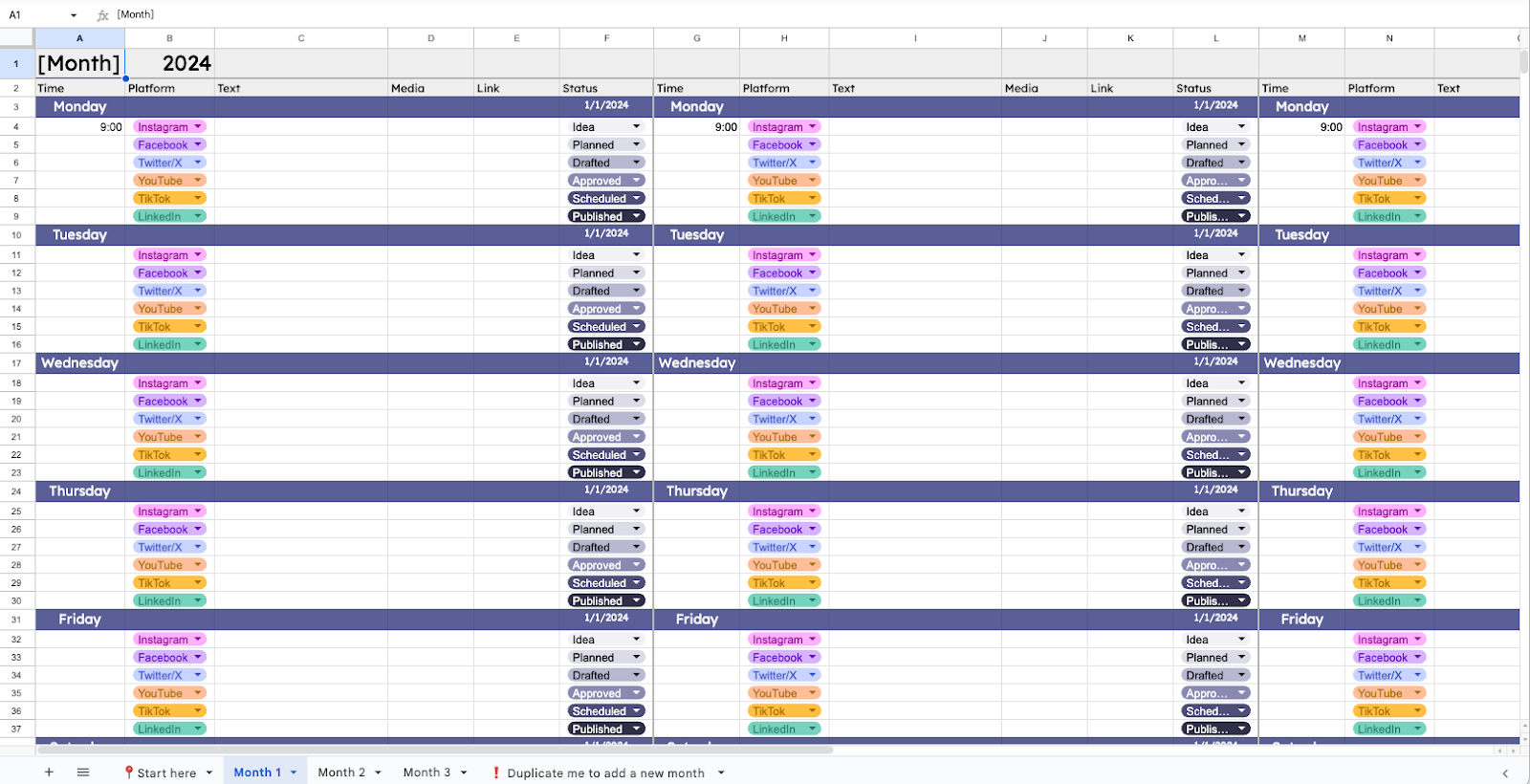
If a spreadsheet is your happy place, a Google Sheets social media calendar template is hard to beat — it's free, it lives in the cloud, and you can customize it endlessly without learning a new tool.
I particularly like how you’re able to use specific custom colors for the list options, too. I like my content calendars to be pretty.
This free content calendar template is, along with Buffer and Notion, one of the most customizable on this list. It's also suitable for storing entire posts and captions, rather than just making notes, as you would have done in the simple calendar templates above. If Microsoft Excel is more your speed, you can convert it in a couple of clicks (I've covered that in the steps below).
How to use this calendar
- Make a copy of the Google Sheets template.
- Read the instructions on the Start here sheet.
- The social media content calendar template is yours to edit as you see fit.
📊 Get the Google Sheets template
✨ Calendar templates from our community
Social media calendars are pretty personal, and what works for one marketer, creator, or entrepreneur might not work for another.
With that in mind, I turned to our community, which graciously shared their real-life calendars, or even turned them into templates that you can use and download.
8. Simon Heaton’s kanban calendar
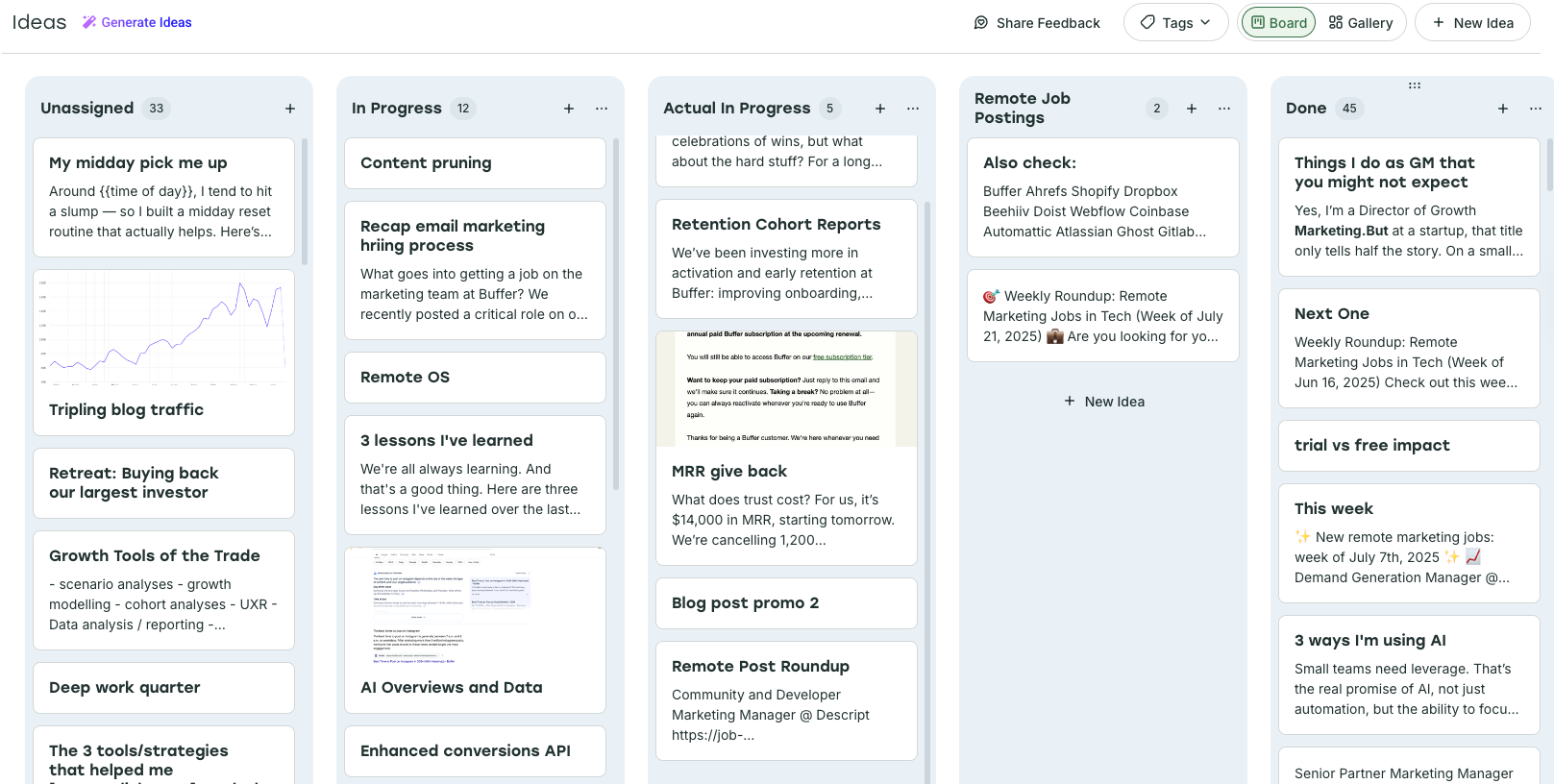
Buffer’s Director of Growth Marketing, Simon Heaton, leans on Buffer’s Create Space to plan his content and the calendar to schedule it. He’s organized the Create Space kanban columns by content status — things like To Do, In Progress, and Ready to Schedule.
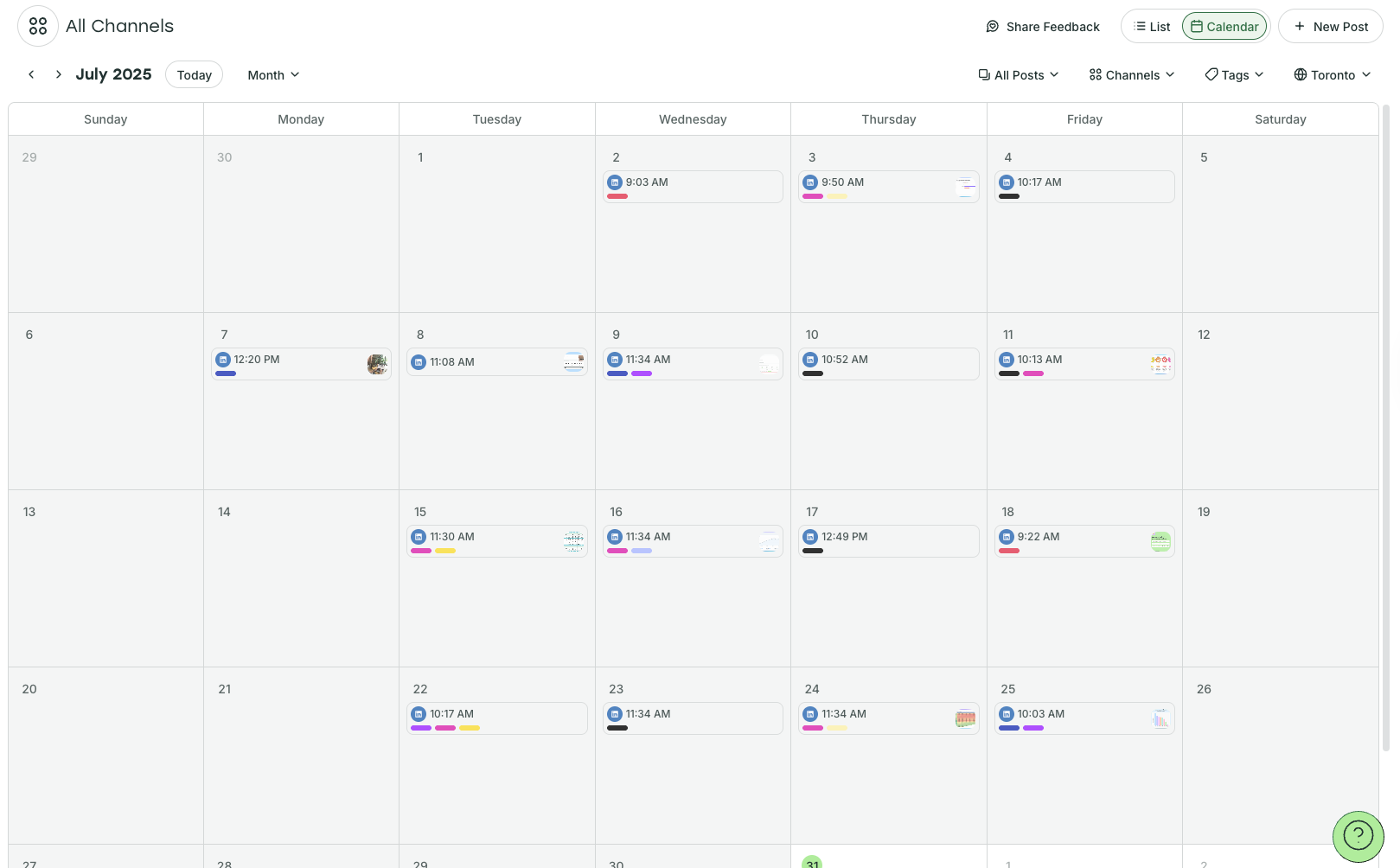
Simon used Tags as another layer of organization in his Buffer social media planning calendar, with each color-coded tag corresponding to one of his content pillars (note the colored bars on his publish calendar above).
How to set up your Buffer like Simon
- Click on the Get started with Buffer link.
- Create your Buffer account if you don’t already have one, and click Connect Channels (you can connect up to three for free). Choose the platform you want to start with and follow the steps.
- Click on Create on the menu at the top left to navigate to the Create Space.
- Toggle on ‘board view’ on the top right. Choose + New Group on the right to start a new column, and choose your desired column names.
- Click on Tags (also top right) and the settings cog symbol to create your tags.
9. Aiza Coronado’s email x ChatGPT calendar
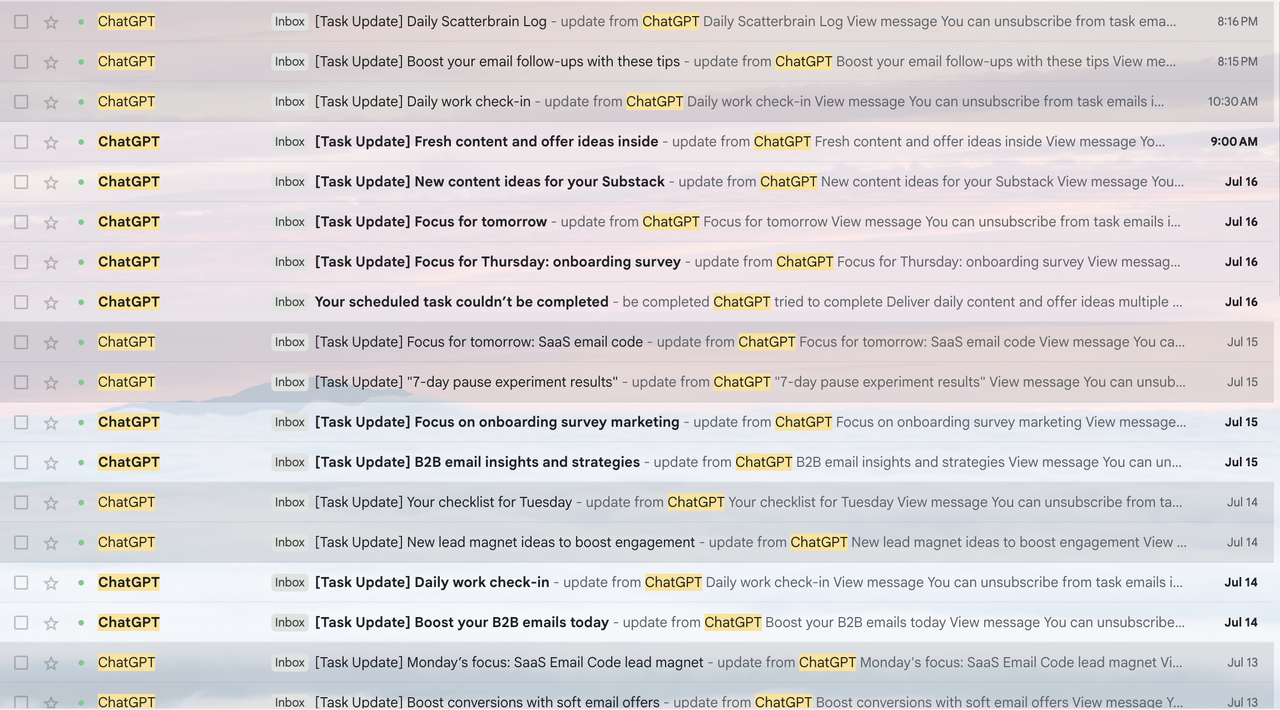
Aiza Coronado, marketer and founder of The Glimmer Code, has a very unique approach to her social media content planner. She has it sent straight to her email. She prompted her AI tool of choice, ChatGPT, to generate ideas for her, then set up a ChatGPT task to have them sent straight to her email inbox.
Bonus: It doesn’t just help her plan when to share the content; it also helps her plan what the content will be.
“The prompt is super simple,” she says. “I used something like, 'From our past conversations, find and list email marketing insights, possible content ideas, and Substack topics I wanted to write about'.”
“The titles are cheesy, but it works as idea sparks,” she says. “I just need to remember what I did. And ask AI to uncover hidden insights I might have missed.”
How to create this system
- Once you’ve landed on an output you’re happy with, you can create a task in ChatGPT at a cadence that suits you. Prompt in the same chat: “Send me one of these content ideas every morning,” or similar. Here’s more info on how to create a task in ChatGPT.
- You’ll receive the tasks in your email inbox. Click on them to go back to ChatGPT and make changes before posting via the platform or social media scheduling tool.
I’ve created a more generic prompt you could use for the same purpose.
In ChatGPT, use a prompt like this one to start the conversation: “I’m a [job title/creator] who creates content about [X, Y, Z]. My target audience is [demographic]. I create [X] posts a week on [platform/s]. Find possible content ideas for me.”
10. My simple calendar for TikTok consistency
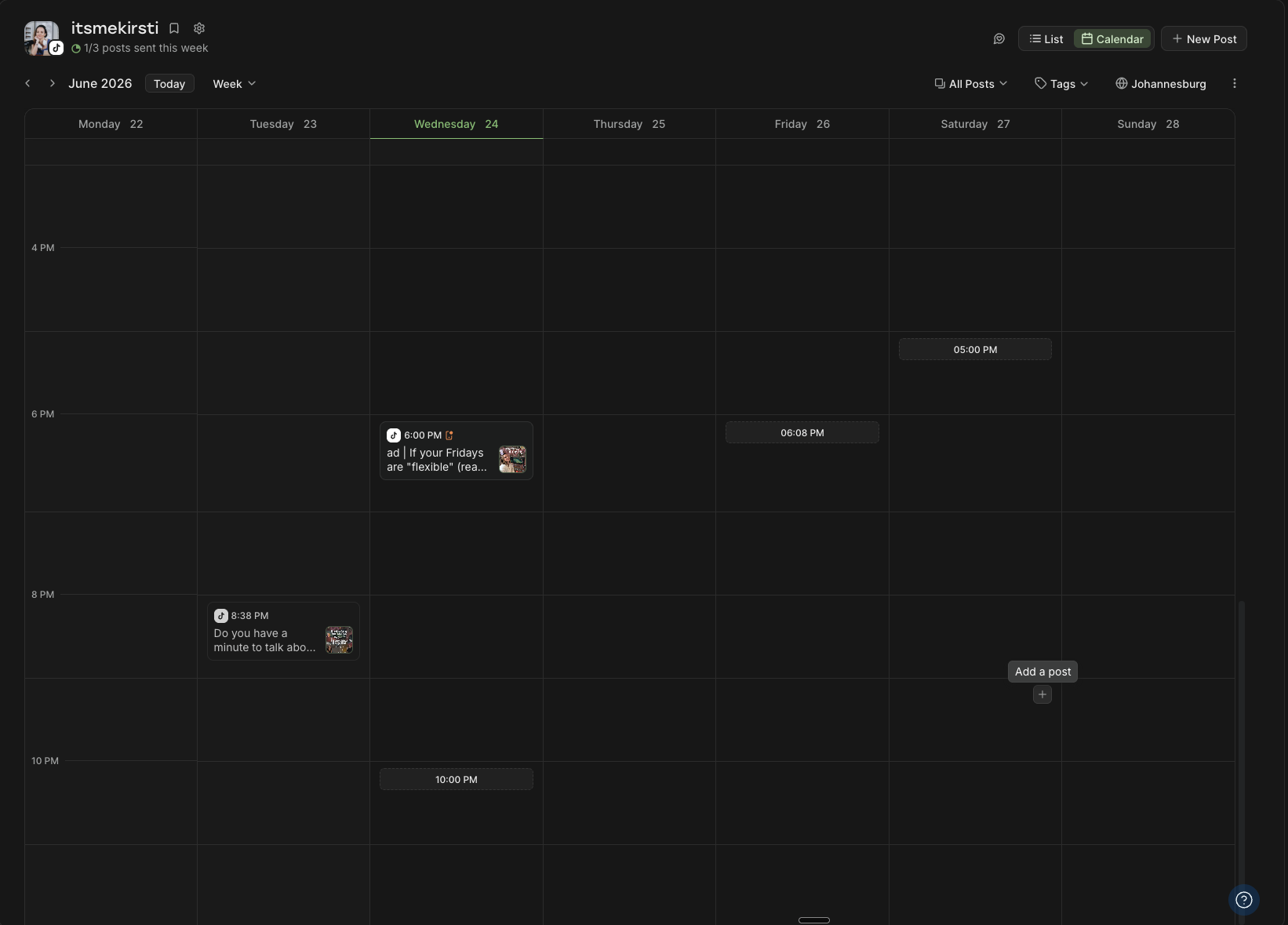
Using the info from our best time to post on TikTok study and analyzing my own video performance, I've pinpointed the best times for me to share a video on TikTok every day. I've set up my Buffer content calendar to reflect those high-performing timeslots.
Bonus: This works for any social channels, not just TikTok.
How to set up your Buffer like me
- Get started with Buffer
- Create your Buffer account if you don’t already have one, and click Connect Channels (you can connect up to three for free).
- Choose the platform you want to start with and follow the steps. When you connect a new channel, you’ll be prompted to create a posting goal.
- If you want to create a posting goal for a channel you have already connected, choose your channel from the channels list on the left-hand side, then click on + Set a posting goal right below the channel title.
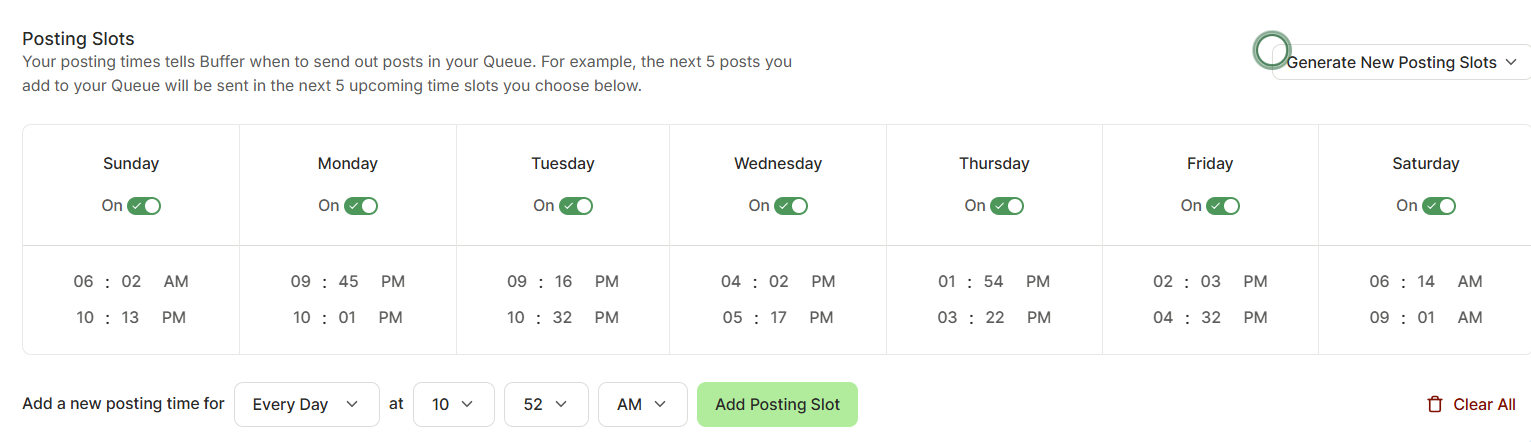
- To set posting times to appear in your calendar, click on the cog icon next to the channel name (also visible in the image above). Scroll down to Posting slots to add or remove slots to your calendar.
11. Kiran Shahid’s calendar for personal brand-building
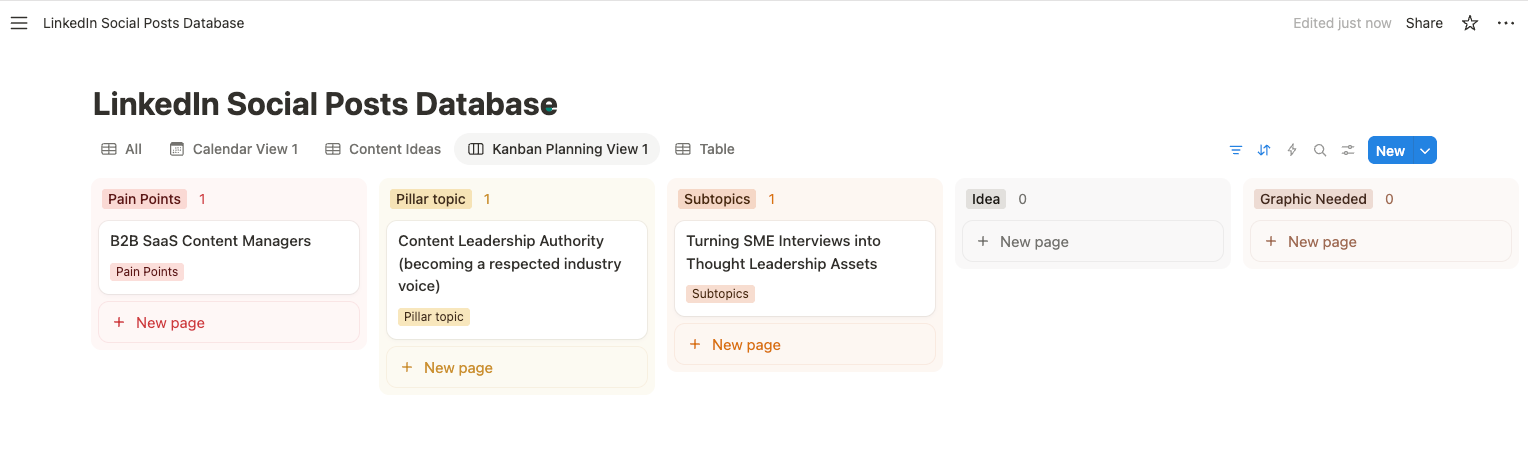
Kiran Shahid has built an impressive personal brand on LinkedIn. Thanks to the robust system she created on Notion while growing on LinkedIn, she’s finding her new Instagram project a whole lot smoother.
“I have these systems in place; I’m finding it so easy to start and have a content bank ready before I launch,” she explains. “If an idea pops into my head, I can note it down on Notion and develop it later when I sit down to plan my weekly content.”
The system is great for anyone who wants to be intentional about building a personal brand, she adds.
“Apart from making sure I never run out of ideas, having them all in one place makes repurposing a breeze, too. On days I’m feeling a bit lazy, I can simply copy-paste an old idea to make sure there isn’t a big gap in my scheduling.”
How to use this calendar
- Get the Notion template.
- Click on the Duplicate button (the juxtaposed squares icon) in the top right corner.
- Create a free Notion account if you don’t have one already.
- Kiran’s social media content calendar template is yours to edit as you see fit (use the tabs to see different sections and views).
How to create a social media calendar
Templates are the fast lane, but if none of them quite fit, building your own calendar from scratch isn't hard. At its core, a social media calendar maps out what you'll post, when you'll post it, and on which platforms so you can plan ahead instead of figuring it out on the fly. Here's the eight-step process I've used as both a social media manager and a creator.
1. Start with your strategy
Before you open any calendar tool, get clear on the basics: why you're posting, who you're trying to reach, and what you'll actually post about. Having clear goals, understanding your target audience, and defining your content pillars will make your marketing efforts much easier. It also helps to note any key dates, events, or campaigns on the horizon. Your calendar should support your overall goals, not just fill time slots.
2. Pick your tool and format
Choose the home for your calendar based on how you actually like to work. A spreadsheet like Google Sheets, a flexible workspace like Notion, or a publishing scheduler like Buffer are all solid starting points. The best system is the one you'll actually keep using, so try not to overthink it. You can always migrate later.
It would be remiss of me not to point out that there are a host of perks to housing your social media calendar in Buffer beyond the ability to plan and schedule in a single tool:
- A high-level monthly view for big-picture planning
- A more in-depth weekly view to see all the key details at a glance
- The ability to exclude certain channels from view for extra clarity and focus
- Thanks to Buffer’s mobile app, you can check or amend your calendar on the go
📲 Download the Buffer app for iOS here
📲 Download the Buffer app for Android here
3. Set your cadence
Decide how often you'll post on each platform, and be realistic. Three posts a week you can sustain beats seven you'll abandon by Thursday. Consistency is the one piece of advice that survives every algorithm update. As a general rule, try to plan at least two to four weeks ahead — far enough to stay organized, but with enough flexibility to swap things around when something timely comes up.
4. Build the skeleton
Map out your posting slots (the days and times you'll publish). At Buffer, we think of the posting schedule for every social media platform as a Queue — basically, set time slots every week for posting.
You don’t have to stick to this, of course, but it’s a really handy way to commit to the cadence you laid out in your social media strategy. As time goes on and you experiment with different timings and frequencies on all the platforms you’re using, you’ll be able to pinpoint the slots that work well for your target audience.
To set up your Queue, click on your chosen channel, then click on the cog icon next to your name and profile picture. Here you'll find the options for your posting slots, which you can edit according to your strategy.
5. Get your content ideas down
Now, it’s time to roll up your sleeves and get to work on the actual content creation. This is where Buffer’s Create Space comes in. It’s a versatile system that you can use as a hub for all your ideas.
6. Organize in a way that makes sense to you
Color coding is my organizational love language (you should see my bookshelf). Color-coding or tagging by content pillar, status, or format makes a busy calendar legible at a glance. It also makes it far easier to spot gaps like three promo posts in a row, or a week with no video.
You could use Buffer's Tags to tag posts by content pillar, post status, format, and platform.
What’s really neat about Tags is that they translate over to the Insights section. You can filter your analytics by tag and measure the performance of one content pillar against another. This has been incredibly useful for me as I experiment with my content pillars to see which resonate the most with my audience.
Here's how to create and manage Tags on Buffer:
7. Start planning
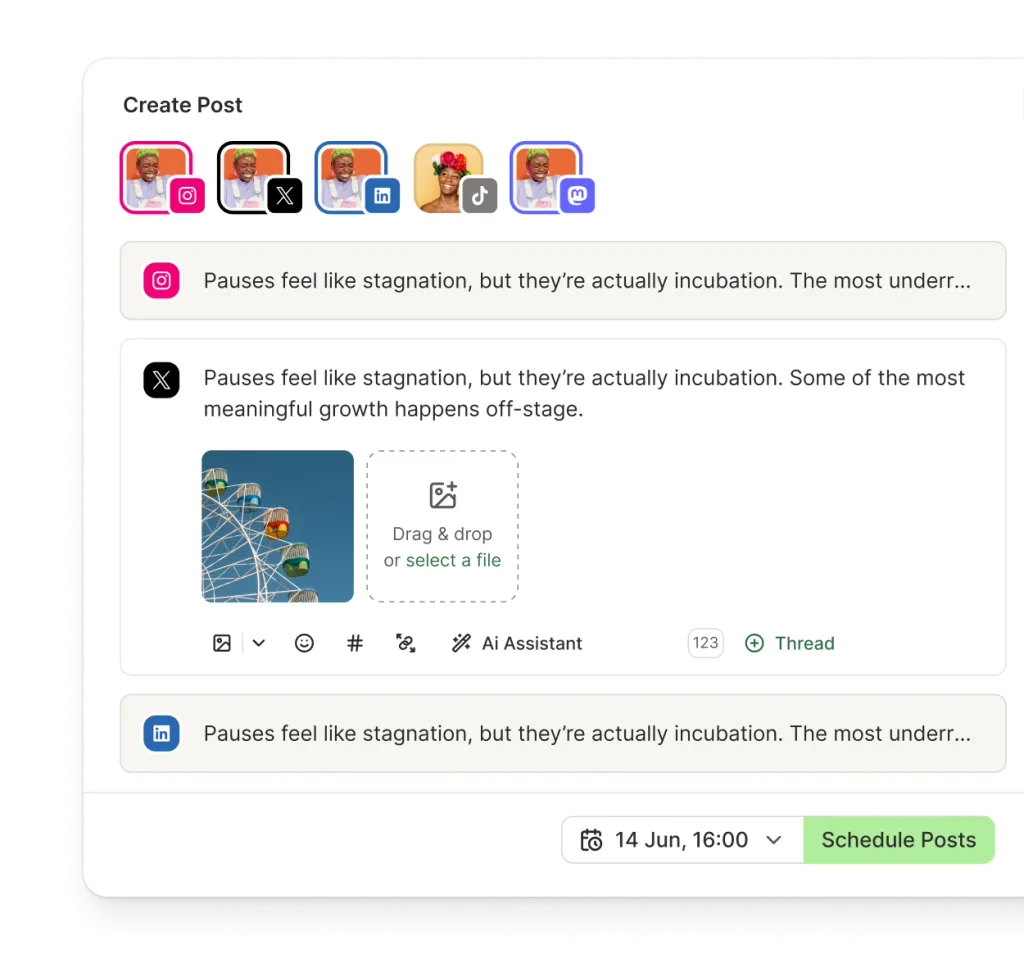
Now comes the fun part: slot your ideas into the calendar. Select an idea that’s ready to go in Create, then click on the Create Post button. Tailor your post to each platform, then choose if you want to schedule, queue, or post immediately.
8. Review and adjust
A calendar isn't set in stone. Check in at the start of each week, move things around, and leave room for reactive posts. Over time, your own analytics will tell you what's working. Keep an eye on metrics like impressions, clicks, likes, and comments to spot patterns.
Buffer's Insights make this easy to do at a glance. As you learn what resonates, you'll start repurposing your best-performing posts and doubling down on what your audience loves.
Social media success starts with a calendar
While a lot of the guidance for social media success changes often, there’s one tip that always remains: be consistent. Whether you're a content creator, social media manager, or small business owner, showing up consistently matters more than posting constantly. Even two or three well-planned posts a week can build real momentum. And the best way to stay consistent? A social media content calendar.
Pick a template from the list above, or build your own — and if you want a calendar that also publishes for you, give Buffer's free plan a try.
Social media content calendar FAQs
If you're new to using social media calendar templates (or just creating a social media content planner in general), here's some handy guidance from someone who lives by them.
Why do I need to use a social media content calendar?
A social media calendar keeps your content organized and your posting consistent — two things that matter more than almost anything else on social media.
Here's what it actually helps with:
- Consistency. Regular posting keeps your audience engaged. A calendar means you're never scrambling for something to post at the last minute.
- Time savings. Batch your content creation in one focused session instead of switching context every day.
- Strategic planning. Map your posts around key dates, campaigns, and goals so your content works toward something, not just fills a slot.
- Content variety. See your mix at a glance and make sure you're not posting the same type of content on repeat.
- Team collaboration. If you work with others, a shared calendar keeps everyone aligned on what's going live and when.
What should I include in my social media calendar?
Your calendar doesn’t need to be fancy; it just needs to work for you. Here are a few things most calendars include:
- Posting dates and times
- Platform and post format (reel, story, text post, etc.)
- Captions and visuals (or at least notes)
- Content pillar or category
- Status (drafted, scheduled, published)
Some people go all in with hashtags, CTAs, social media campaign labels, audience segments, and all the necessary details on their marketing calendar, but if that feels overwhelming, start with a simple social media planner and build from there.
Is there a free template for a social media calendar?
Yes, this article includes 11 free templates in a range of formats:
- Buffer's calendar: plan and auto-publish posts in one place, no download needed
- PDF calendars: a simple weekly view, a monthly overview, and one pre-filled with the best times to post on each platform
- Google Sheets: a customizable spreadsheet you can share with a team
- Notion: flexible enough to store captions, links, and media alongside each post
- Canva: editable versions of the PDF calendars if you want to add your own colors and branding
Every template above is free. Scroll up to the full list to find the format that suits how you like to work.
How do I create a social media calendar?
Here's the short version: Start with your goals and content pillars, choose a tool, set a realistic posting cadence, collect your ideas, and schedule your posts. Then review your analytics regularly and adjust your calendar as you learn what works.
More social media marketing resources
- How to Create a Social Media Marketing Strategy — 7-Step Guide
- Buffer vs. Hootsuite: Which Social Media Management Tool Is Right For
- The Best Social Media Scheduling Tools (+ How to Find the Perfect Fit)
- The 11 Best Social Media Management Tools — Tried + Tested
- 9 Tools for Social Media Automation (+ Automation Pro Tips)
- The Best Social Media APIs for Developers + Vibe Coders
Try Buffer for free
200,000+ creators, small businesses, and marketers use Buffer to grow their audiences every month.