Canva
Design stunning social media graphics without leaving Buffer
Content Creation
Canva integration for Buffer
Canva's built-in integration lets you create, edit, and publish eye-catching visuals directly from the Buffer composer. Access thousands of templates, brand assets, and design tools; then schedule your content in one seamless workflow.
Getting started
You'll need a Canva account to use this integration. If you don't have one, you can create one free at canva.com.
FAQs
How does Buffer's Canva integration work?
How does Buffer's Canva integration work?
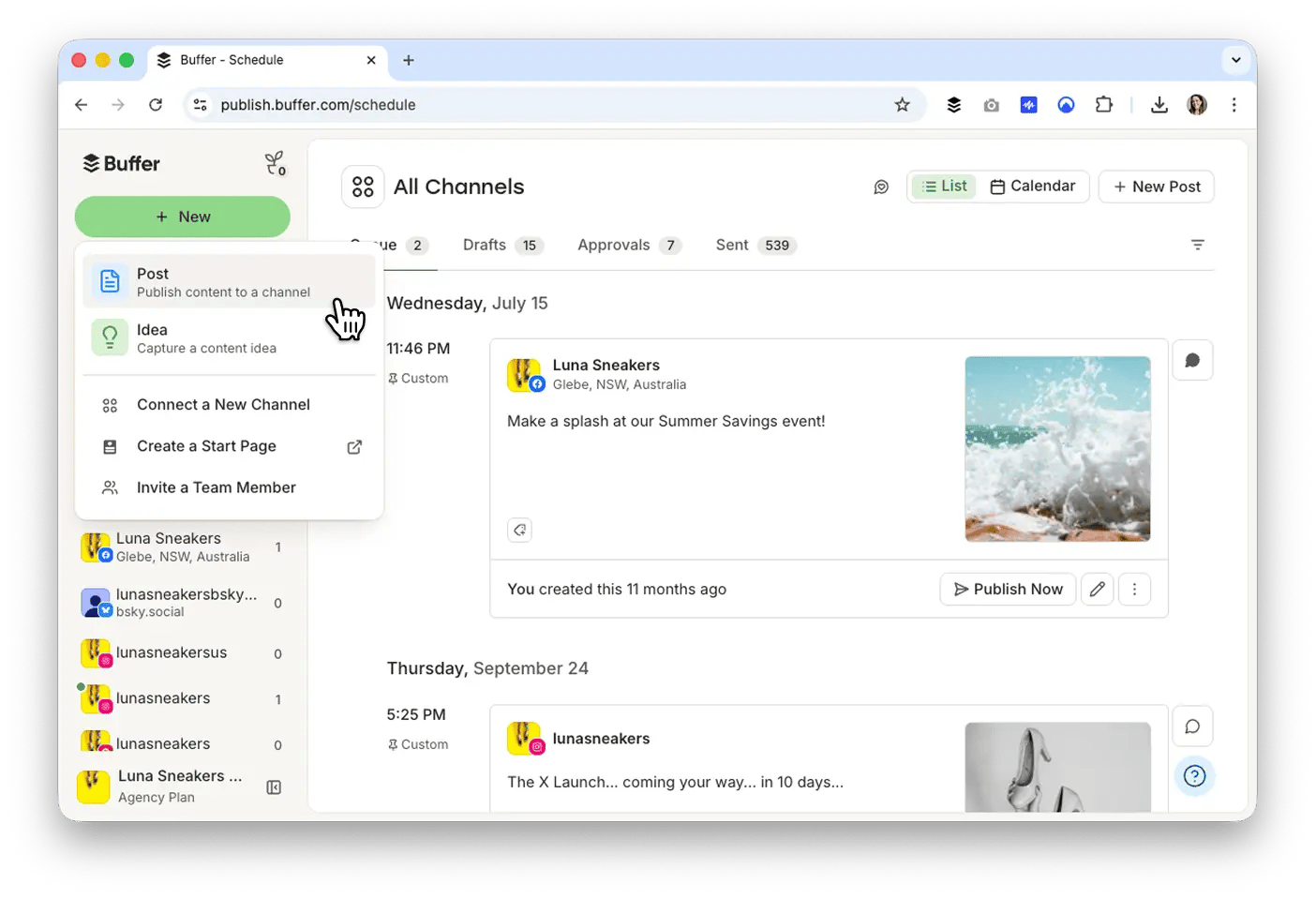
Buffer's Canva integration lets you create, edit, and add Canva designs to your posts without leaving the Buffer composer. Open Canva from the composer, design from a template or one of your existing projects, then click Return to Buffer to add the image to your post and schedule it. You can design once for all your channels using the Omnibox, or create a version sized for each individual network.
How do I connect Canva to Buffer?
How do I connect Canva to Buffer?
Open the composer, select your channel, then click the small arrow next to the integrations button and choose Canva. If you're already signed in to Canva, you're ready to go; if not, you'll be prompted to log in or create a free account. Once connected, Canva stays in your composer for every post. Managing more than one Canva account? Log in to the one you want at canva.com first, then refresh Buffer.
Is the Canva integration free?
Is the Canva integration free?
Yes. The Canva integration is included with Buffer at no extra cost, and it works on Buffer's Free plan with no credit card needed. You'll need your own Canva account, which is also free to create at canva.com. You don't need a paid Canva plan to design and schedule, though some Canva features sit behind Canva's own paid tiers.
Can I use the Canva integration in the Buffer mobile app?
Can I use the Canva integration in the Buffer mobile app?
Not yet. The Canva integration is available in Buffer on desktop only, so it isn't supported in the Buffer iOS or Android apps. To design with Canva and schedule through Buffer, you'll want to be on a desktop browser. You can still schedule and manage posts that already have images from the Buffer mobile apps as usual.
What image sizes and file types does the Canva integration support?
What image sizes and file types does the Canva integration support?
The integration works with PNG images, and you can add one image at a time. Sizing follows the template Buffer provides: designs created in the Omnibox come out square at 1080 x 1080px, while designs for a single channel use that network's optimal size. For example, Instagram Post is 1080 x 1350, Instagram Story 1080 x 1920, Facebook 940 x 788, X 1600 x 900, LinkedIn 1200 x 627, and Pinterest 1000 x 1500. Resizing happens through these templates rather than freely, as it does in Canva.
Can I edit a Canva design after I've scheduled or published it?
Can I edit a Canva design after I've scheduled or published it?
Yes, as long as the design was created through Buffer's Canva integration. Hover over the image in a queued or sent post, click the Canva C logo to reopen the editor, make your changes, and click Return to Buffer to save. Each queued image is edited separately per channel, so editing the image in a Pinterest post won't update the same image in your Facebook post. Images that weren't made through the integration won't have an edit option.
Can I upload videos or animated designs through the Canva integration?
Can I upload videos or animated designs through the Canva integration?
No. The integration doesn't support animated or video designs, so an animated Canva design comes through as a static image. As a workaround, export it from Canva as an MP4 and upload that file to Buffer manually, and Buffer will publish the video for you. For static graphics, the integration works directly, with no downloading and re-uploading needed.
How do I schedule a Canva design to social media with Buffer?
How do I schedule a Canva design to social media with Buffer?
Create a new post in Buffer, open Canva from the composer, and design or choose a template. When your graphic is ready, click Return to Buffer, pick your channels, and add the post to your queue, schedule it for a specific time, or publish right away. Buffer takes care of publishing to each connected platform for you.
How do I get started with Canva and Buffer?
How do I get started with Canva and Buffer?
Get started for free, connect your social channels, and open the Canva integration from the composer when you create your first post on desktop. There's no credit card required and nothing to install, so you can design your first graphic in Canva and schedule it without leaving Buffer.
Grow your social presence with confidence
No credit card needed. Free forever.