
The first time I opened Meta Ads Manager, I closed it again within about 90 seconds. I consider myself a pretty tech-savvy person (love a new tool, I do), but even I found all the buttons and options overwhelming.
Good news, though: I figured it out, and you can too — promise. It isn't actually difficult once you know the correct order for things. Plus: running Facebook ads is seriously worth it, if that's where your audience hangs out. (With more than 3 billion users on the platform, it probably is.)
To run Facebook ads, you create a Meta Ads Manager account (you'll need a Facebook Page and a verified payment method), pick a buying type and a campaign objective, set your budget and schedule, choose who sees the ad and where it appears, build the creative, then publish it for review. Everything hangs off three layers — campaign, then ad set, then the ad itself.
OK, that might sound like a lot, but we got this. I'm going to walk you through it, step-by-step.
Key takeaways
- Massive reach: Facebook gives advertisers access to billions of people worldwide.
- Precision targeting: Advertisers can target users based on specific demographics, behaviors, and life events, or use Meta Advantage+ AI for automated targeting.
- Centralized management: All campaigns are managed through Meta Ads Manager, requiring a verified payment method and a Facebook Page.
- Flexible budgeting: You can set daily or lifetime budgets, with a minimum of $1 per day per ad set.
- Real-time tracking: Use the Meta Pixel and Conversions API to track website conversions and adjust campaigns based on live performance data.
Jump to a section:
Why advertise on Facebook?
Facebook advertising is worth the setup time for one reason: the targeting. You can reach people by life event, job history, or recent purchase behavior, which almost no other platform offers.
It also solves a problem that organic posting can't. The Facebook algorithm decides who sees your page content, and that decision isn't yours to make. But paid reach is another story entirely.
Target customers accurately
Facebook has tons of user data, and you can tap into it when targeting your audience.
When creating a Facebook ad, you can get specific with demographics about Facebook users, like gender, location, and age. Where Facebook differentiates itself from other platforms with ads, though, is through lifestyle-based targeting options, like:
- Interests
- Behaviors (like recent purchases)
- Education and job history
- Income (depending on location)
- Major life events
- Spoken languages
Don't want to build the audience yourself? Meta's Meta Advantage+ features help to "maximize performance by using AI to optimize campaigns in real time and match ads to the people most likely to take action."
Get powerful results
Meta Ads Manager takes a couple of sessions to get comfortable with, and most campaigns start delivering impressions within a few hours.
Reach billions across Facebook and Instagram
Because Meta owns both Facebook and Instagram, their platforms are easily integrated. This means that ads can be run simultaneously on both platforms, giving you access to even more social users, even if you aren't active on Instagram.
That's unusual. On most social media platforms, you're buying reach on one network at a time.
Track ad performance in real time
While Meta got rid of its full Facebook Analytics platform in 2021, it still has excellent resources for understanding ad performance, including reach, engagement, conversions, and more metrics. This data is updated in real time, so you can adjust your campaigns based on performance.
Another significant benefit of Facebook's current analytics is the ability to add the Meta Pixel to your website. Most content management platforms allow you to easily add this piece of code to your website and track the effectiveness of your Facebook ads. You can monitor user behavior and create specific target audiences for future Facebook advertising campaigns.
Define your advertising goals before you start
Decide what success looks like before you open Ads Manager, because the objective you pick in step 3 locks in what Facebook optimizes for.
If you want app downloads, pick a number. If it's leads you're after, decide what a useful email list actually looks like. That target is what makes the objective choice obvious when you get to it, and your ad objective should follow your wider social media strategy rather than the other way round.
How to run Facebook ads: step by step
All of Facebook's ad campaigns run through Meta Ads Manager, so learning how to run ads on Facebook means getting to grips with it. The good news is that once you get the hang of it, it's pretty straightforward to use.
Here's the shape of the whole process before we get into the detail:
| Stage | Steps | What you're deciding |
|---|---|---|
| Set up | 1–2 | Ad account access, buying type |
| Campaign | 3–8 | Objective, name, ad category, A/B test, budget optimization, performance goal |
| Ad set | 9–11 | Budget and schedule, audience, placements |
| Ad | 12–16 | Social accounts, format, media and copy, destination, publish |
We'll walk through the desktop version here, but don't worry, we'll cover mobile options later in this guide.
What you need before you start
When you sign up for Facebook, you're given a personal ad account ID by default. You can see this ID by going to Ads Manager and looking in the upper left-hand corner.
To use Meta Ads Manager, you need a verified payment method and:
- A Facebook Page or
- To be an admin, editor, or advertiser on someone else's page
If you do not have a page for your business, you can follow Facebook's steps to set one up. Any page you create will be automatically given an ad account.
If there is a page you wish to advertise for created by someone else, you need to ask the page admin to assign you an admin, editor, or advertiser role on the page.
If you already have an existing ad account for your page but want to start a new one, you'll need a Business Manager account. You can create a new ad account once you sign up for Business Manager.
Here's a time-saver: bookmark this direct link to Meta Ads Manager so you can jump right in whenever you need it. You will be brought directly into the Meta Ads Manager for your personal ad account. If you manage multiple ad accounts, use the account drop-down menu to pick the right account.
To navigate to Ads Manager right from your business page, head to the left sidebar and click on the Ad Center drop-down arrow of any Facebook Page, then choose All Ads from the drop-down. At the bottom of that page is an option to click Ads Manager.
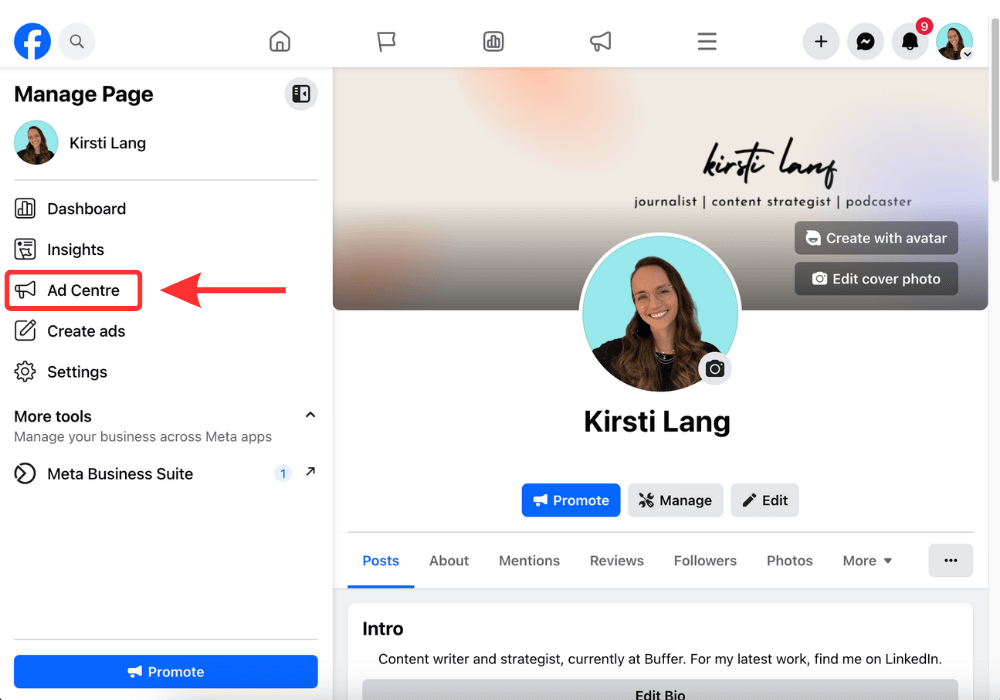
Click on Facebook's Ads Manager to get started. You will be brought to your Facebook Ad Accounts page, where there will be a quick overview of your ad account(s). If you have access to more than one ad account, select the account where you wish to run ads.
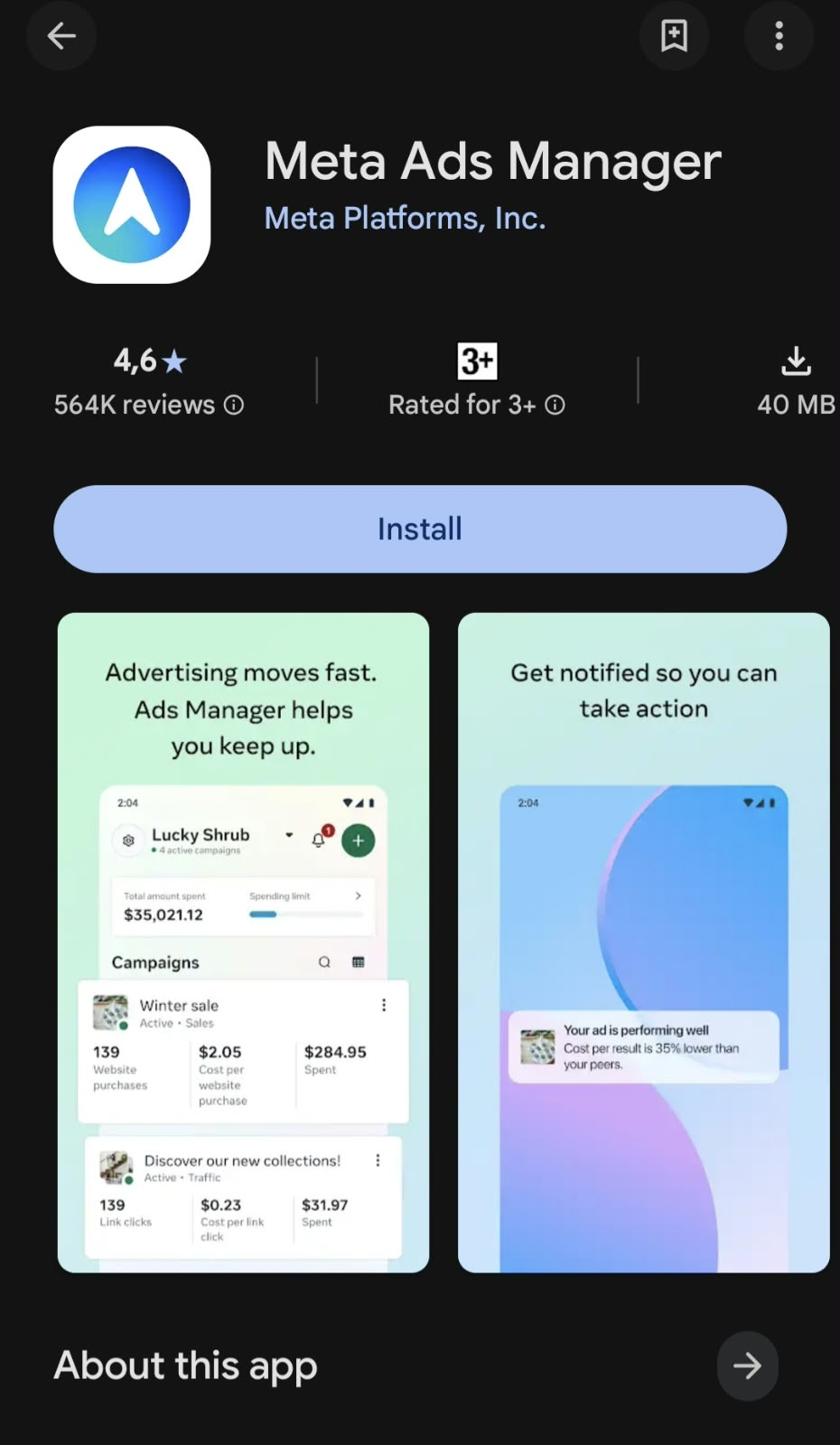
If you'd rather use a mobile device, a Meta Ads Manager app is available for Apple and Android.
1. Create ad
Click the green Create button to get started with your first ad.
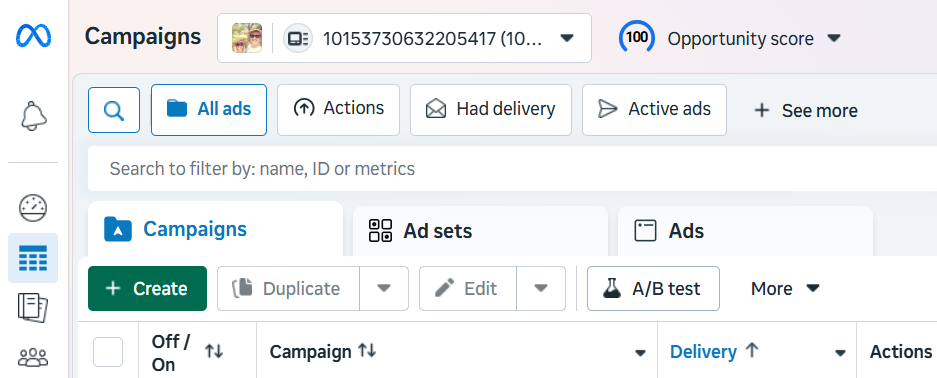
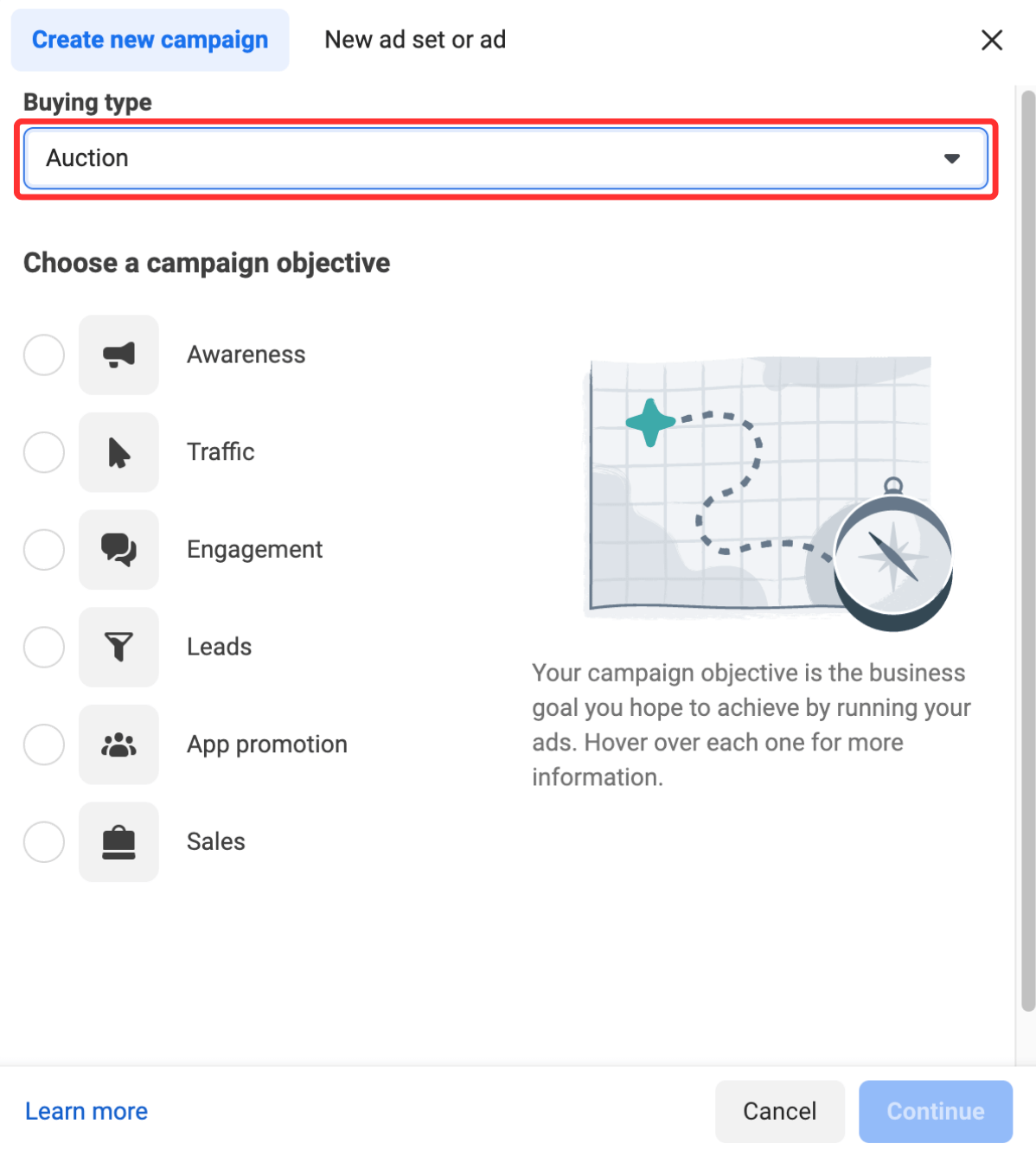
Meta will take you to a page where you will be prompted to choose a buying type and campaign objective.
2. Choose your buying type
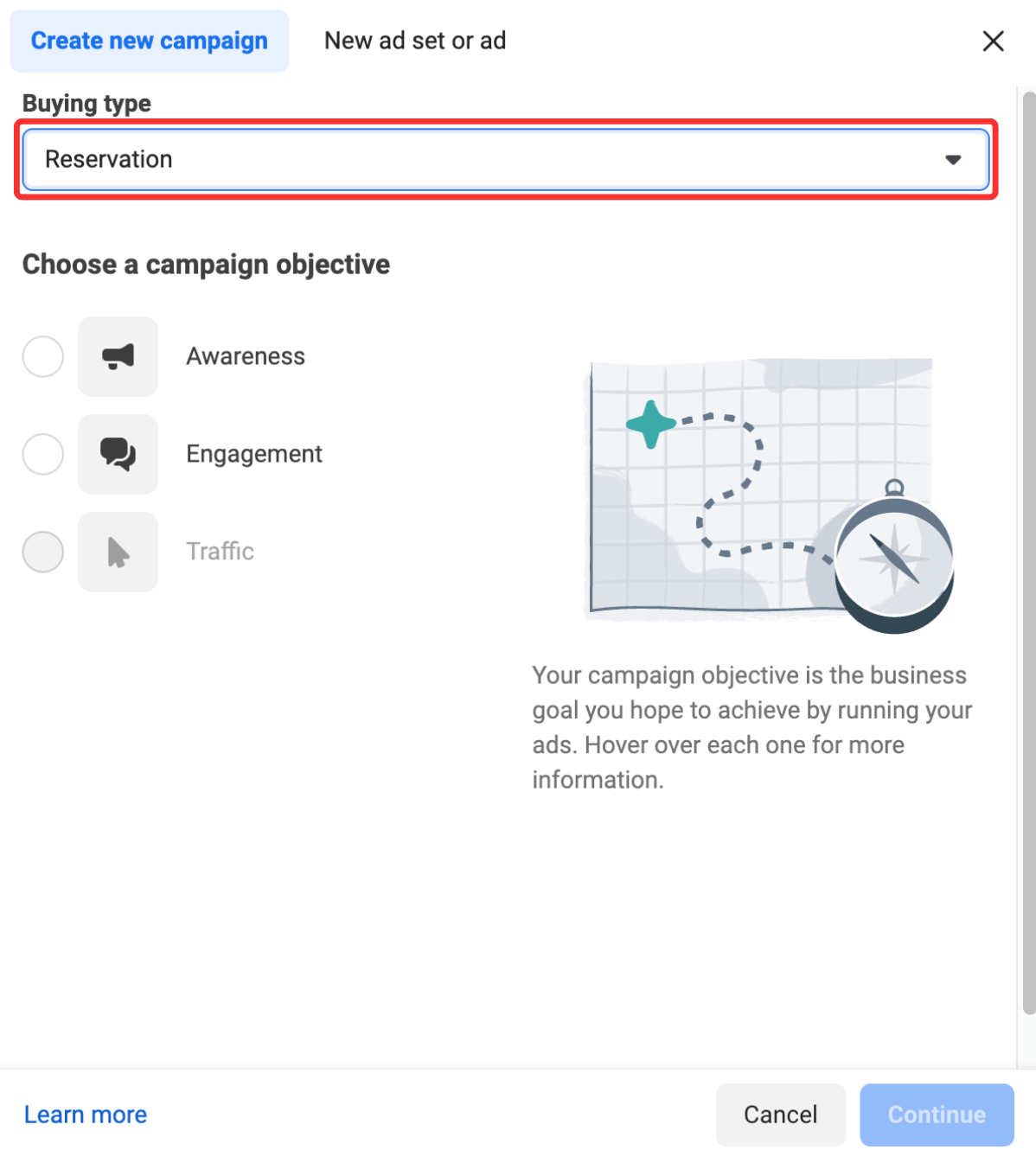
Meta's ads have two different buying types: Auction and Reservation. Here's how they compare:
| Control | Auction | Reservation |
|---|---|---|
| Control | More flexibility, less predictable results | Plan and buy in advance, predictable delivery |
| Objectives available | All six | Awareness and engagement only |
| Placements | Facebook, Messenger, Instagram, Meta Audience Network | Facebook and Instagram |
| Frequency control | Limited | Full control |
Not sure which one to pick? Meta's guidance here can help you figure out what works best for your needs.
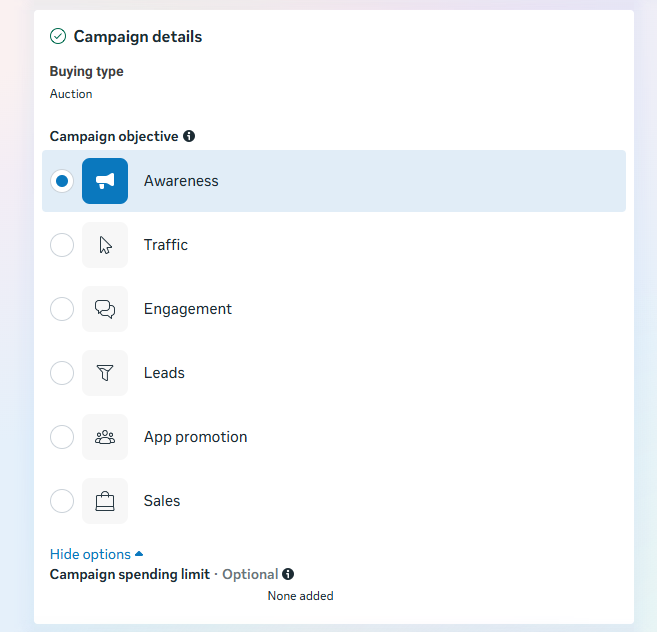
3. Choose your campaign objective
Meta offers six campaign objectives. Pick the one that matches what you actually want the ad to achieve.
| Objective | Best for | Optimizes toward |
|---|---|---|
| Awareness | Being remembered by a broad audience | Reach, brand awareness, video views, store location awareness |
| Traffic | Sending people somewhere specific | Link clicks, landing page views, calls |
| Engagement | Conversations and interactions | Messages, likes, comments, video views, in-app purchases |
| Leads | Collecting contact details | Form submissions, conversions, calls |
| App promotion | New installs or re-engagement | App installs, app events |
| Sales | Purchases | Conversions, catalog sales, in-app sales |
In more detail:
- Awareness: Your ad will be shown to people most likely to remember it. According to Meta, this goal type is good for reach, brand awareness, video views, and store location awareness.
- Traffic: This ad type will send people to a specific destination, like your website, an event, or a download link. It's best for link clicks, landing page views, and calls.
- Engagement: This ad type will make you more likely to receive messages, in-app purchases, likes, and comments. It's also great for video views, conversions, and calls.
- Leads: Your ad may help you collect info from potential customers. It's good for forms, conversions, and calls.
- App promotion: Get more users for your app or encourage current users to keep using it.
- Sales: Find people who are likely to buy your product or service. This route is great for conversions and in-app sales.
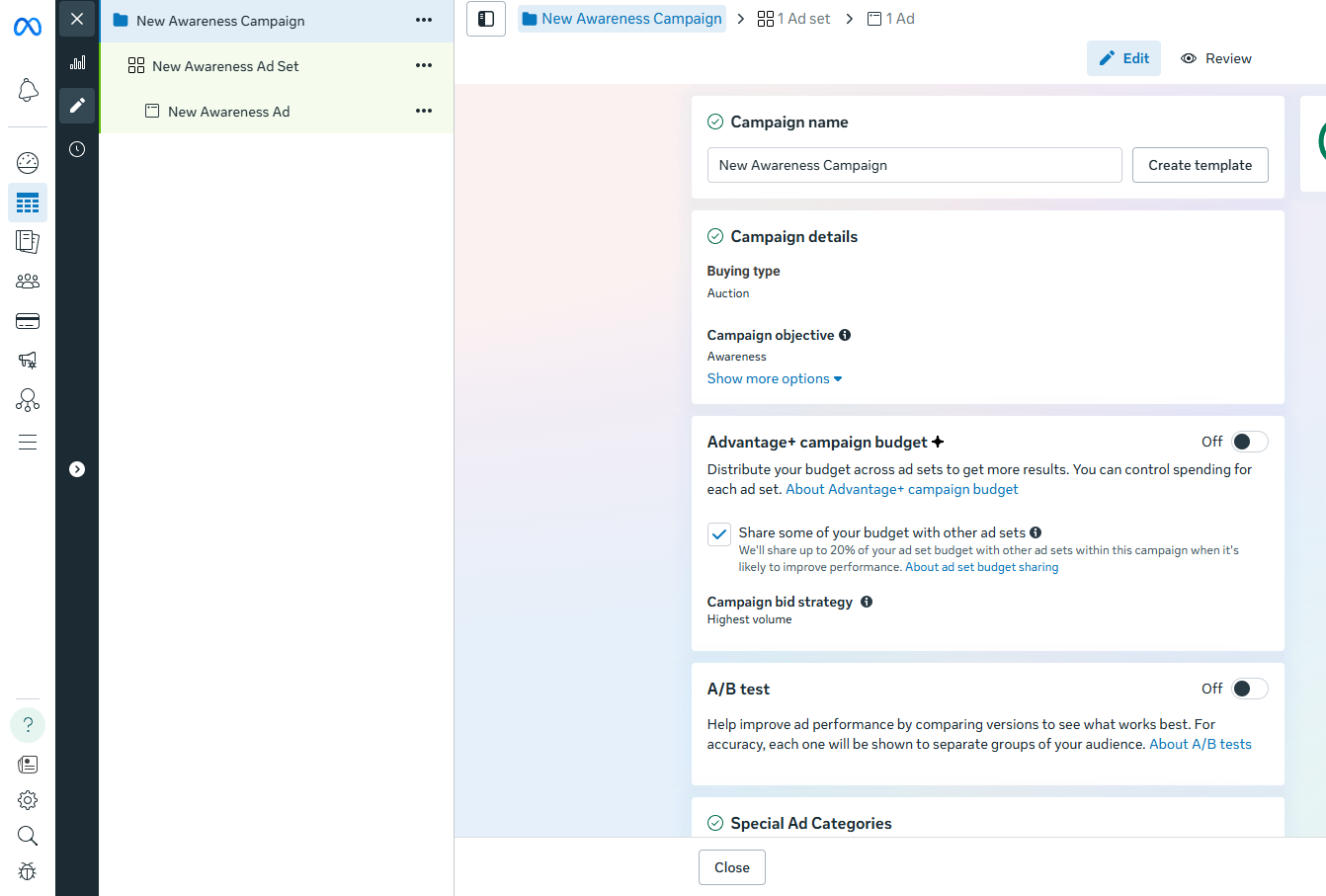
4. Pick a name for your ad campaign
Once you've selected your marketing objective, you'll be asked to name your campaign. Be sure to make your campaign name recognizable to everyone working on the ads.
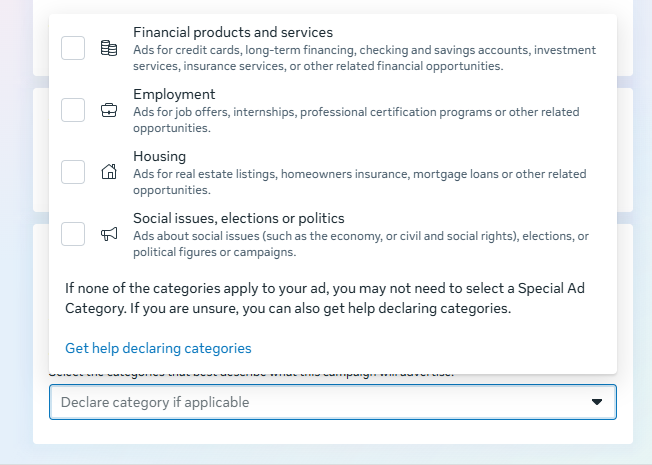
5. Declare your ad category
Different regions have different advertising rules, particularly when it comes to categories like credit, employment, housing, social issues, elections, or politics. If your ad falls into one of these buckets, it's worthwhile declaring it here to ensure it remains compliant with Facebook's and various countries' advertising standards.
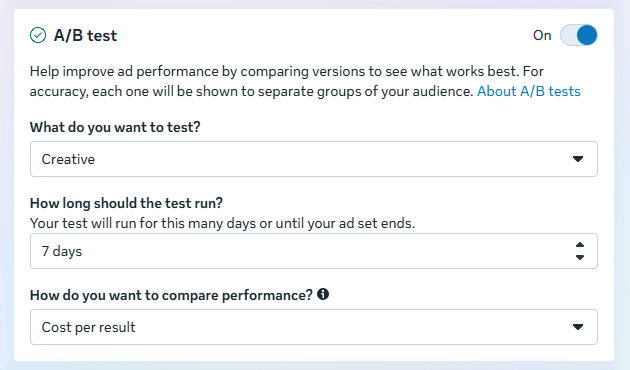
6. Decide whether to turn on A/B testing
At this point in the process, you'll be able to turn on the A/B test feature, where you can try out different images, text, audiences, or placements to maximize your ad performance. The full setup for this will come later in the process — this toggle just turns it on.
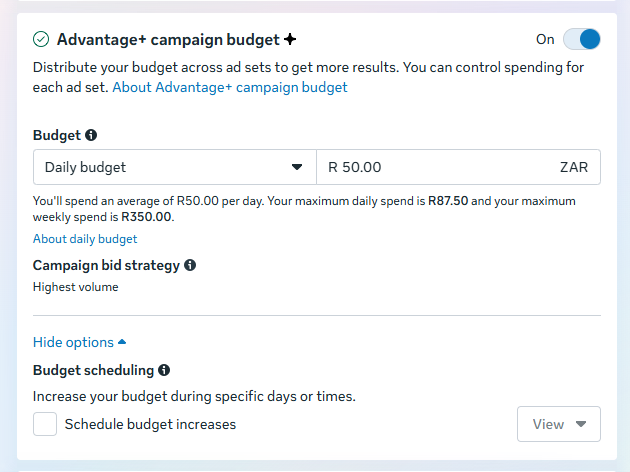
7. Decide whether to use Advantage+ campaign budget
This option is available only if you chose Auction as your buying type. It means Facebook will automatically find the best available opportunities for results across your ad sets and distribute your campaign budget in real time to get those results.
Advantage+ campaign budget (formerly called campaign budget optimization) is best suited for campaigns with at least two ad sets.
8. Set your performance goal
Facebook now allows you to get specific about the ultimate goals of your ad. Each campaign goal mentioned in step 3 has a separate set of targets. For example, Awareness has everything from the broader 'Maximize reach' to the hyper-specific 'Maximize two-second continuous video views.'
If you're new to Facebook ads, it's worth trialing the broader options before zeroing in on targets that lend themselves to your goals and the content you share.
9. Define your ad spend and schedule
When you set an ad budget, it's important to remember that this figure represents the maximum amount of money you want to spend. You can set your budget per day or as a total amount for the campaign.
- Daily: A daily budget sets a limit on what you spend each day on your ads. Facebook will use your set criteria to find the right place and time to show your ad to your target audience. Once your budget is reached, the ads stop running for the day. The cycle starts again on the next day.
- Lifetime: A lifetime budget is the maximum you'll spend over the entire time you run your ad campaign. You give Facebook a number and an end date, and it will spend the money based on ad performance. Once your budget is reached, the campaign ends.
Hit the Next button to go to the next part of the setup.
10. Customize your target audience
Meta recently made some changes to its audience customization settings in Ads Manager, which is why things may look a little different nowadays if you're a regular user.
The main audience panel now shows three controls by default: location, age, and language. Detailed demographic, interest, and behavior targeting sits behind the Advantage+ audience settings rather than on the first screen.
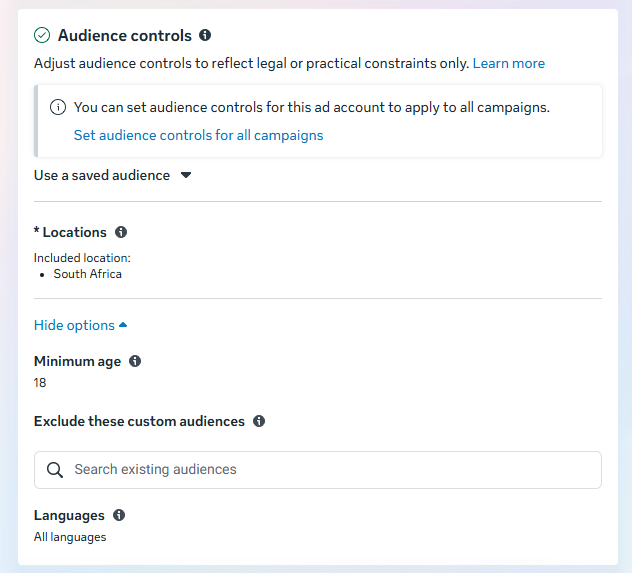
It helps to know which of Meta's three audience types you're building:
- Saved audiences: Built from scratch using location, interests, behaviors, and demographics. Save one and you can reuse it across campaigns.
- Custom audiences: People who already know you: your customer list, people who've visited your website, people who've engaged with previous ads.
- Lookalike audiences: New people who resemble an existing custom audience. You give Facebook a source audience and it finds more like them.
If you want to get more specific than the default three controls, the Meta Advantage+ audience feature does the ad targeting for you.
Here's how it works:
Meta’s AI uses numerous pieces of information to find your audience, evolving constantly as it learns. For example:
- Past conversions
- Meta Pixel data
- Interactions with previous ads
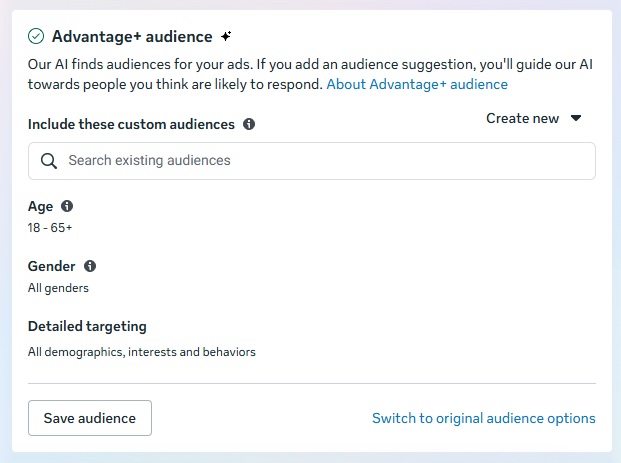
Good news for the Meta Ads Manager veterans who know their target audiences inside out and want to reach them. As you can see, your custom audiences are still available in the ad creation wizard, and you can even switch back to the original audience options.
11. Choose your ad placements
Ad placement defines where your ad appears for your target audience. Meta has made similar changes to its placement tools, with the AI-powered Advantage+ placements to help maximize your ad reach.
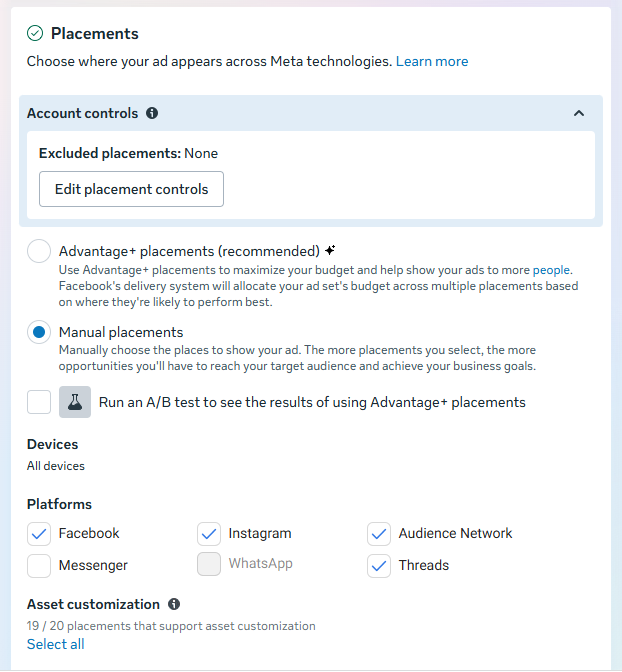
However, you can still decide on ad placement yourself by selecting the Manual placements option in the screenshots above. When you do, you'll see the options below become available to you:
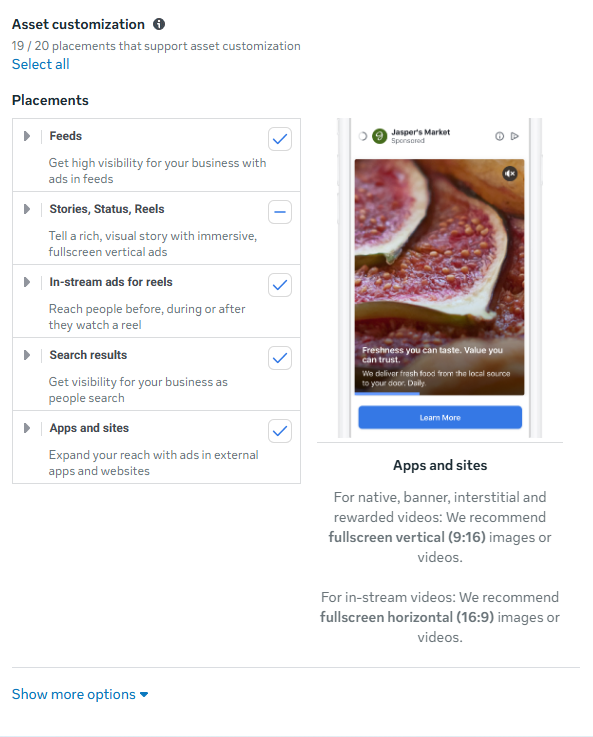
There are several options across the Meta suite of social platforms:
- Feeds: Get high visibility for your business with ads in feeds.
- Stories, status, and reels: Tell a rich, visual story with immersive, full-screen vertical ads
- In-stream: Quickly capture people's attention while they're watching videos.
- Search results: Get visibility for your business as people search.
- Messages: Send offers or updates to people already connected to your business.
- Apps and sites: Expand your reach with ads in external apps and websites
For more, check out Facebook's guide to ad placement.
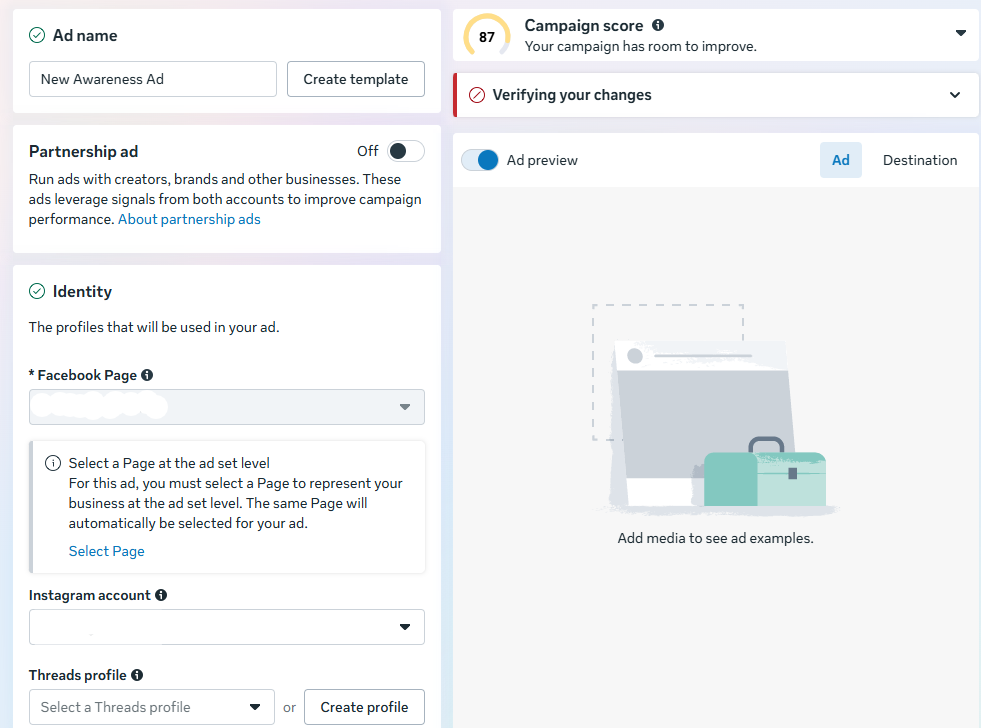
12. Choose your social accounts
In the next window, you can choose which Meta social media profiles you want the ads to run on.
13. Choose your ad format
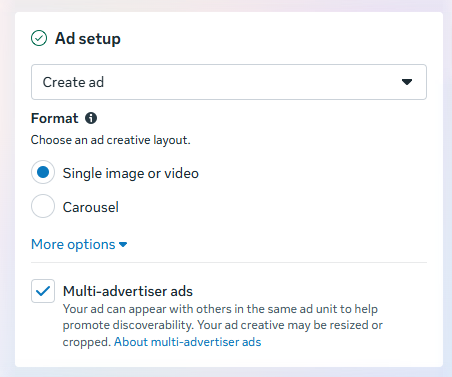
Under Ad setup, you'll be able to create a new ad, use an existing post, or use any mock-ups you have in Meta's Creative Hub.
Once you've made that selection, choose whether your ad will feature a single image or video, a carousel (multi-image or video post), or a collection (a group of products that becomes a full-screen experience on mobile).
14. Add your media and copy
Now you upload the files for the format you picked in step 13 — a single image or video, several images for a carousel, or a product set for a collection.
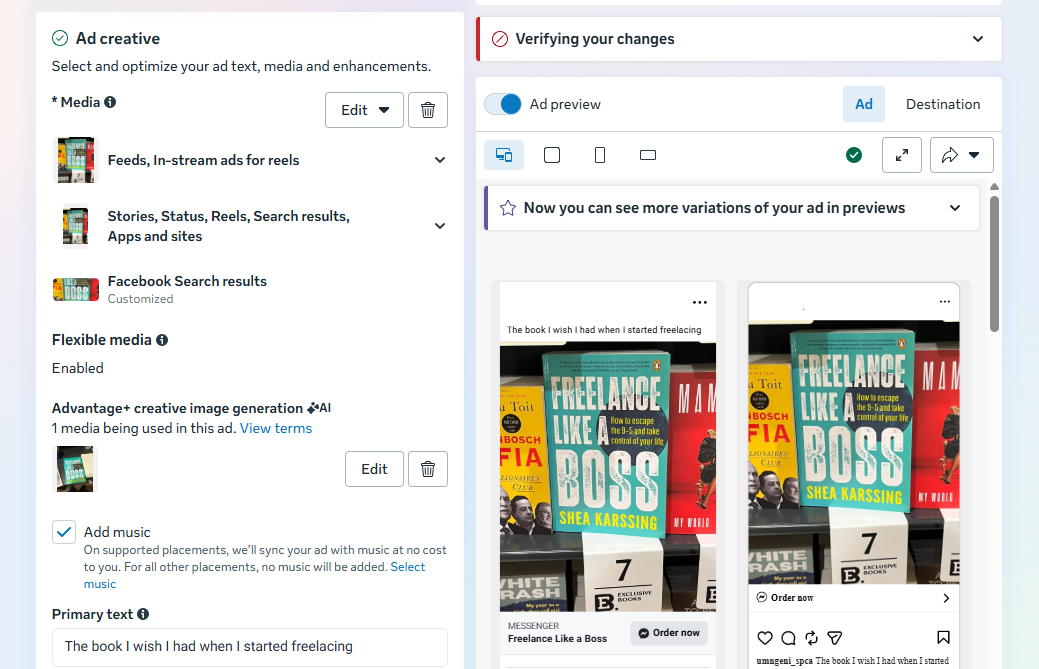
In this area, you can also switch up the ad copy and ad creative you use in each section of the Meta apps, if you want to tailor the experience for each platform.
Lower down in this section, you can choose music for the formats where this is applicable (check out our article on trending Instagram audio to help guide your choice).
You'll also be able to add your ad copy with the various text options in this section — don't forget to include an applicable call-to-action (CTA).
15. Choose your destination
There are four places you can send people when they click your ad: your website, an Instant Experience, a phone call, or a message thread.
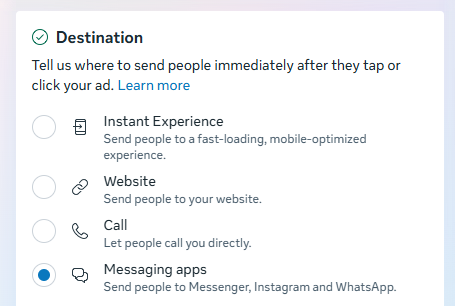
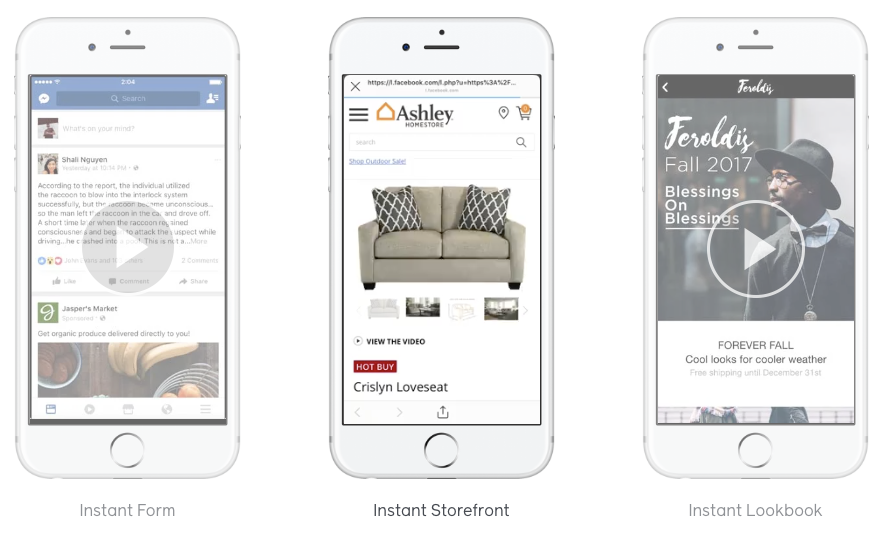
Instant Experience is a fast-loading, mobile-optimized experience. These offer a way for Facebook to keep your audience in its app. In other words, they're a simple, dynamic landing page, form, or lookbook you can create with Facebook.
Of course, you can also choose your website link and even add your own UTM tracking parameter.
On top of that, you can send people directly to your inbox in Facebook Messenger, Instagram, or WhatsApp.
16. Publish your ad
To submit your ad, click the Publish button at the bottom right-hand corner of the page.
Once your ad is submitted, Facebook will hold your post so they can review it to make sure it fits the specs and doesn't violate their community guidelines. Expect it to be reviewed within 24 hours. You'll receive a confirmation email from Facebook once the ad is live.
How much does it cost to create a Facebook ad?
Facebook ads run on a budget you set, with a minimum of $1 per day per ad set. Across all industries, the average cost per click is $1.72, according to data from Wordstream.
What you get for that spend varies by industry, from $0.45 per click in apparel to $2.93 in personal services. Here's the full breakdown:
| Industry | Average CPC |
|---|---|
| Apparel | $0.45 |
| Auto | $2.24 |
| B2B | $2.52 |
| Beauty | $1.81 |
| Consumer Services | $3.08 |
| Education | $1.06 |
| Employment & Job Training | $2.72 |
| Finance & Insurance | $3.77 |
| Fitness | $1.90 |
| Home Improvement | $2.93 |
| Healthcare | $1.32 |
| Industrial Services | $2.14 |
| Legal | $1.32 |
| Real Estate | $1.81 |
| Retail | $0.70 |
| Technology | $1.27 |
| Travel & Hospitality | $0.63 |
Get strategic with your Facebook ads
Facebook's A/B split testing tools let you run two versions of an ad side by side and compare the results directly: different images, different copy, different audiences.
For each step above, pausing and thinking back to your goals is helpful. Make sure everything you define and create aligns with your own measure of success. Not sure what your audience wants to see? That's totally normal, and Facebook has tools to help you figure it out.
Two honest caveats before you spend anything. If your product needs a long explanation before anyone would consider buying, Facebook ads are a poor first channel, as the format rewards immediate comprehension. And if you're spending under about $5 a day, expect to gather direction rather than results; the learning phase alone needs more data than a small budget generates in a week.
From there, it's watch and adjust. Give any change three to seven days before you judge it. Looking at results on day one can be tempting, but early performance isn't always enough to tell you whether a campaign will work.
FAQ about advertising on Facebook
How much does it cost to advertise on Facebook?
Facebook ads work on a flexible budget. You can set a daily or lifetime budget and only spend what you’re comfortable with. On average, cost per click (CPC) varies by industry, but many traffic campaigns fall under $1 per click. Your total cost depends on your audience, competition, and goals.
Is $5 a day enough for Facebook ads?
A $5 daily budget can be enough to run a small test, but whether it generates useful results depends on your audience size, objective, conversion event, and cost per result. Give a campaign enough time and data to make a meaningful decision rather than judging it after the first day
Are Facebook ads worth it for small businesses?
They can be, especially if you need predictable reach. Organic posts don’t always reach your full audience, but paid ads let you target specific people based on interests, behaviors, and demographics.
What’s the difference between boosting a post and running a Facebook ad?
Boosting a post is a simplified way to promote existing content directly from your Facebook Page. Running a Facebook ad through Meta Ads Manager gives you more advanced targeting, budget control, placements, and performance tracking.
How long does it take for Facebook ads to work?
Most ads start delivering impressions within hours, but meaningful performance data typically takes a few days. Facebook’s system also goes through a learning phase, where it tests your ad with different users. For best results, allow at least 3–7 days before making major changes.
Do I need a business page to run Facebook ads?
Yes. To run ads through Meta Ads Manager, you need a Facebook Page and a verified payment method. If you’re managing ads for someone else, you’ll need admin, editor, or advertiser access to their page.
How do I target the right audience on Facebook?
You can target by location, age, and language, and use tools like custom audiences or Meta Advantage+ audience to refine delivery. The key is to start with a clear idea of who your ideal customer is, then test and refine based on performance data.
What is Meta Advantage+ in Facebook ads?
Meta Advantage+ uses AI to optimize your audience targeting, placements, and budget distribution automatically. Instead of manually narrowing your audience, Advantage+ analyzes performance data in real time to find people most likely to complete your goal.
How do I measure Facebook ad performance?
Use Meta Ads Manager to track metrics like reach, clicks, conversions, and cost per result. You can use the Meta Pixel and Conversions API to help measure actions people take on your website after interacting with your ads. Focus on metrics tied directly to your campaign goal.
How long does Facebook take to approve ads?
Most ads are reviewed within 24 hours. During this time, Facebook checks your ad for compliance with advertising policies and community standards. You’ll receive a notification once your ad is approved and live.
More Facebook resources
- Inside the Facebook Algorithm: All the Updates You Need to
- How to Get More Followers on Facebook for Free: 10 Tried-and-
- What Is a Good Facebook Engagement Rate? Data From 52 Million+ Posts
- 16 Facebook Statistics to Know
- Facebook Ad Specs + Image Sizes — Fully Updated
- How to Schedule Facebook Posts in 3 Easy Ways (+ Save Hours Every Week)
Try Buffer for free
200,000+ creators, small businesses, and marketers use Buffer to grow their audiences every month.