

Yes, you can schedule Substack Notes. You can do it in two ways: directly in Substack or through Buffer, which lets you plan Notes on the same calendar as your other channels, send the same Note to LinkedIn, Threads, X, and Bluesky, and see which Notes brought in subscribers. Both are free.
We’ll walk through how it works, where Substack's built-in scheduler falls short, and what I've learned from scheduling a Note every day this month for Buffer's own publication.
Jump to a section:
How to schedule a Note inside Substack
Substack added native scheduling for Notes on March 23, 2026, on web, iOS, and Android. Before that, the only options were a third-party extension or posting manually.
Here's how it works on the web:
- Open Substack and click the plus + button, then Note (or Create → Note if you’re on your profile) to start a new Note.
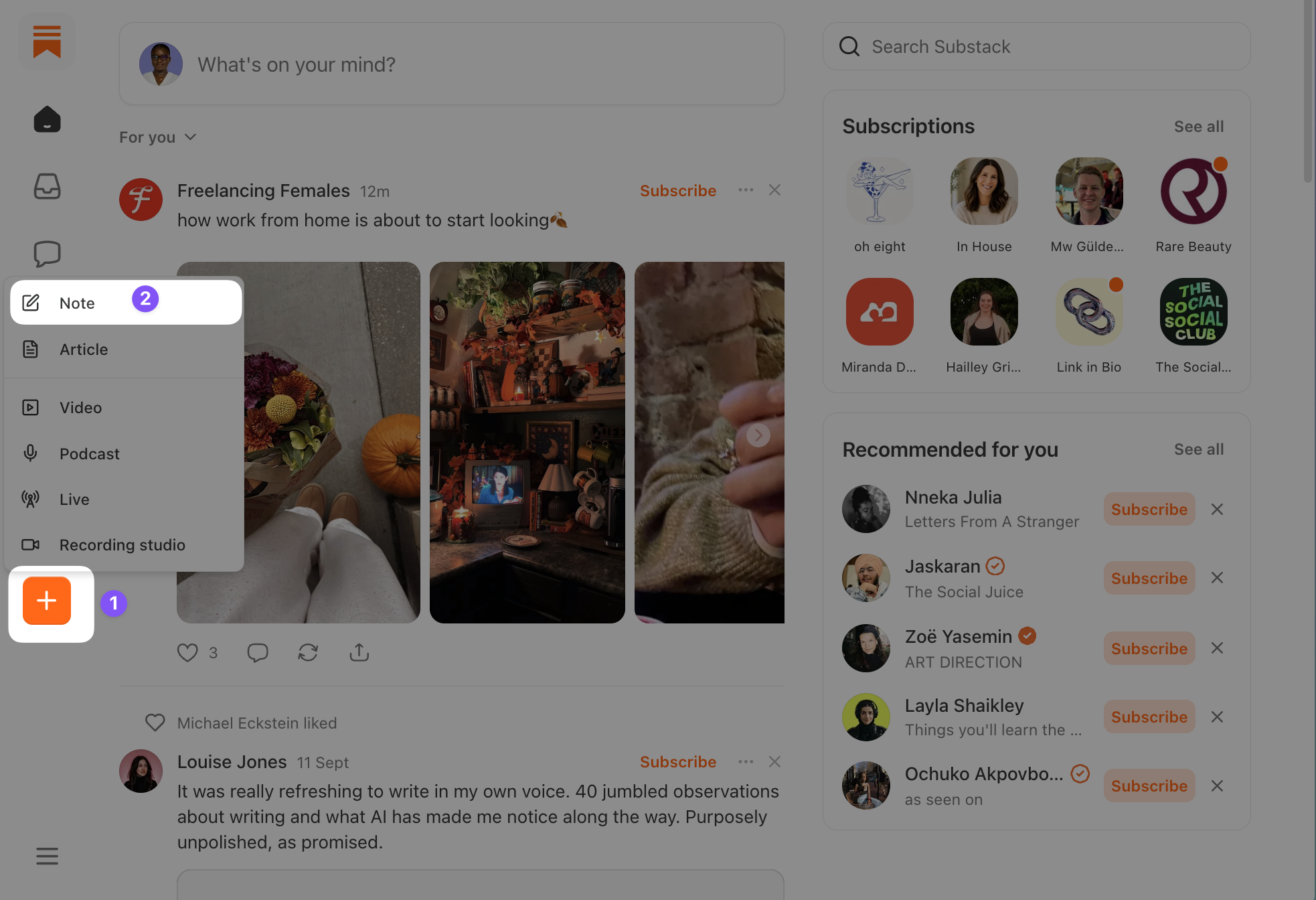
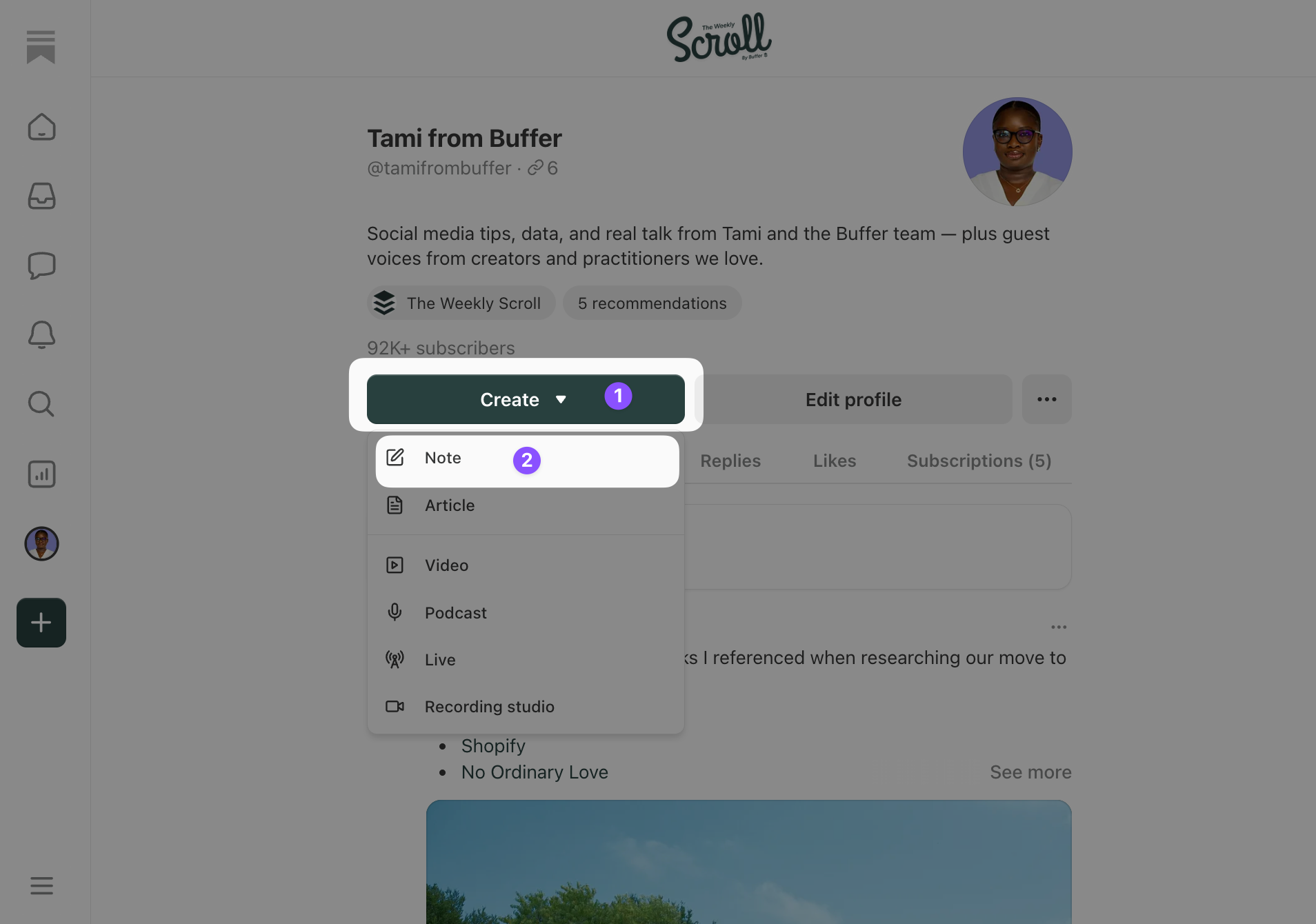
- Write the Note as you normally would. You can add images, links, video, and create polls.
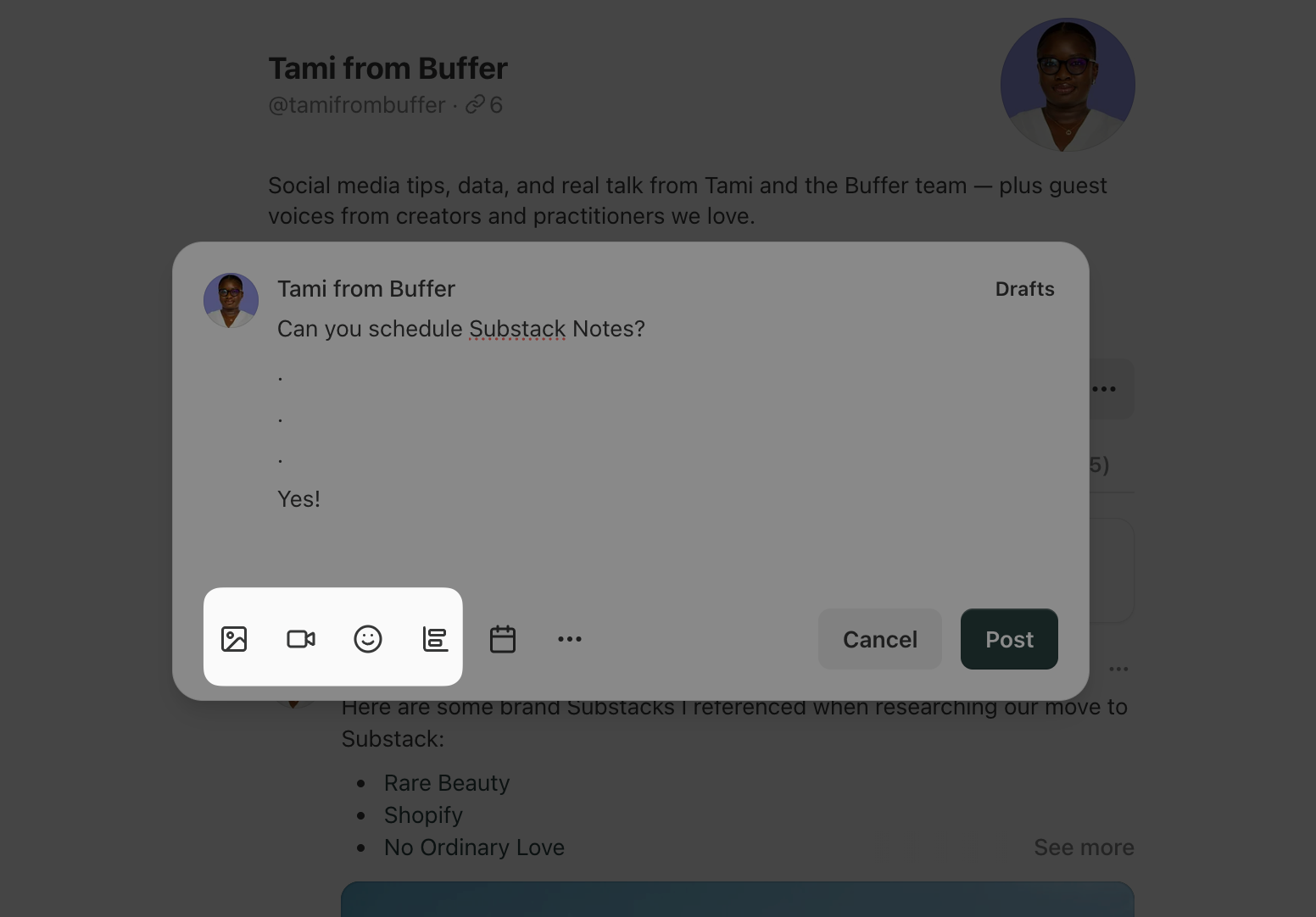
- Click the calendar icon at the bottom of the composer.
- Pick a date and time. Substack uses your local time zone.
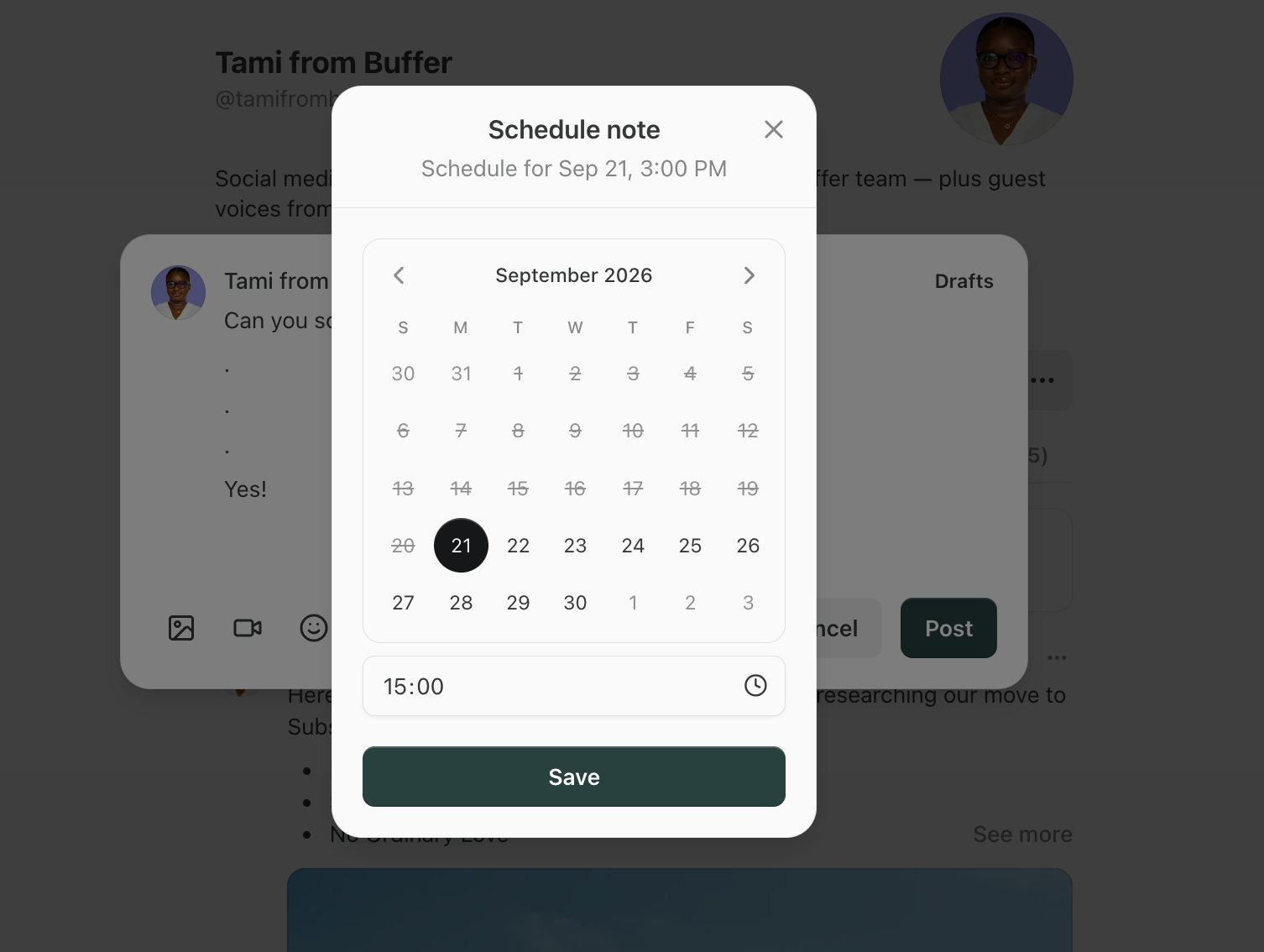
- Click Save, then Schedule.
On the iOS and Android apps, tap the plus + button to start a Note, write it, then tap the three dot ⋯ menu and choose Schedule.
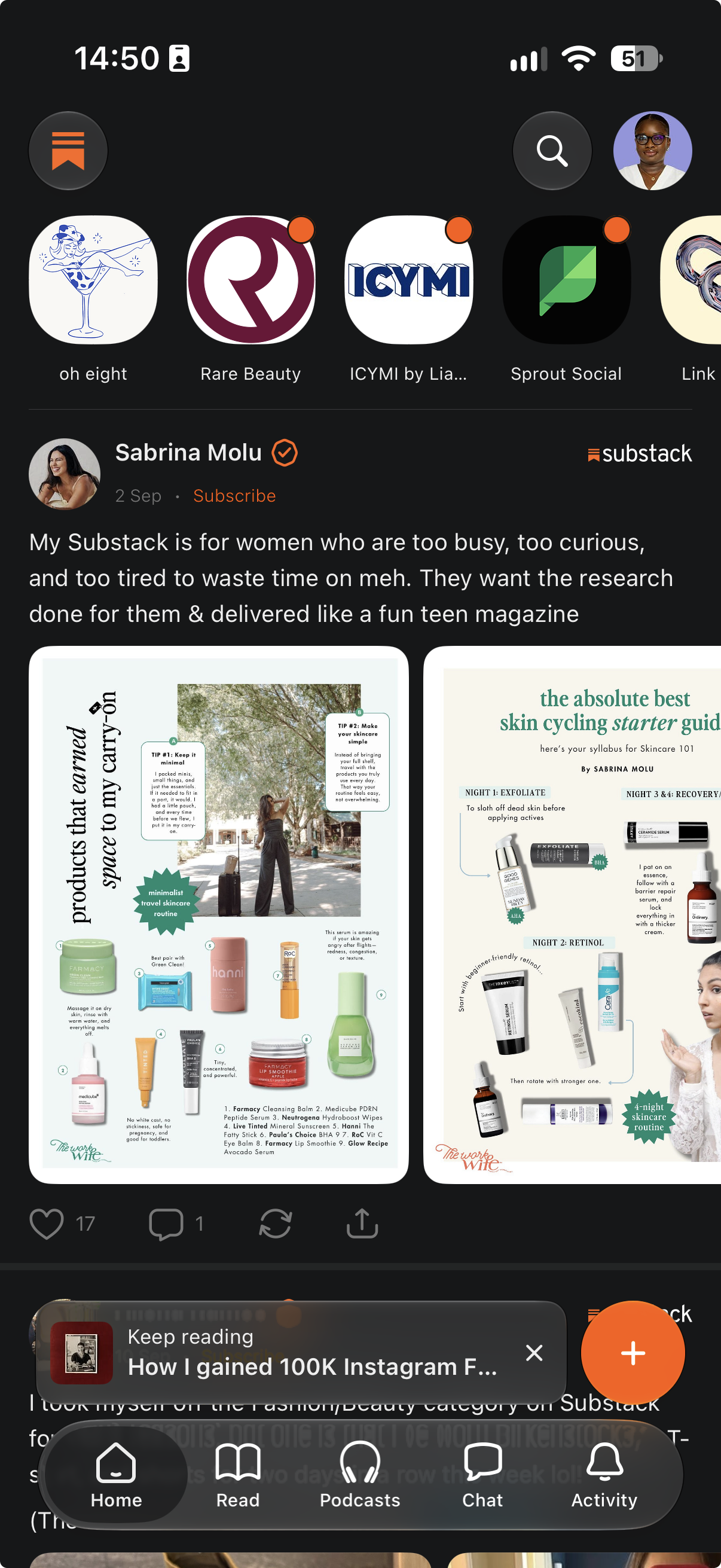
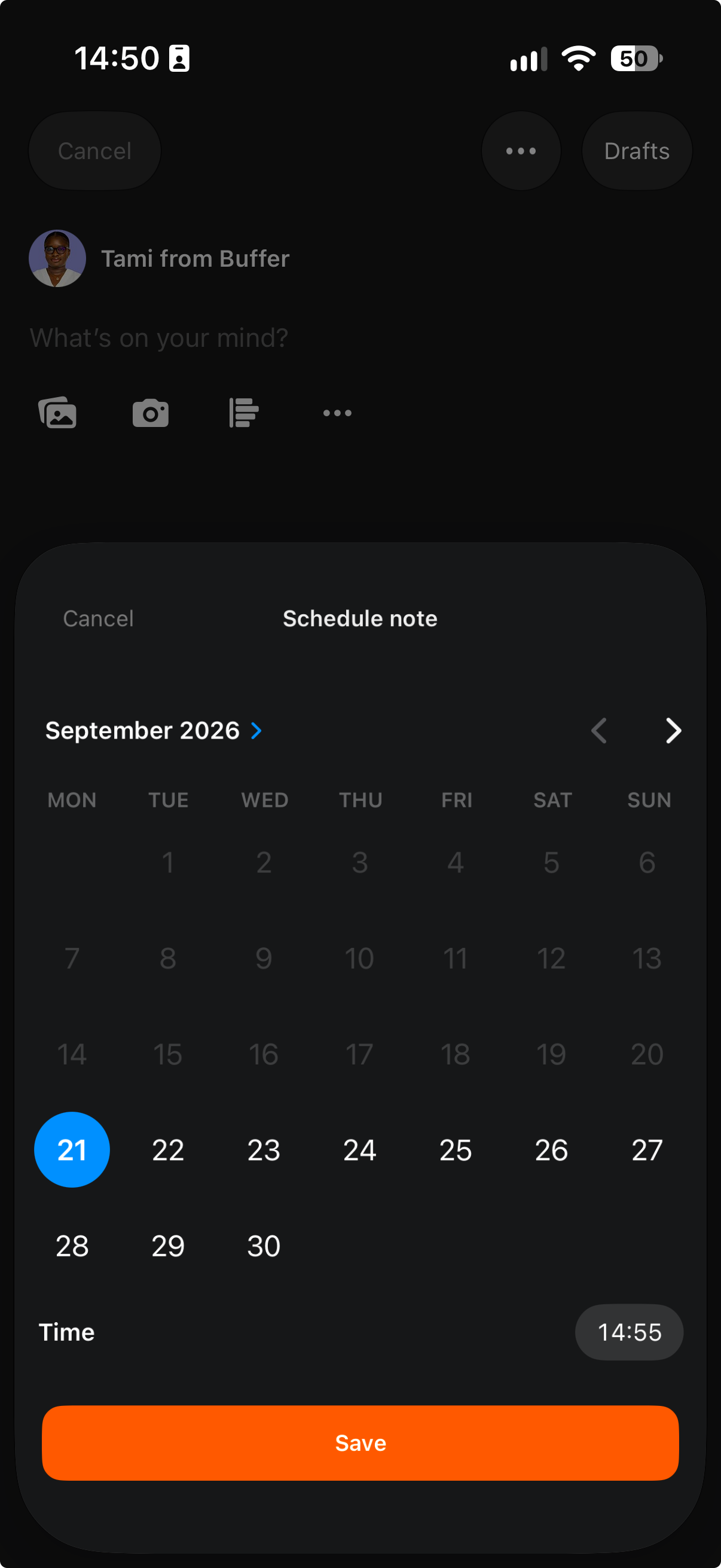
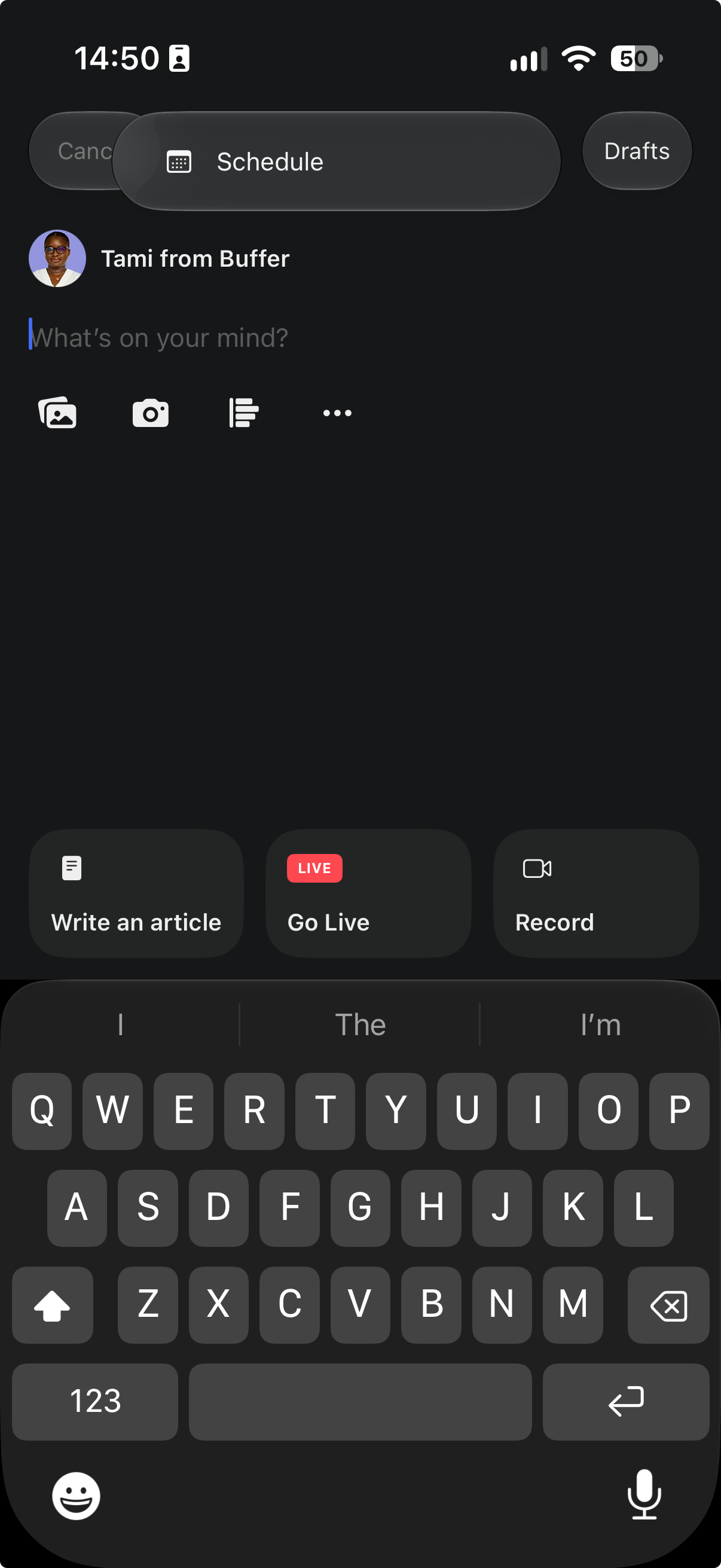
Every scheduled Note lands in your Drafts, with the publish time shown underneath. You can open one from there to edit it or change the time before it goes out. Substack lets you schedule up to three months ahead.
What the native scheduler doesn't do
There's no calendar view, so you're reading a list of drafts rather than seeing your week of planned content.
You can also only schedule one Note at a time. And you can't send the same Note to another platform, and there's no per-Note reporting beyond the likes, replies, and restacks you can see on the Note itself.
For a writer posting a couple of Notes a week, this is fine, great even. But once Notes become a daily habit, or one of several channels you're keeping up with, you may start to want more. And this is where Buffer comes in.
How to schedule Substack Notes with Buffer
Buffer's Substack integration is built on Substack's official API, and it treats your Substack account like any other channel: connect it once, and Notes show up on the same calendar and in the same composer as your LinkedIn, Threads, X, Instagram, and Bluesky posts.
Scheduled Notes publish directly at the time you set. There's no reminder step or "finish this in the Substack app" notification.
- Log in to Buffer (or create a free account) and go to Channels → Connect a channel.
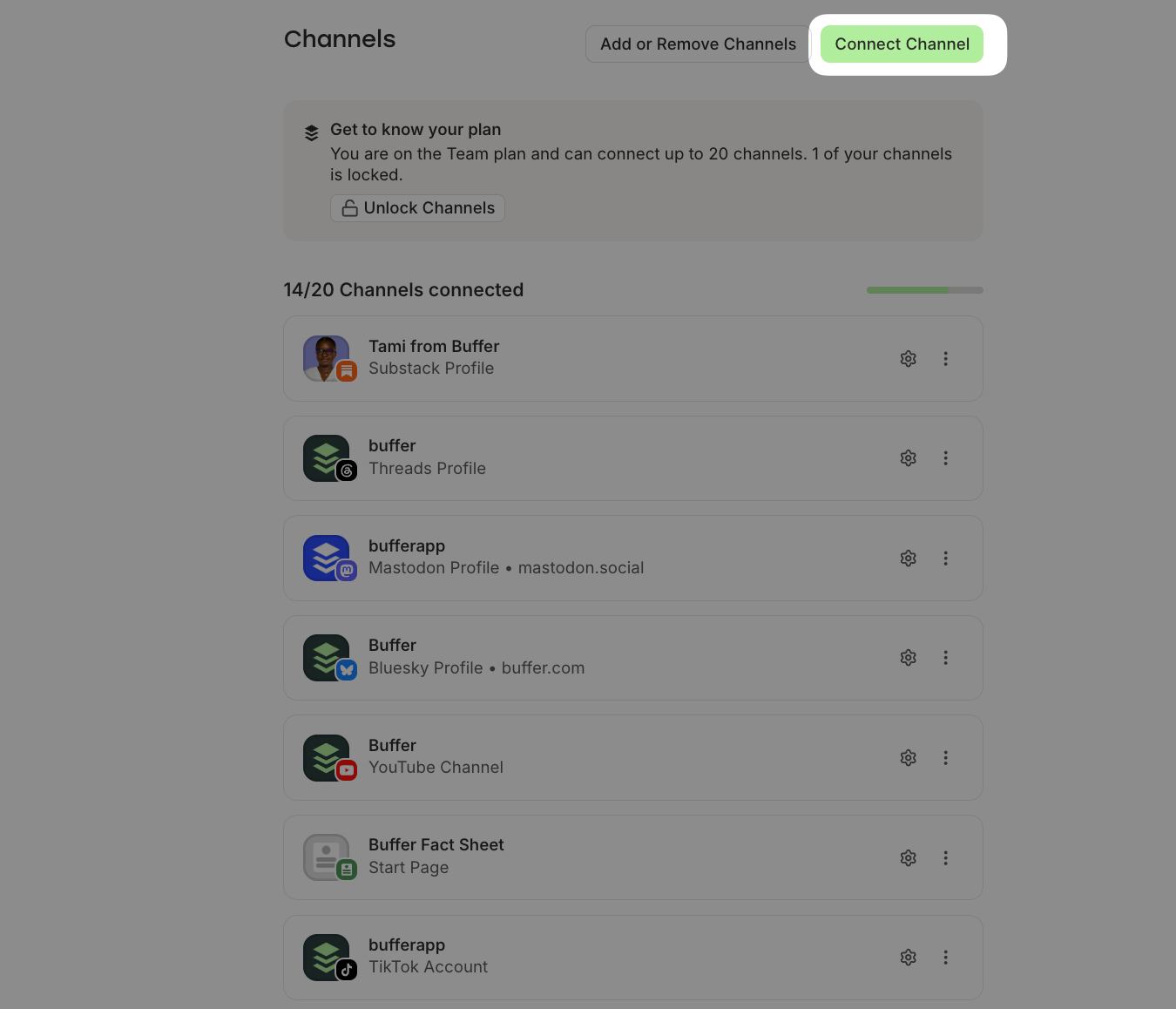
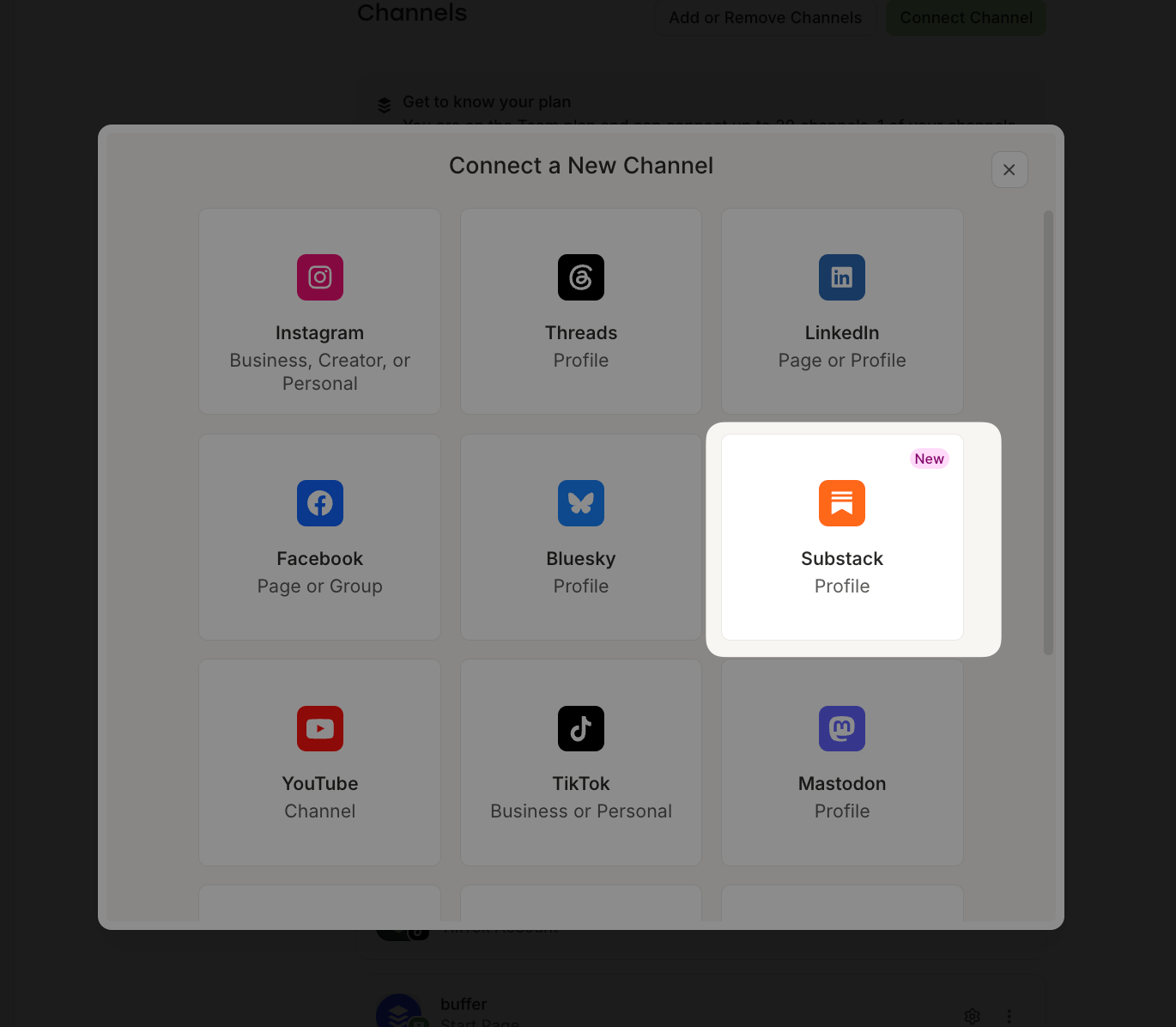
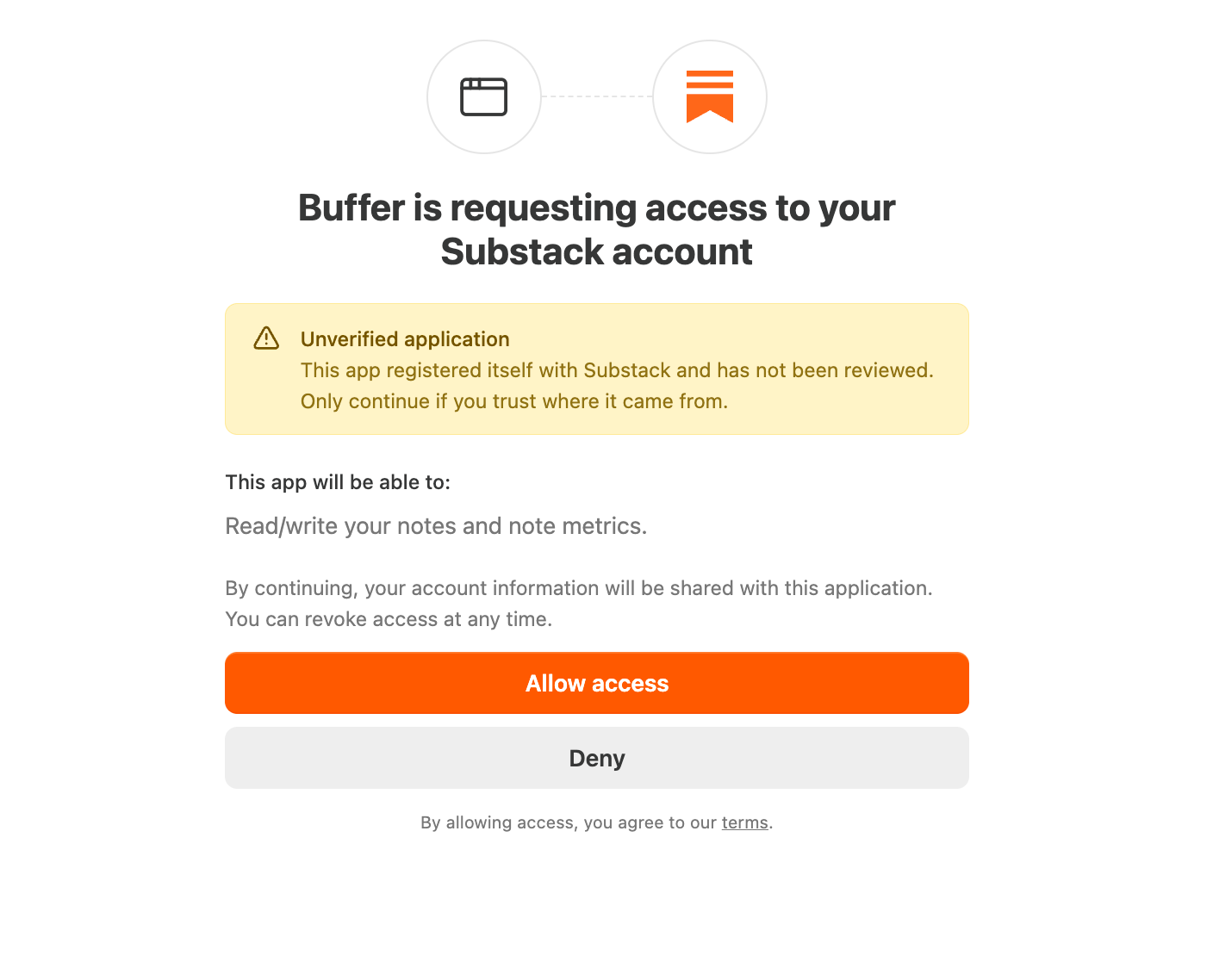
- Choose Substack and sign in to authorize Buffer.
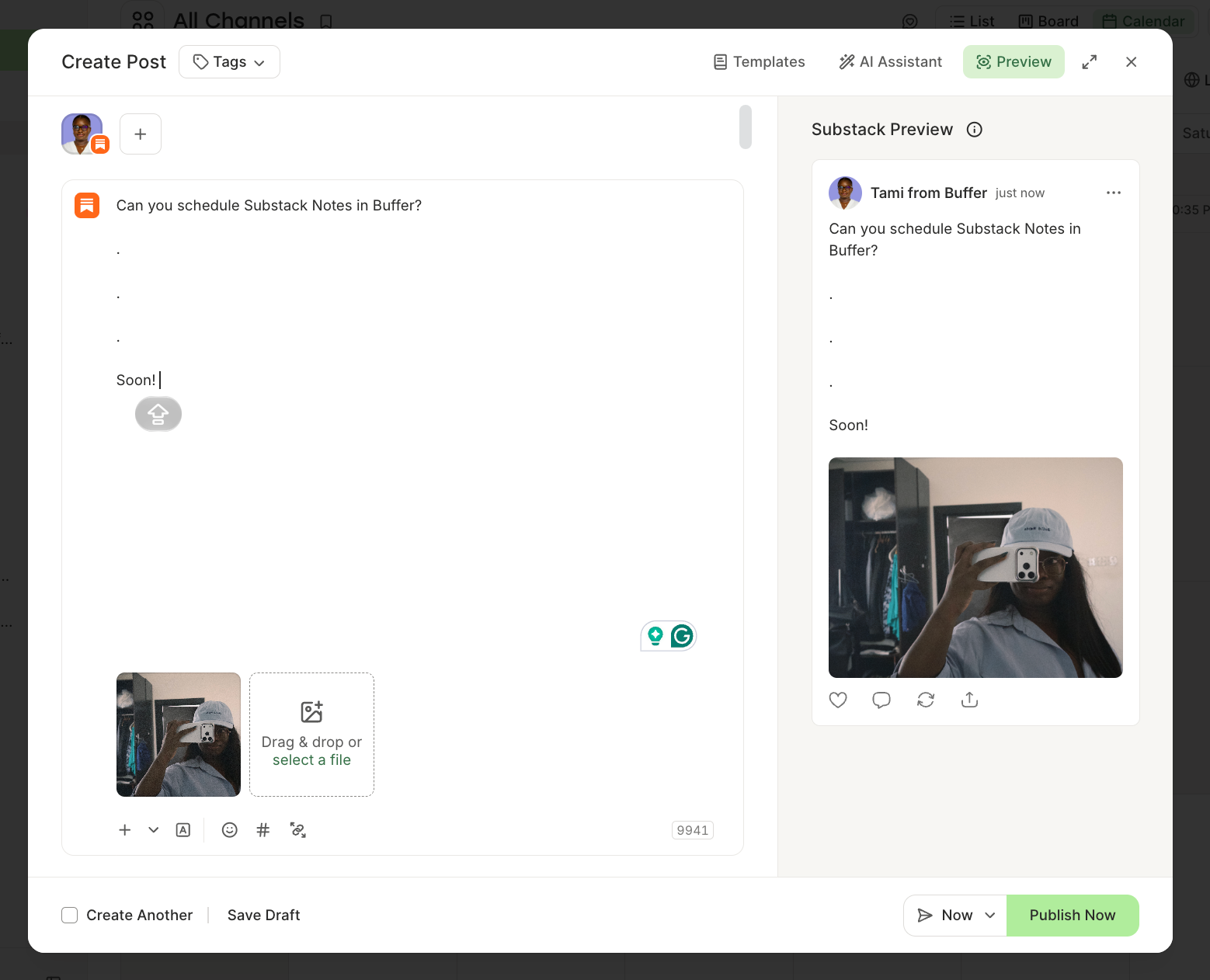
- Click Create Post, select your Substack channel, and write your Note. You can add images, a link, or a video.
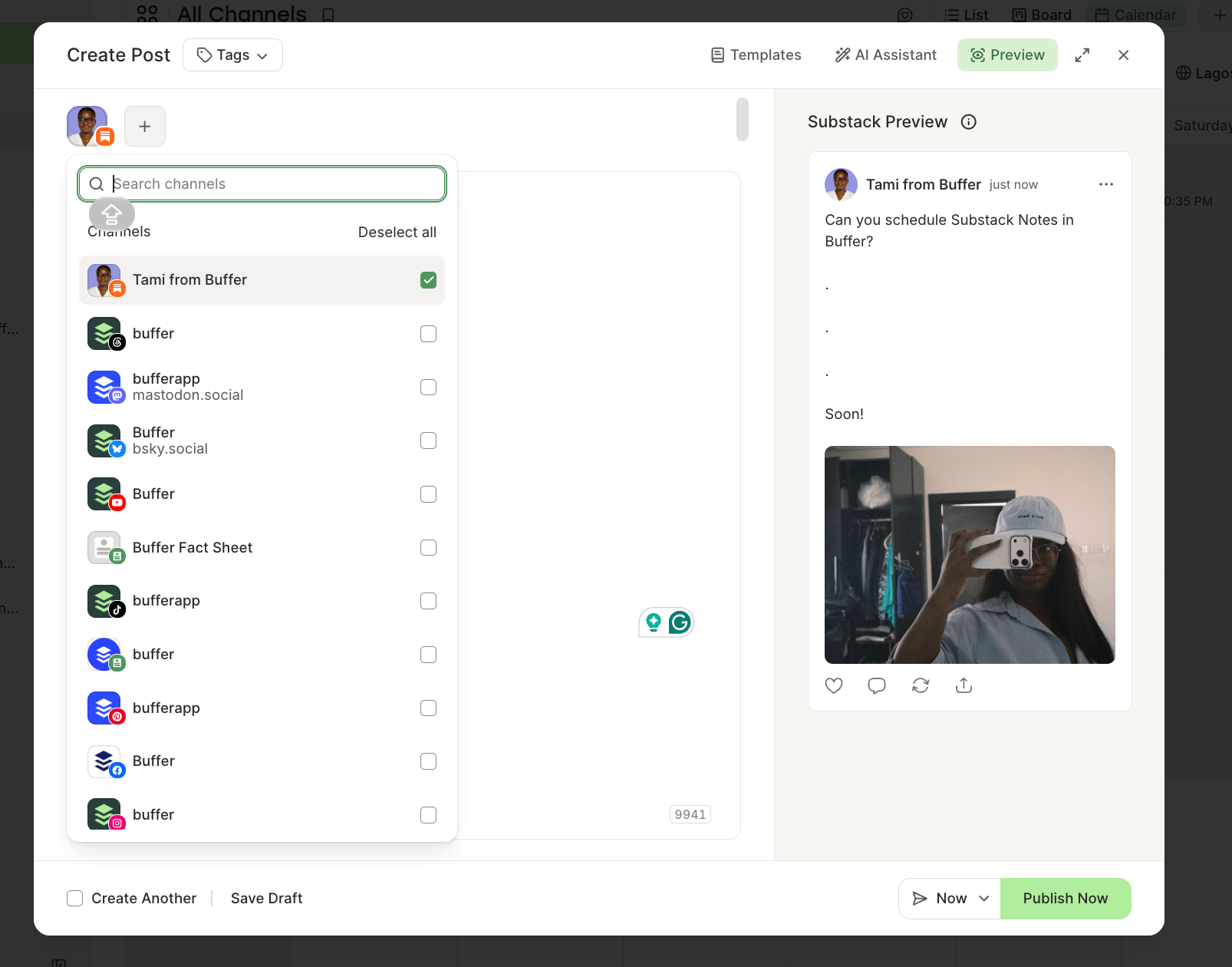
- If you want the same Note to go out to LinkedIn, Threads, X, or Bluesky, select those channels too and tweak each version until you’re satisified.
- Pick a time (or use one of your set posting slots) and click Schedule.
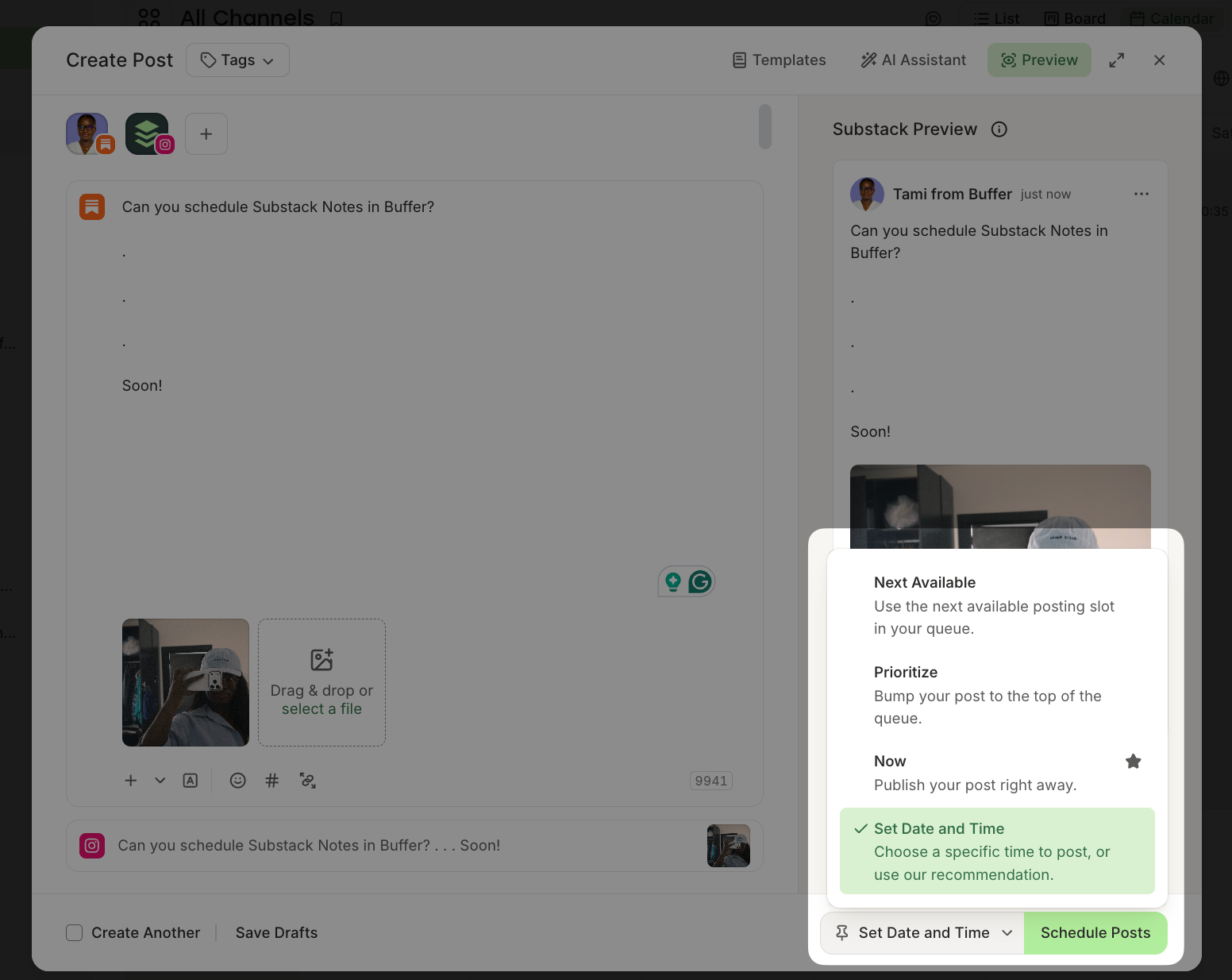
Once a Note is live, Buffer's analytics show impressions, engagement, follows, as well as how many free and paid subscribers each Note brought in.
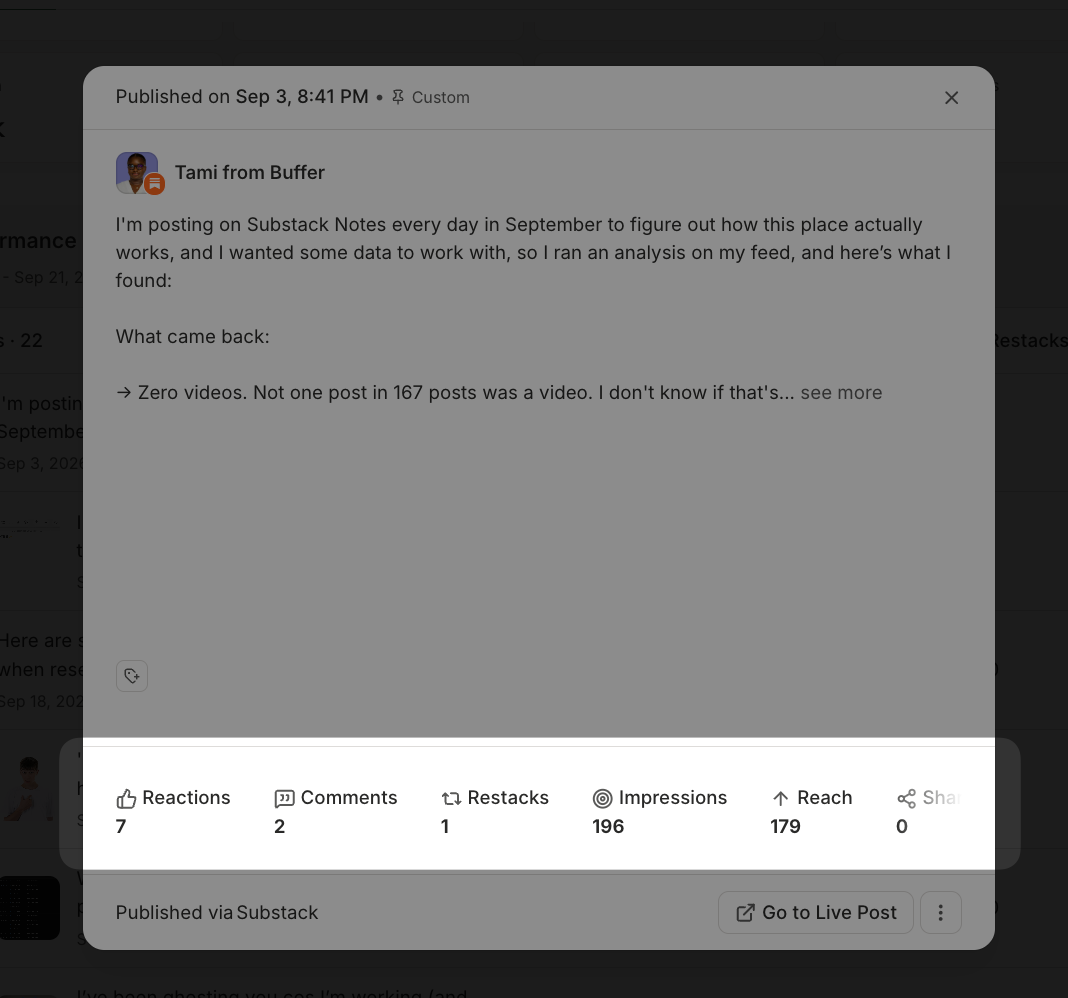
Because your other channels sit in the same dashboard, you can put a Note next to the LinkedIn version of the same idea and compare performance as well.
Two more ways to use Substack in Buffer
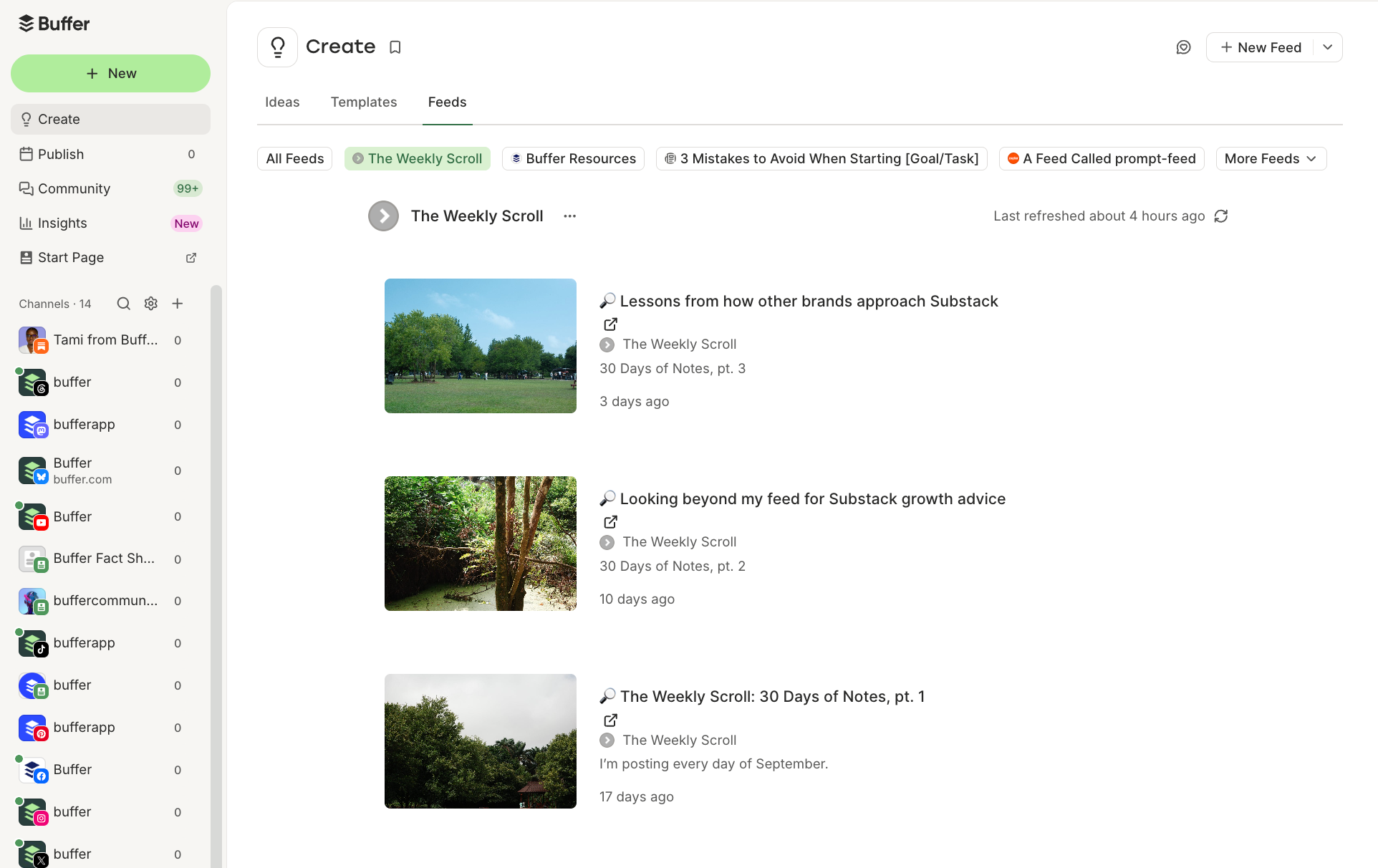
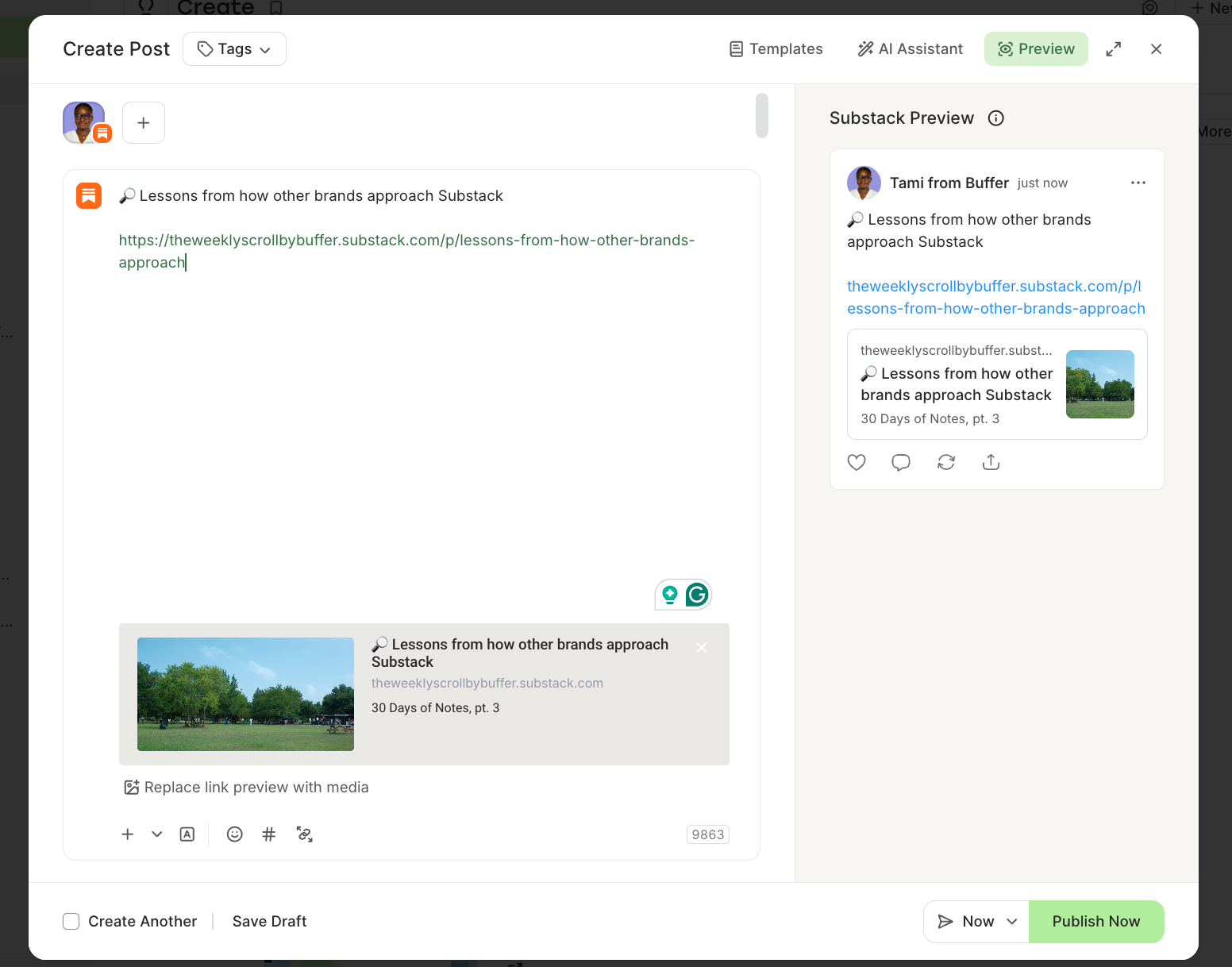
- You can add your Substack publication as a feed in Buffer, which pulls your published posts in so you can queue them out to your social channels, or turn an old post into a new Note weeks later.
- If you work with an AI assistant, Buffer supports Substack Notes in its MCP and API, so you can draft and schedule Notes from Claude or ChatGPT or your preferred AI assistant.
Buffer's free plan covers three channels with 10 scheduled posts per channel at a time and 30 days of analytics history. Paid plans start at $5 a month per channel for unlimited scheduling and full analytics.
What I’ve learned from posting a Note a day
I run Buffer's publication on Substack, The Weekly Scroll, and for September I've been posting one Note every day. In addition to scheduling, a few things have made it easier now that Substack Notes are in Buffer.
- Batch the planned content, leave room for spontaneous ones: I write and schedule most of the week's Notes in one sitting, but I keep a slot or two open to react to something in the feed. Replies and restacks can't be scheduled anywhere, and those are the Notes that start conversations, so scheduling handles the consistency and I handle the rest.
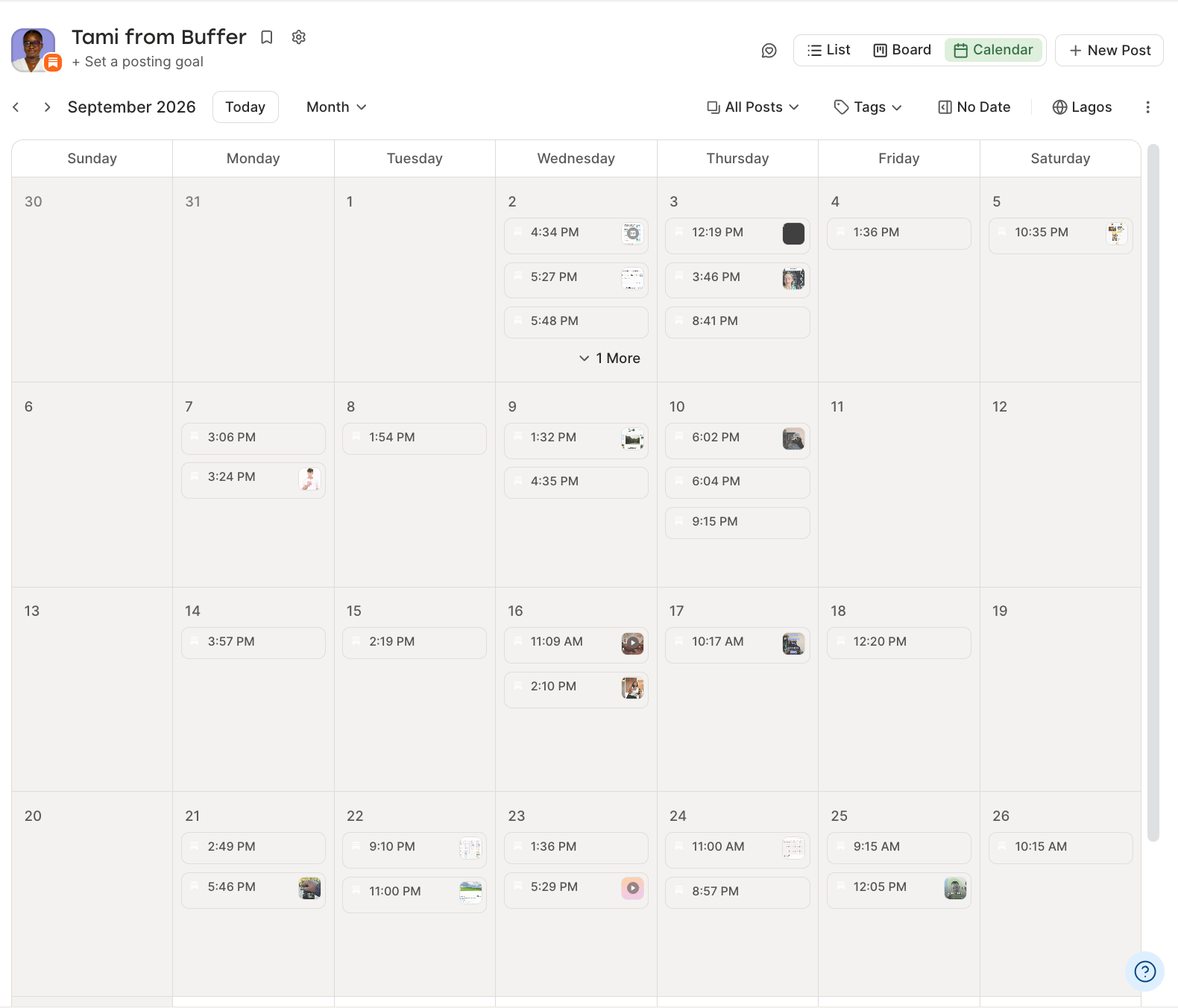
- Schedule for when your readers are around, not when you're writing. Buffer's posting slots make this a set-once decision rather than a daily one.
- Keep a running list of ideas. I keep my ideas in Buffer's Ideas, then turn the good ones into Notes on the days I plan my posts.
Substack Notes scheduling FAQ
Is there a free way to schedule Substack Notes?
Yes, two. Substack's own composer schedules Notes for free on web, iOS, and Android. Buffer's free plan also lets you connect your Substack account and schedule Notes without entering a card, with up to 10 scheduled posts per channel at a time.
Can you schedule Substack Notes from your phone?
Yes. In the Substack app, start a Note, tap ⋯, and choose Schedule. In the Buffer mobile app, create a post, select your Substack channel, and schedule it as you would for any other channel.
Can you schedule a restack or a reply?
No. Neither Substack nor Buffer schedules restacks, quote-restacks, or replies to other people's Notes.
Can you add images, links, or video to a scheduled Note?
Yes, in both. Substack's composer and Buffer's both support text, images, links, and video in a scheduled Note.
Do scheduled Notes perform worse than ones posted live?
There's no evidence they do. A scheduled Note publishes the same way a manual one does, and readers can't tell the difference. What tends to matter more is whether you're around to reply in the first hour or so after it goes out.
How far ahead can you schedule a Note?
Substack lets you schedule up to about three months out. Buffer has no time limit on how far ahead you can schedule a post.
Can you schedule Notes for more than one publication?
In Substack, you schedule from whichever account you're logged into. In Buffer, each publication connects as a separate channel, so you can schedule for two or three Substacks from one account and keep the analytics separate.
Do you need a Chrome extension to schedule Substack Notes?
Not anymore. Both Substack and Buffer schedule Notes from the web and their mobile apps.
Does scheduling Notes through Buffer break Substack's rules?
No. Buffer's integration is built on Substack's official API in partnership with Substack, so Notes scheduled through Buffer publish the same way they would from Substack's own composer.
Pick a time and post
If you've wanted to be better about posting Notes, there’s now an easy fix. Write the Notes you already know you want to post, schedule them, and use the time you get back to reply to people.
Substack's built-in scheduler is enough to start. When Notes become one of several channels you're keeping up with, and you want to know which of them actually bring readers in, connect your Substack to Buffer and put them all on one calendar. It's free, and you can schedule your first Note in a couple of minutes.
Try Buffer for free
200,000+ creators, small businesses, and marketers use Buffer to grow their audiences every month.