Social media calendar
See your whole month at once
Every scheduled post, on every channel, laid out in one view.
June 2026
June 17
Your content calendar, at a glance
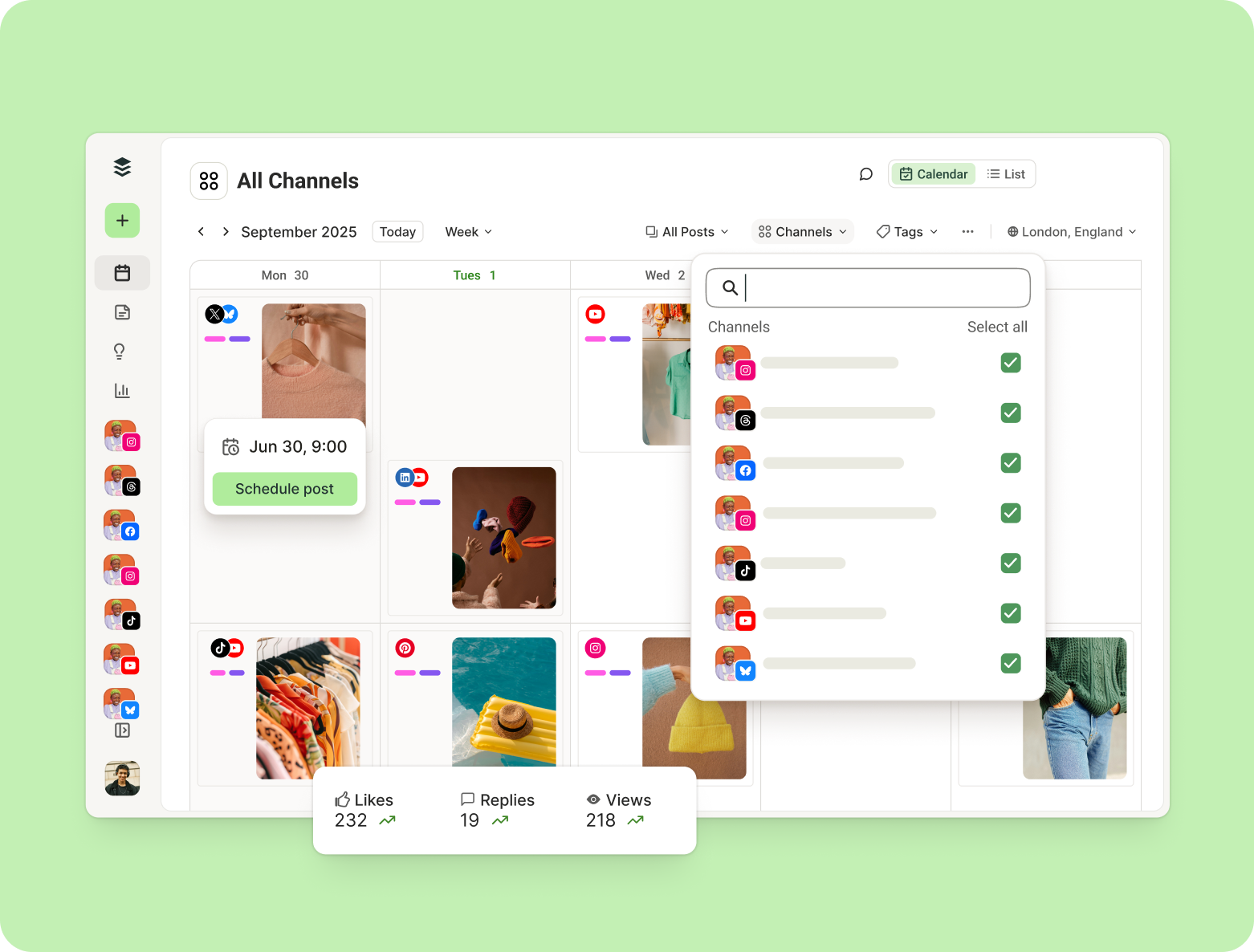
Buffer's social media calendar is a visual schedule of your upcoming posts, for arranging, rescheduling, and reviewing content across your channels. Switch between weekly and monthly views, filter by channel, post type, or tag, and drag any post to a new time as things shift.
Benefits
Zoom in and out
Scan the whole month for gaps, then drop into a single week to sort out the details.
Filter what you see
Narrow to one channel, post type, or tag, and everything else drops out of the grid.
Check in from anywhere
Open the same calendar in the iOS and Android apps to check what's going out today.
Post from the grid
Click any empty slot and the composer opens with that date and time already set.
Connect your favorite accounts
- Buffer × LinkedInBuffer × LinkedIn
- Buffer × ThreadsBuffer × Threads
- Buffer × PinterestBuffer × Pinterest
- Buffer × BlueskyBuffer × Bluesky
- Buffer × YouTubeBuffer × YouTube
- Buffer × XBuffer × X
- Buffer × Google Business ProfileBuffer × Google Business Profile
- Buffer × InstagramBuffer × Instagram
- Buffer × SubstackBuffer × Substack
- Buffer × MastodonBuffer × Mastodon
- Buffer × TikTokBuffer × TikTok
- Buffer × FacebookBuffer × Facebook
Calendar view
Stay consistent effortlessly
Spot light days early and keep a steady posting schedule across all your channels without the last-minute stress.
Open the calendarJune 2026
June 17
Repurposing
Learn from past posts
Easily look back at published content to see what resonated best so you can recreate your top-performing posts.
Get started nowAll Channels
- Impressions
184.2k
+12.4% - Reactions
28k
+8.1% - Comments
1,914
+21.7% - Posts
128
3.2%


Collaborate
Skip the status update
Your team and clients open the same calendar and see what's going live, so nobody has to ask where things stand.
Get started nowCreate Post


Resources
Control your calendar
Data-backed guides on what to post and when to post it, so filling next month is the easy part.
How to Create Your Own Social Media Calendar in 7 Simple Steps
A step-by-step guide to creating your own social media content calendar, expert guidance on why you need a social media calendar, plus the system we use in our marketing team at Buffer.
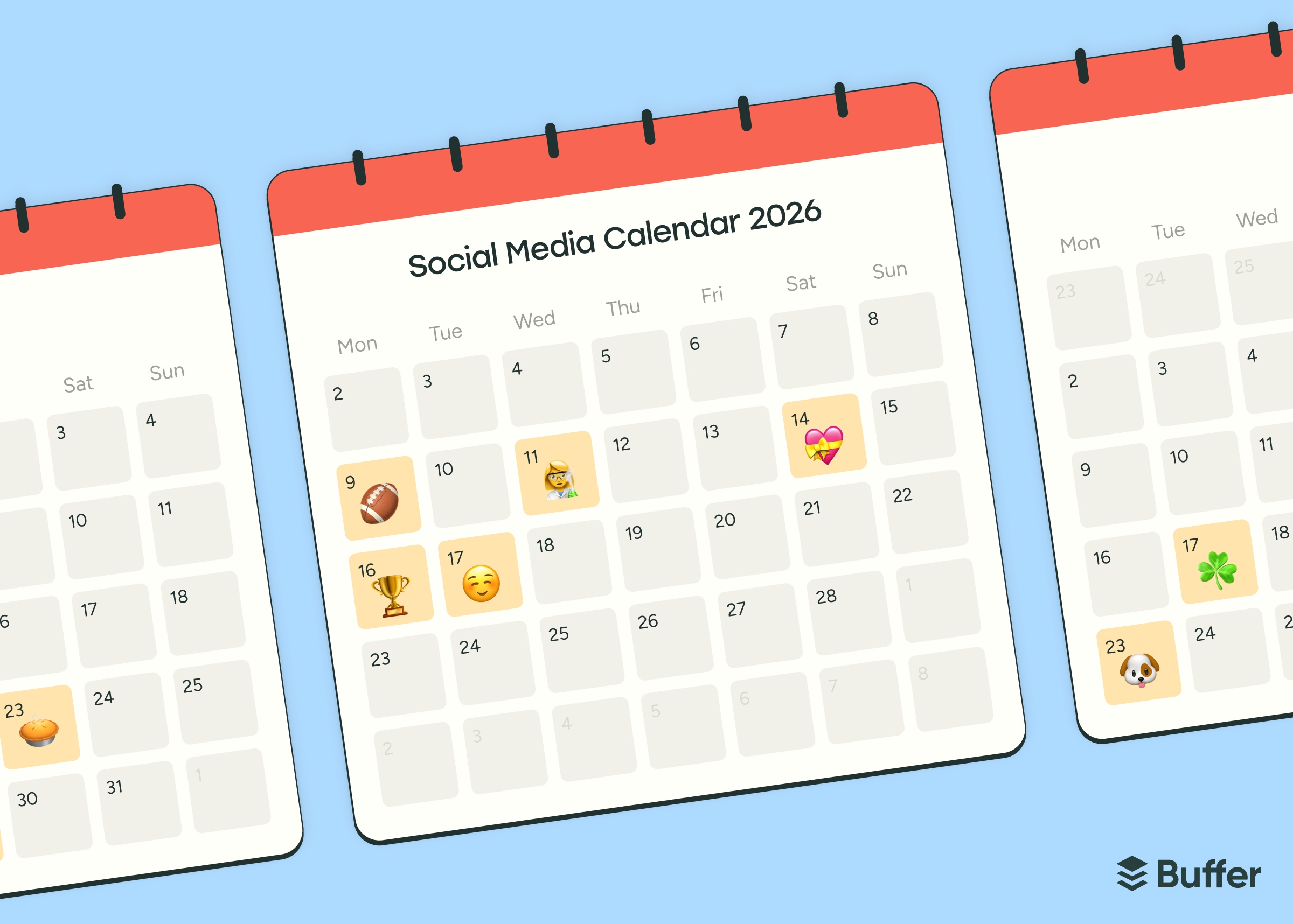
180+ Social Media Calendar for Every Holiday of 2026 (+ Ideas for Posts)
Your complete 2026 social media calendar: every holiday, cultural event, and quirky celebration with content ideas for each date.
The Best Time to Post on Social Media in 2026: Times for Every Major Platform
We pored over millions of posts on Instagram, Facebook, Twitter/X, YouTube, TikTok, and LinkedIn to pinpoint when the best-performing content was published.
Ready to see your whole month?
Start free today, and connect a channel whenever you're ready to publish.

FAQs
What is a social media calendar?
A social media calendar is one view of every post you've planned, laid out by date and by channel. It shows what's going out, when, and where, so you can see next week's gaps before they happen. Some people keep one in a spreadsheet. Others use a calendar that publishes the posts too, so the plan and the publishing stay in the same place.
How do you create a social media calendar?
Start by deciding which channels you're planning for and how often you want to post on each. Then:
- Pick the days and times you want each channel to post.
- Write your posts onto those dates, a month at a time if that suits you.
- Leave anything you're unsure about as a draft.
- Check the month for gaps and fill them before the week starts.
You can do this in a spreadsheet, or in a calendar that publishes for you.
Do I need an account to use Buffer's social media calendar?
Not to plan. Click any time slot, and you can write a post, add images, see how it'll look and save it, all without signing up. What you can't do without an account is schedule: publishing needs both a Buffer account and a connected channel. Once you create a free account, your planned content will appear in your Buffer calendar. In the meantime, you can still copy a draft and post it yourself.
What happens to the posts I plan before I make an account?
They're saved in your browser for 30 days. That means they live on the one device you planned them on, so they won't be accessible if you switch to your phone, open a private window, or clear your browsing data. Creating a free account moves your drafts across, text and images included, where they will be accessible to refine or schedule.
Is there a free template for a social media calendar?
Yes. Buffer has a set of free social media calendar templates you can copy, in Google Sheets, Notion, and a few other formats. A template is a good place to start, but our fully integrated calendar helps you create, plan, and schedule content from one place.
Where do I find the calendar once I'm in Buffer?
The calendar sits alongside the list view as one of the two ways to see everything you have queued. Anything you drafted before making an account is waiting for you there, so you pick the month up where you left it rather than starting it again.
Can I schedule posts for different time zones?
Yes. Every channel keeps its own time zone, so a US account can run on Eastern while a UK one runs on London time, and you schedule each in the hours its audience is actually awake. The calendar itself shows times in whatever time zone your browser is set to, which is worth knowing if you're traveling and the grid suddenly looks shifted.
Can I move a post to a different day?
Yes. Drag it to the day you want and its time comes with it. You can write, edit and delete posts straight on the grid too, so when a launch slips a week you fix the plan where you're already looking at it rather than opening something else.
What happens to my scheduled posts if I change my posting times?
Anything sitting in the queue moves into the new slots. Switch LinkedIn from mornings to afternoons and the posts you'd queued shuffle into the new times in the same order. Posts you gave a specific date and time to don't move, so a launch you pinned to Tuesday at 9 stays on Tuesday at 9.
Can I use the calendar on my phone?
Yes, though it works a little differently. The Buffer mobile app shows you a week at a time or a single day rather than the whole month, and you tap a post to change it instead of dragging it. It's the same calendar underneath, so anything you add on your phone is waiting for you on the web.