
These days, it feels like Threads is dropping new features every week.
Whether it's small quality-of-life improvements or game-changing updates (we see you, Trending Topics), the Threads team has been busy since their rocketship launch in 2023.
The only potential downside to all that fun new stuff for its 400 million monthly active users to play with? It's not easy to keep track!
Which is where this guide comes in. Here, I’ll unpack some of the top new features on Threads by Instagram — plus how to use them to grow your following.
Let's make sure you're getting the most out of Threads, shall we?
Jump to a section:
- 1. Topics, not hashtags
- 2. Trending Topics
- 3. Better post insights
- 4. Simple polls
- 5. Edit posts
- 6. The Following feed
- 7. The fediverse
- 8. Threads ads
- 9. New controls
- 10. Threads Communities
- 11. Ghost posts
- 12. Group chats
- 13. Saved quotes
- Threads keeps evolving — watch this space
- FAQs about new Threads features
1. Topics, not hashtags
Threads launched without hashtags — a feature most social platforms have from day one — which felt like an odd choice at the time. But now it's clear why. Threads was setting the stage for something bigger.
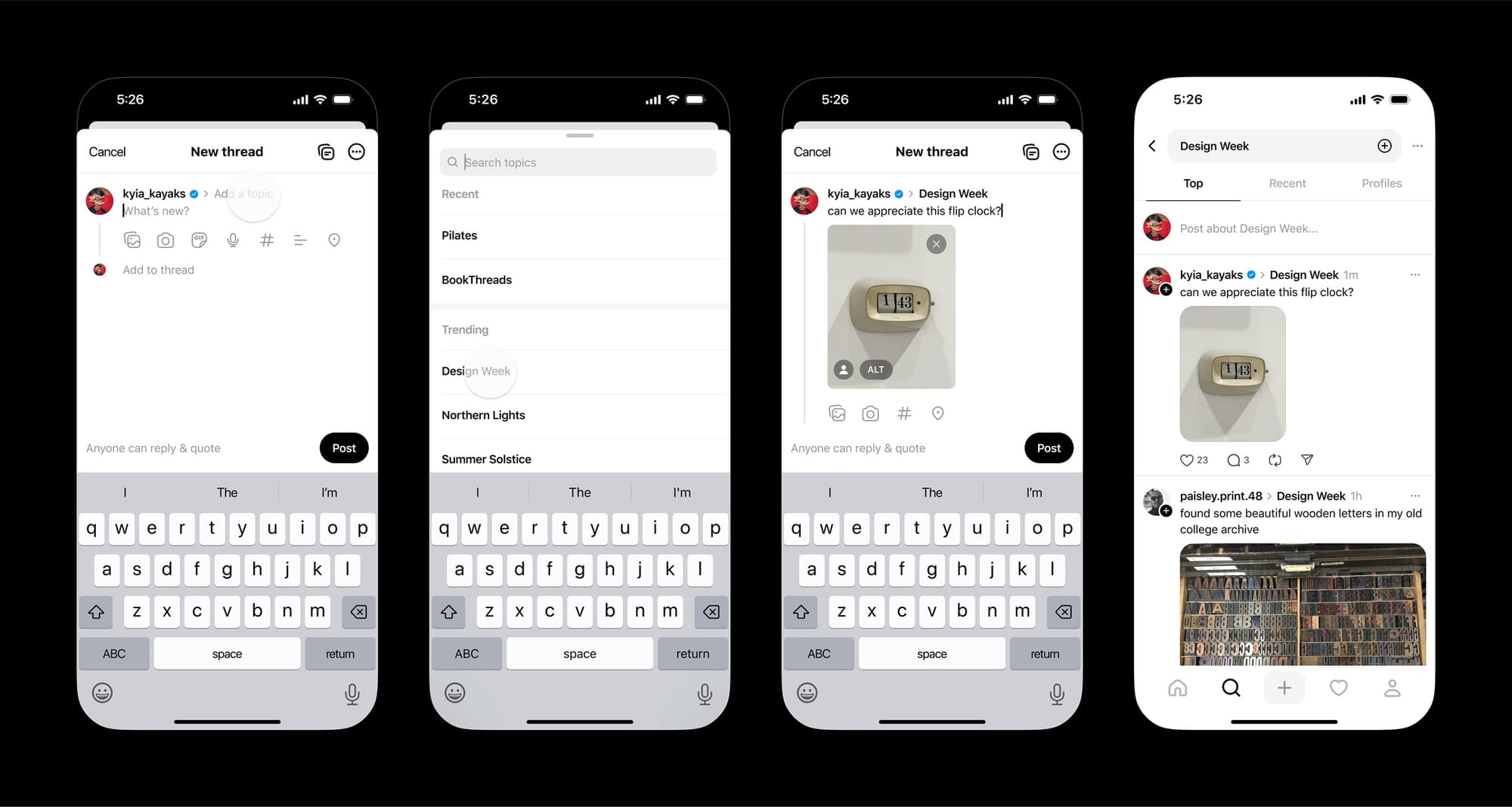
Although you can type in free-form hashtags, it's topics that form the backbone of discovery and community on the platform. Instead of serving purely as a way to sort posts, Threads’ tags act more like interest-based markers that help people connect around what matters to them.
Unlike surface-level hashtags, Threads’ topic tags work alongside enhanced search and recommendation systems to surface relevant content and communities you might not otherwise see.
For creators and brands looking to grow their audience, leaning into trending and relevant tags remains one of the most effective ways to be found.
Pro tip: Threads says posts that include a topic typically rack up more views than those without.
How to use topics on Threads
Next to your username in the composer, tap Add a topic — or just use a hashtag before the phrase.
2. Trending Topics
Speaking of topics: One of the best ways to grow on Threads is to take part in trending topic conversations. As you might expect, these trends change fast — so how do you join those conversations before they become yesterday's news?
A recent update from Threads has made this easy: Trending Topics.
You’ll find them at threads.com/search, before you enter any search terms. The feature is currently only available in certain regions, but Buffer users can also find these trends right in Buffer — no matter where in the world they are.
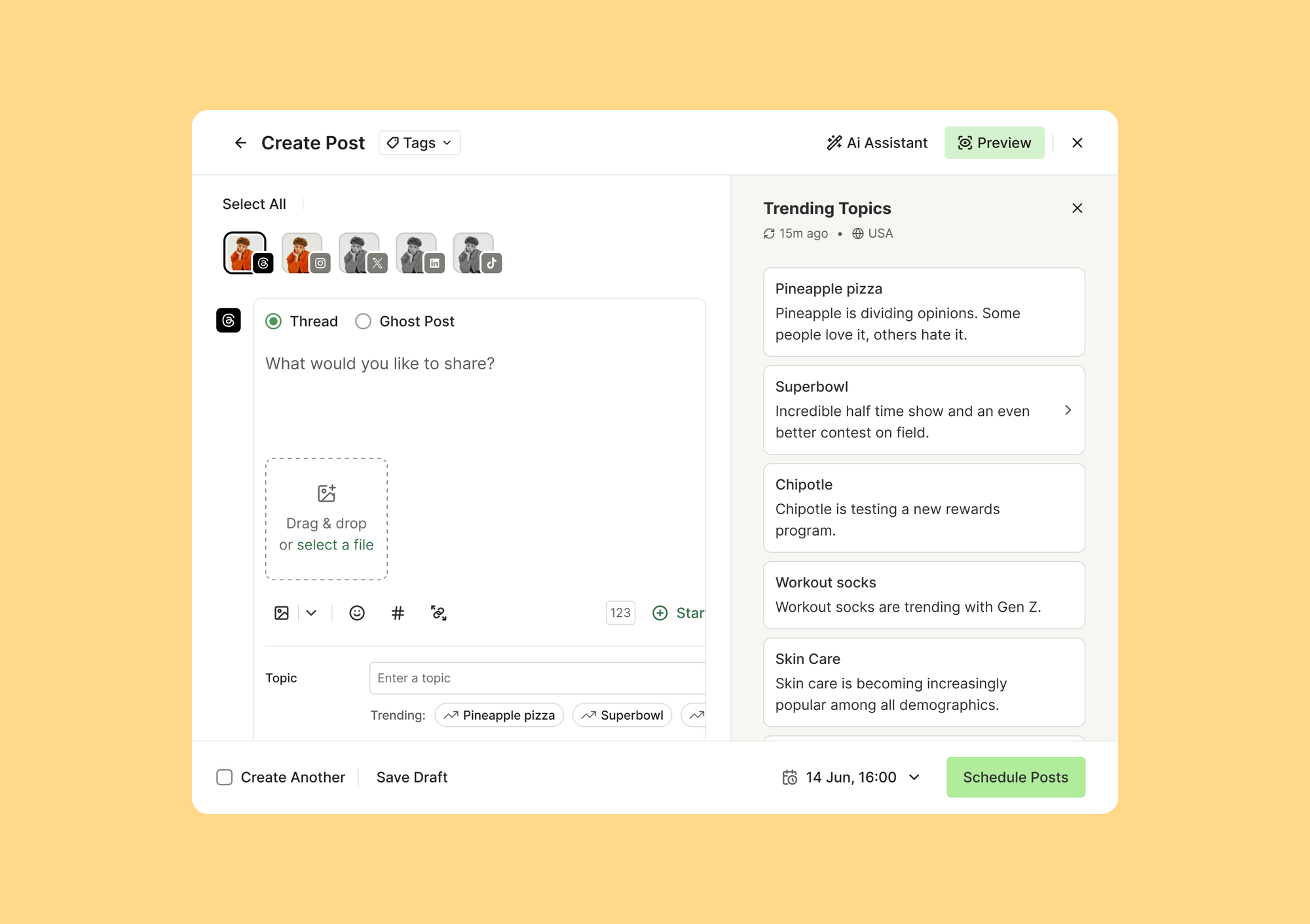
Senior product marketer Michael Eckstein used Trending Topics in Buffer to weigh in on a trending topic not long after launch — netting him 54K views in a matter of hours.
“I saw ‘Quantum physics’ trending and thought, ‘Well, this could be interesting.’ I'm no physicist, but I've watched enough sci-fi to have opinions. I brainstormed a post that was equal parts curious and tongue-in-cheek, hit send, and went to bed,” he says. “I woke up to 54,000 views and 90+ reposts.”
It’s a great way to boost your content's visibility.
3. Better post insights
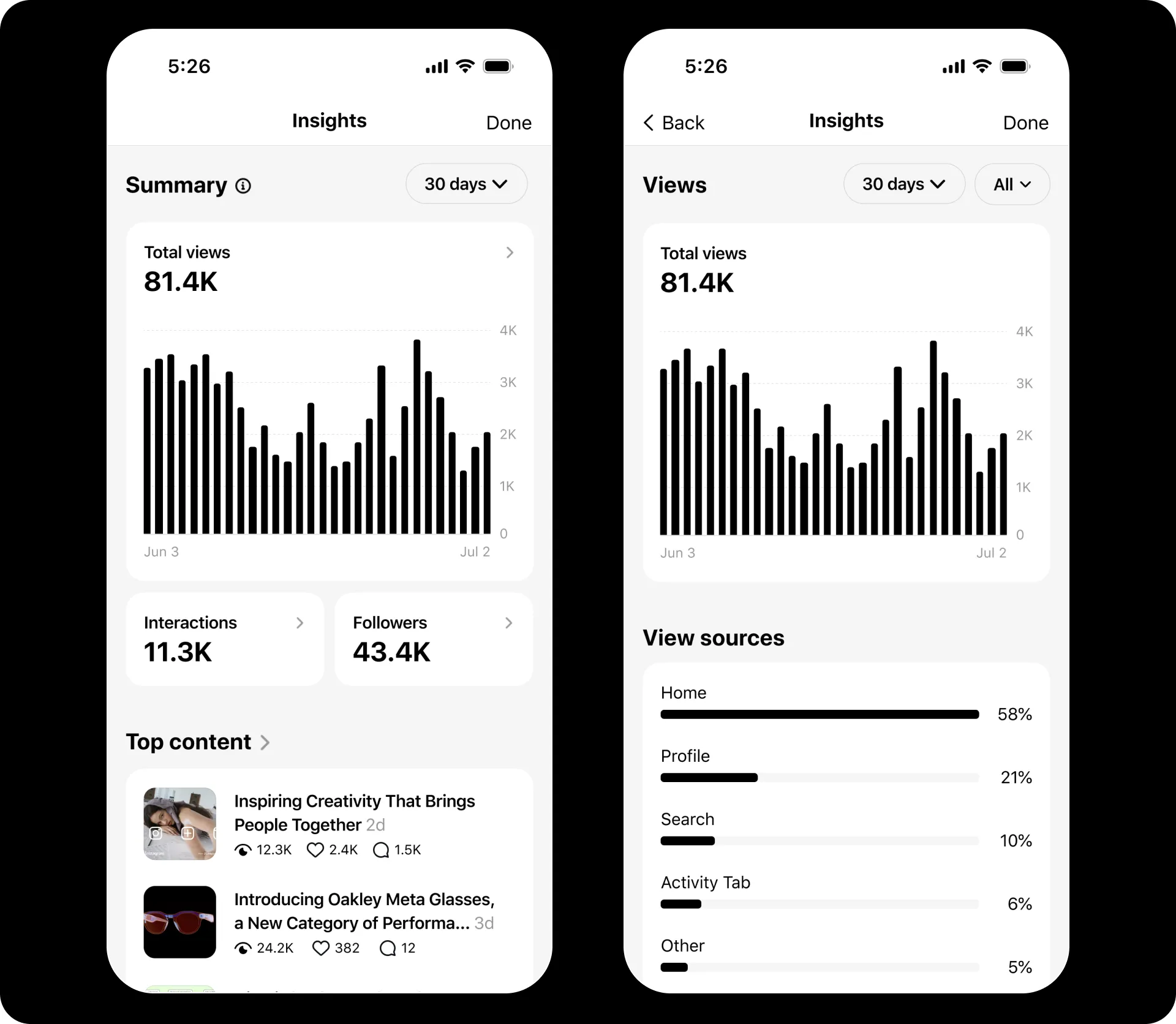
Threads has significantly upgraded its Insights experience, making it easier to understand not just how your posts perform, but where and why they gain traction.
Here's an overview of some of the changes:
- Creators can now dive deeper into performance data directly from the Insights dashboard — for example, the Interactions section shows engagement split by likes, replies, reposts, and quotes, while the Followers section reveals growth over time alongside geographic data, including top cities and countries, plus demographic insights like age range and gender.
- Threads has also introduced performance comparisons over time, with new charts that track views and interactions across 7- to 90-day periods.
- Insights now show whether people found your posts directly on Threads or via recommendations on other Meta apps, including Instagram and Facebook.
- You can now add up to five links to your bio, and Insights will show how many people have clicked links shared both in your profile and in posts.
- Threads also introduced a weekly Insights recap, offering a snapshot of week-over-week changes in posts shared, total views, new followers, and replies.
4. Simple polls
Threads added another popular feature pretty quickly: polls, which work right in the composer. Polls on Threads remain intentionally simple, designed for fast feedback and conversation starters rather than long-running or highly configurable surveys.
You can’t set a custom poll duration on Threads — all polls close automatically after 24 hours.
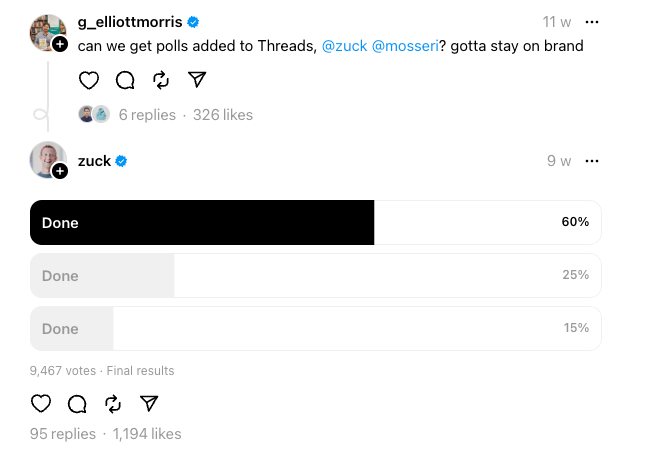
When Threads launched polls, Mark Zuckerberg shared a tongue-in-cheek poll response to the user who'd requested them. His poll had no question — just three options: “Done,” “Done,” and “Done.”
How to add a poll on Threads
Start a thread by clicking the pen and paper icon at the bottom of the app, or the top of the browser version.
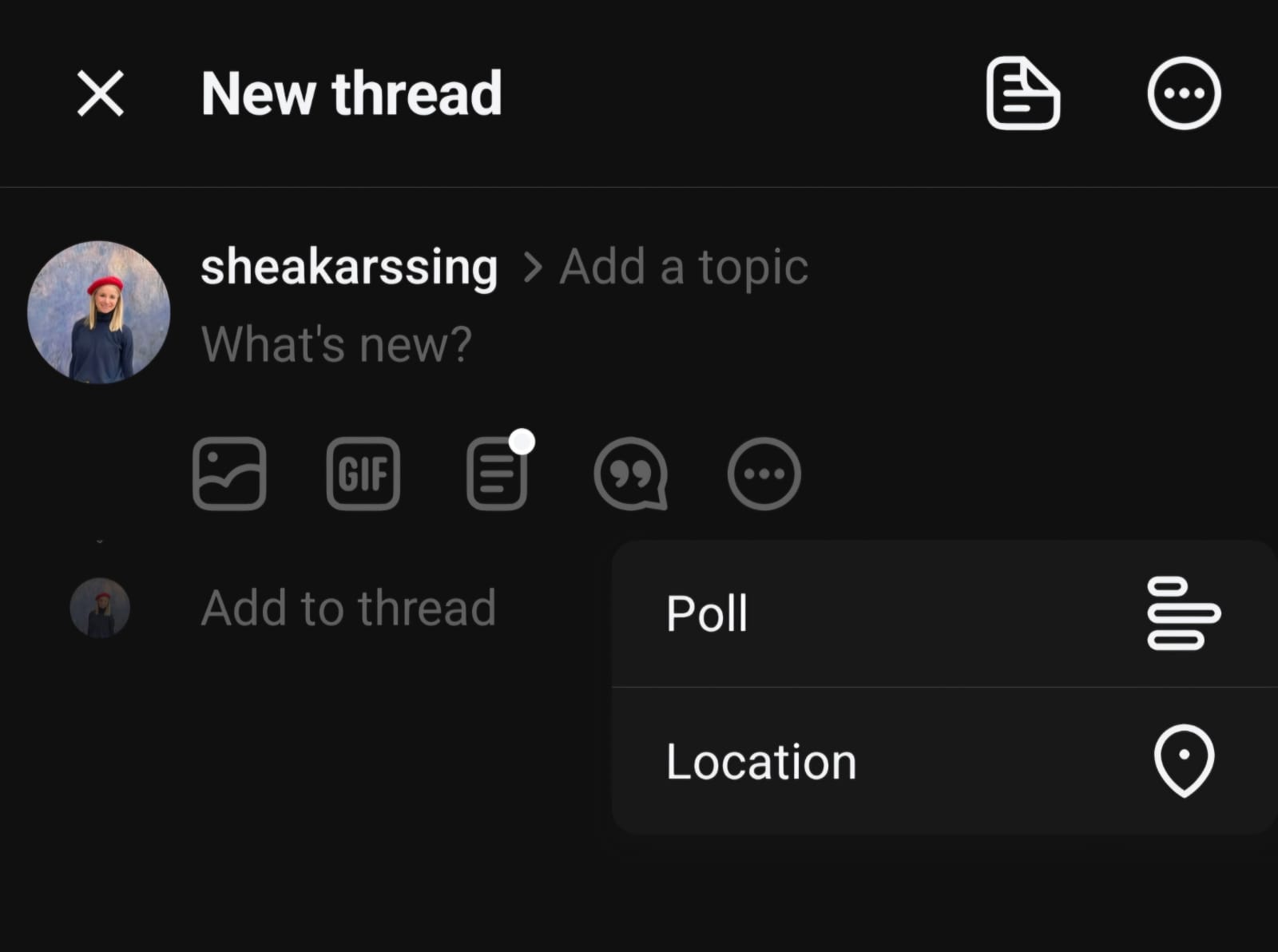
To add a poll to a post, click on the three horizontal dots in the composer, then choose Poll.
Add your question to the main post, then fill out your options in the buttons that appear below. You can use up to 25 characters for each option. When you’re ready, hit Post.
5. Edit posts
Not being able to edit posts on X has frustrated users for years — so it makes sense that Threads added an edit feature early on.
Threads’ edit feature comes with a few clear rules:
- Time limit: You can edit a post for up to 15 minutes after publishing.
- Editable content: You can update the post text and tags/topics.
- Restrictions: You can’t add or remove media (images or videos) once the post is live.
- Visual indicator: Edited posts are marked so readers can see that a change was made.
How to edit threads
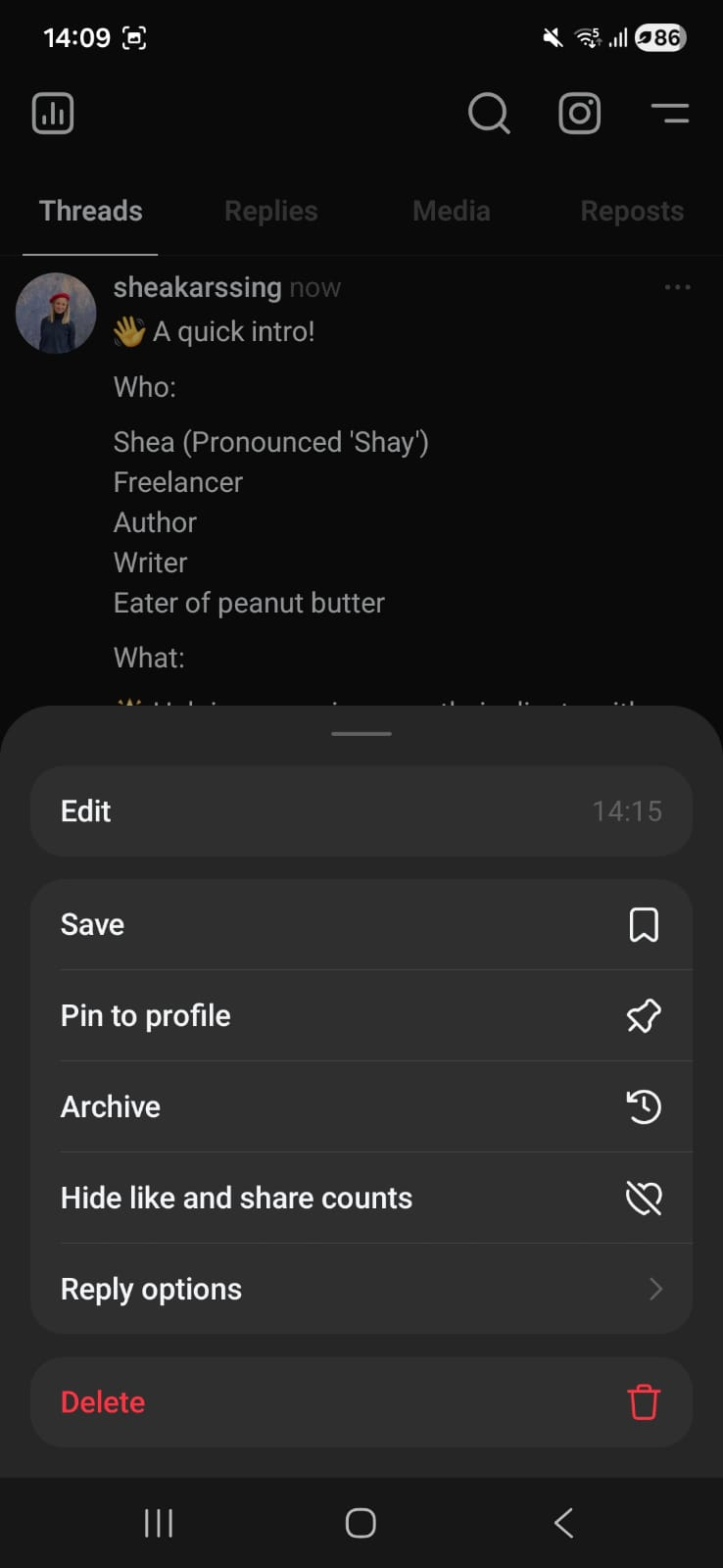
To edit your thread on mobile and web versions, click on the three dots to the right of a newly posted thread. An Edit button and timer will be visible if it's been under 15 minutes.
Tap Edit, then make your changes and hit Save.
6. The Following feed
Threads works similarly to TikTok, with a For You feed, where its algorithm recommends content for you (like TikTok’s FYP) and a Following feed, where you only see content from people you follow.
Pro tip: Instagram does have a similar feature, but it’s a little tucked away — to find your Following feed on Instagram, you’ll have to tap the logo at the top to reveal the drop-down menu.
How to see your Following feed on Threads
On Threads, the Following feed is much easier to find — just tap on Following right at the top of the mobile app (you might need to tap on the little house icon on the bottom left for the two options to appear).
On the browser version, there’s a button that lets you toggle between the two feeds.
7. The fediverse
Threads isn’t just another standalone social app. It’s also being built to connect to the fediverse. "Wait, what?" some of you might ask.
In simple terms, the fediverse is a group of social platforms that can talk to each other. Instead of everyone needing to be on the same app to interact, people on different platforms can follow, reply to, and engage with one another across networks.
Threads is rolling this out slowly and carefully. You can choose whether your posts stay only on Threads or can be seen by people using other compatible platforms.
For creators and brands, this opens up some interesting possibilities:
- Your posts could reach people beyond Threads without extra effort
- You’re not locked into a single platform’s audience
- It points toward a future where conversations aren’t owned by just one app
8. Threads ads
Threads ads are officially rolling out worldwide. This is a pretty big moment. It marks Threads’ shift from “fast-growing new platform” to “OK, we’re building a long-term business here.”
How ads work on Threads
Ads show up natively in the feed, so they look and feel like regular posts, not disruptive pop-ups. Brands can run image ads, video ads, and carousel ads.
Threads plugs straight into Meta’s existing ad system, which means you can:
- Extend existing Meta campaigns to Threads
- Use the same targeting, optimization, and AI delivery
- Add Threads automatically via Advantage+, or select it manually in Ads Manager
Ad delivery is rolling out gradually, and ad volume is intentionally low. That’s Meta trying to protect the user experience while testing what works.
If you’re already running Meta ads and your goal is awareness or reach, it’s worth experimenting, especially while competition is still light.
9. New controls
Threads gives you more control than ever over what you see and how people interact with you.
Teach Threads what you want to see
Threads learns from your actions:
- Profiles you follow or visit help shape future recommendations.
- Muted, blocked, or reported profiles won’t appear in your feed — and Threads will show you less similar content.
- Hidden content or keywords signal what you’re not interested in, helping Threads refine what shows up over time.
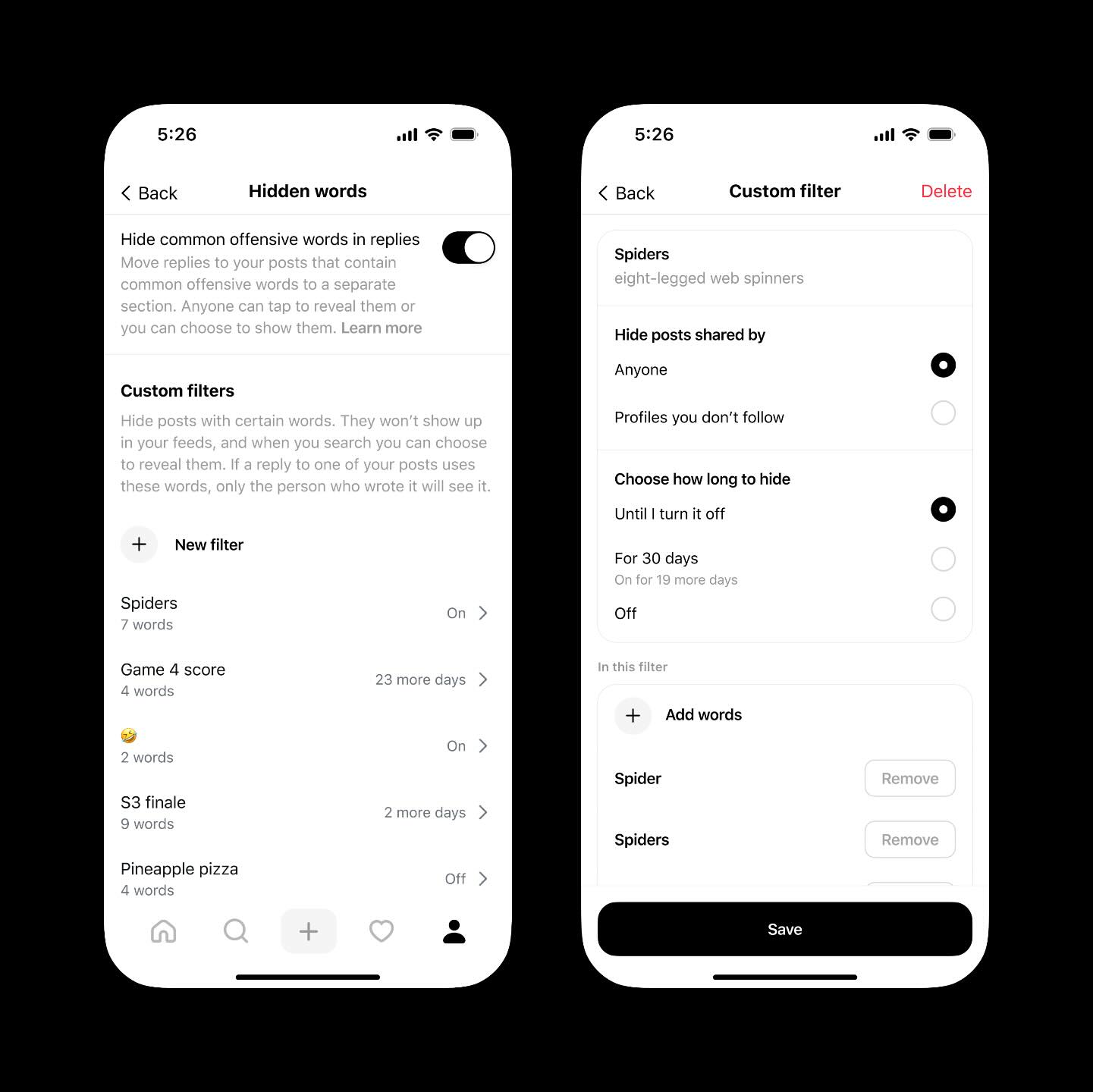
As per Instagram head Adam Mosseri, an update to Threads' Hidden Words feature will allow you to customize which content is filtered out, separate from Instagram.

Manage replies and conversations
Threads has also introduced tools to help you control conversations on your posts:
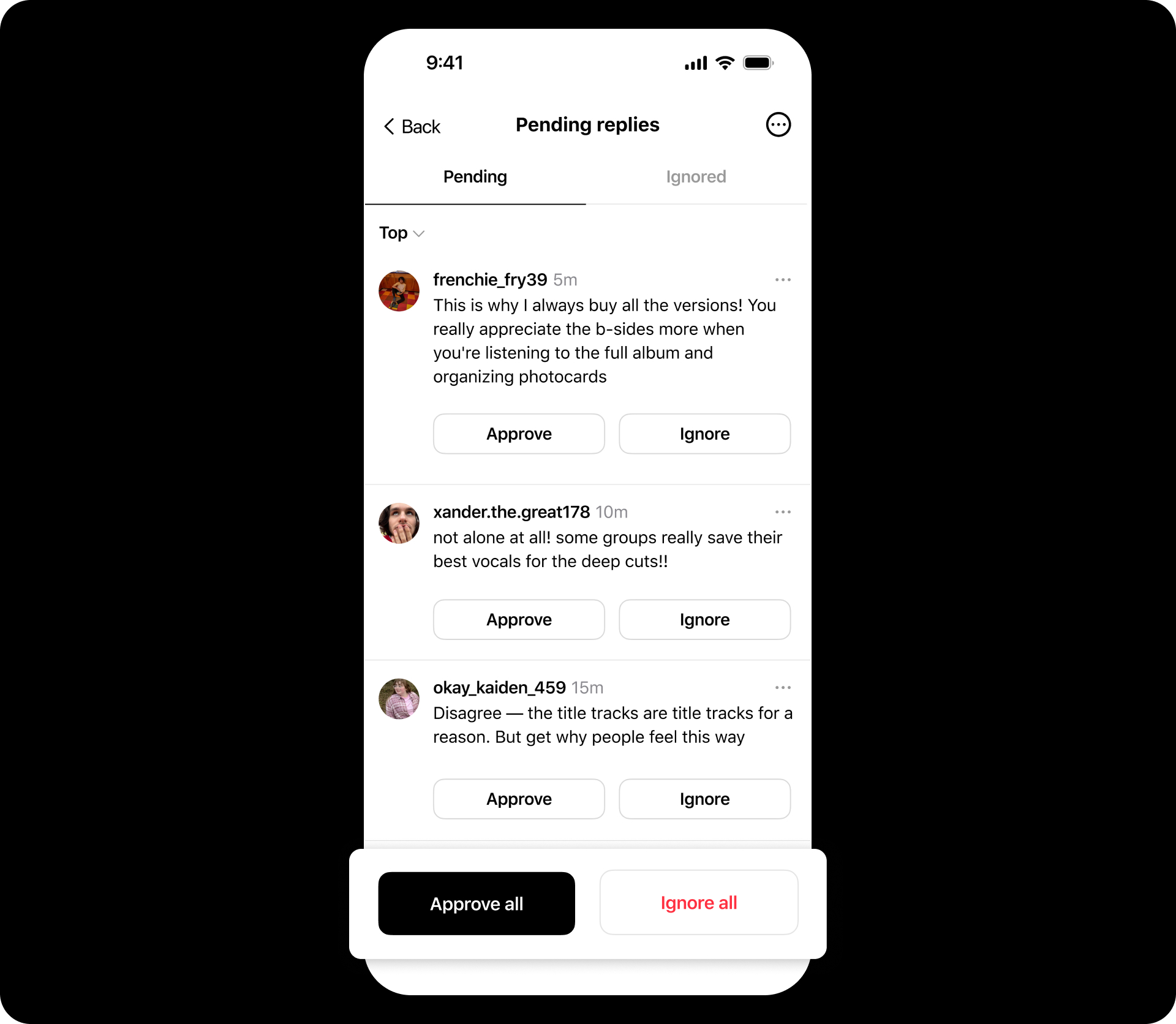
- Reply approvals: Choose which replies appear publicly before others can see them. This lets you keep discussions on-topic and review responses at your own pace.
- Reply filters: Filter replies so you only see responses from people you follow or replies that include mentions.
10. Threads Communities
Threads is opening the door to communities — a new way to connect around shared interests, fandoms, and niche conversations.
Instead of everything living in one big feed, communities give people a dedicated space to talk about what they care about most. Dozens of communities are already live, with many more rolling out over time.
Community champions
Threads is also testing a way to highlight the people who really make communities thrive. Community champions are active members who consistently spark conversations, reply thoughtfully, and help keep discussions engaging.
Post with flair
For more niche communities, Threads is experimenting with flair — short labels you can add to posts within a specific community. Flair appears under your username when you post in that community and helps give context to your perspective. For example, in a book-focused community, an author might add an “Author” flair to their posts.
Flair is community-specific, meaning it doesn’t follow you everywhere — it only shows up where it’s relevant.
Here's what Threads had to say about this new feature:


11. Ghost posts
Ghost posts are short-lived updates that automatically disappear after 24 hours, giving you the freedom to share spontaneous ideas without worrying about them sticking around forever.
What makes ghost posts different?
- Temporary visibility: Once published, ghost posts show up in your followers’ feeds like regular updates, but they archive themselves after a day.
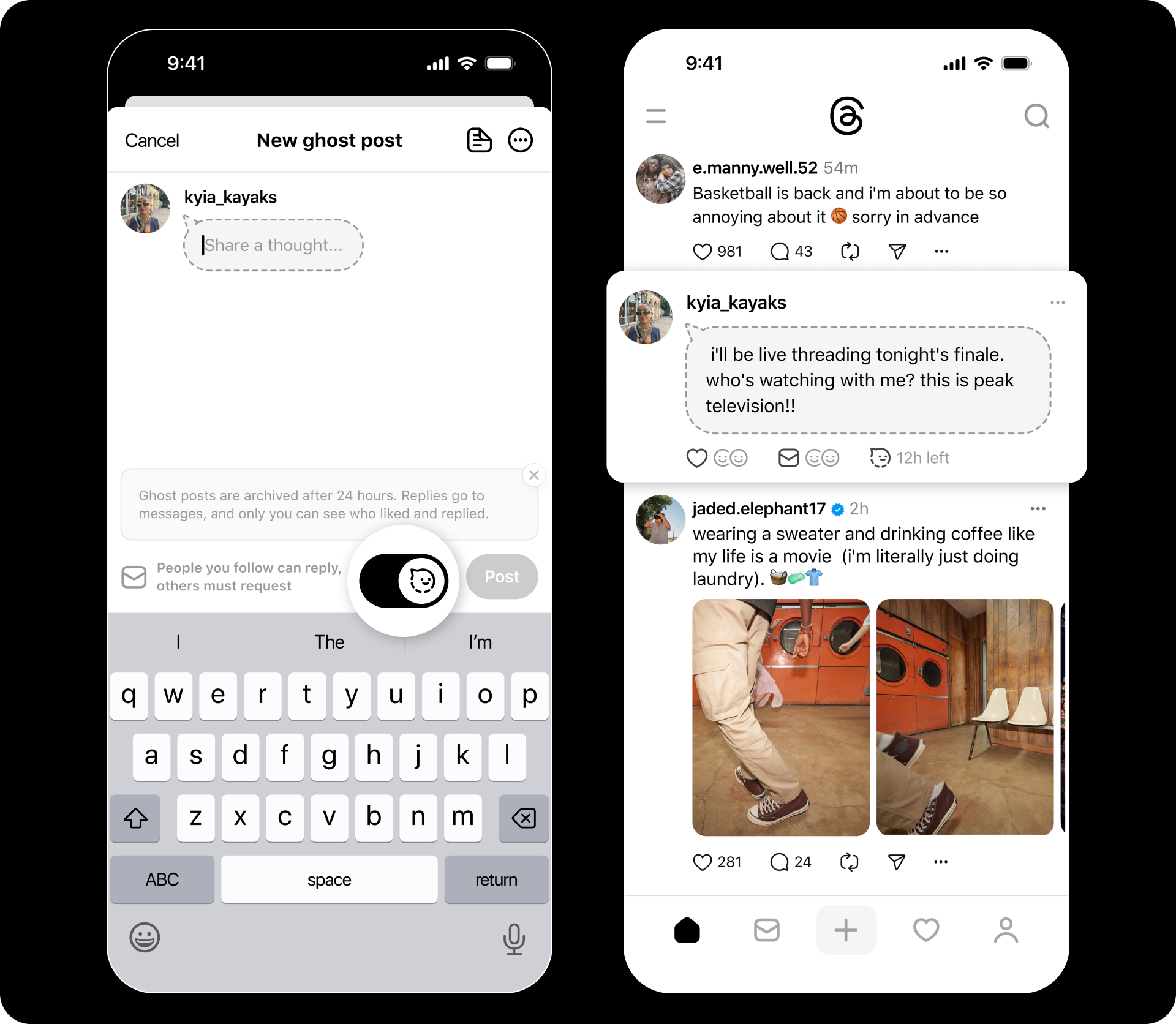
- Lightweight engagement: Replies to ghost posts don’t appear publicly underneath the post. Instead, they’re sent directly to your inbox, and only you can see who responded or liked the post.
- Distinct look: In the feed, ghost posts are often displayed with a different visual style (like a grayed-out or dotted outline).
To make a ghost post, just toggle the ghost icon in the composer before you publish .
12. Group chats
Threads has expanded beyond public posts and replies — you can now have group conversations right inside the app. This gives you a private space to connect with followers, collaborators, teammates, or friends without leaving Threads.
What group chats look like on Threads
- Up to 50 participants: You can include up to 50 people in a single group chat, making it great for small communities, teams, or event groups.
- Custom names: Give your group chat its own name to keep things organized and recognizable.
- Admins in control: Only group admins can remove users, which helps manage the space if someone joins who shouldn’t be there.
How to start a group chat
- Tap the messages (DM) icon to open your inbox.
- Create a new message, select Create group chat, and add the people you want in the chat.
- Click on + Add group name to do just that.
- Start chatting.
Pro tip: Some versions of Threads also let you generate a group chat invite link, so you can share access with others instead of adding everyone manually — handy for campaigns, collaborations, or open invites.
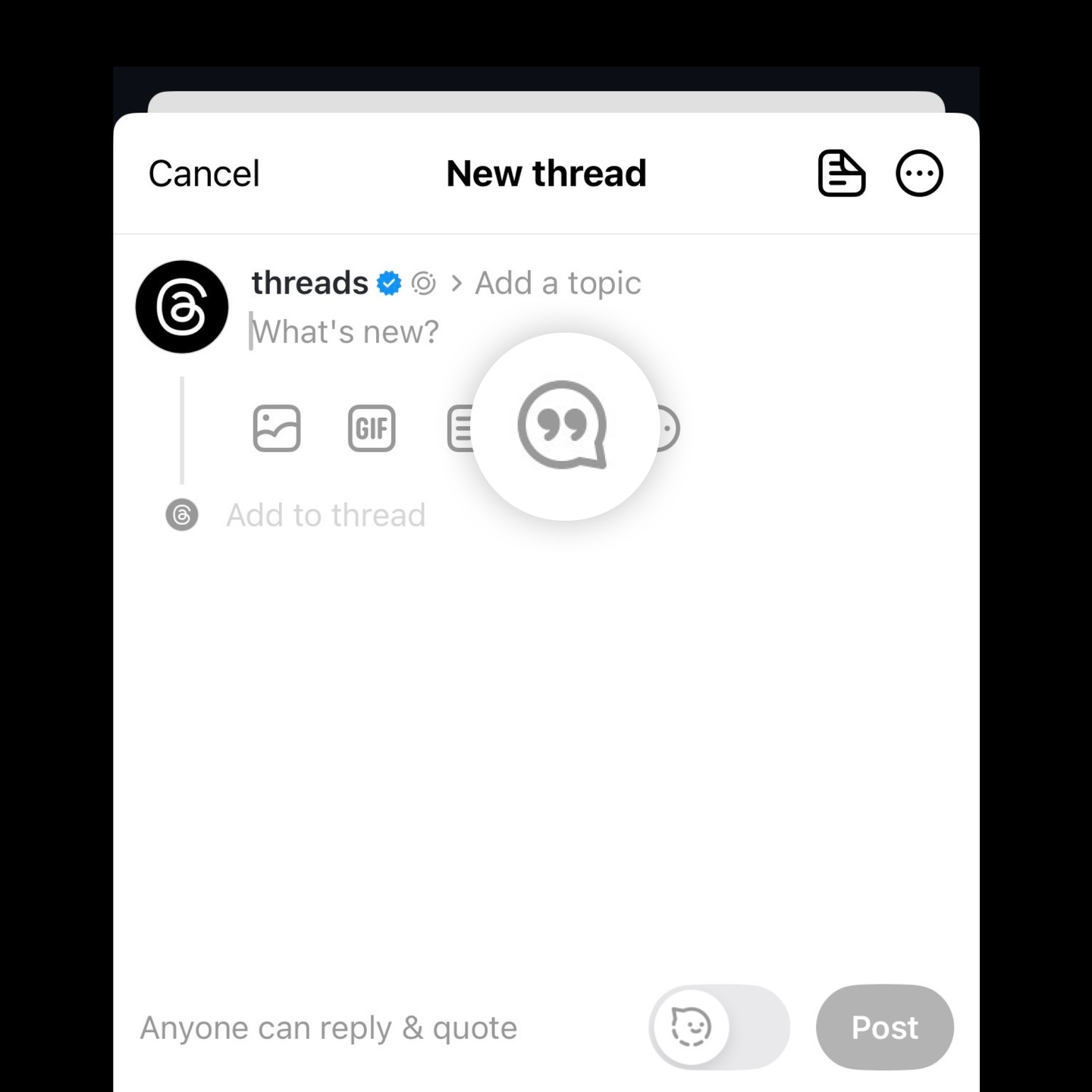
13. Saved quotes
Threads makes it easy to save the moments you don’t want to lose with Saved Quotes — a way to bookmark quote posts so you can revisit them anytime.
When someone quote-posts (shares another person’s post with their own commentary), you can now save that quote for later. Instead of scrolling endlessly to find it again, you can quickly jump back to it when you need insight, inspiration, or context.
This small feature adds a lot of value for creators, community managers, and anyone who wants to hold on to the best bits of conversation without keeping them pinned in the feed.
How to save a quote:

Threads keeps evolving — watch this space
Threads is still finding its rhythm — and that’s part of what makes it worth watching. With each new feature, the platform is expanding how people discover content, connect with communities, and express themselves in more flexible ways.
As new tools and updates roll out, using a platform like Buffer can help you stay consistent, measure what’s working, and focus on creating content that your followers love.
FAQs about new Threads features
Is Threads still growing in 2026?
Yes. After an early drop-off, Threads has rebounded and now has 400 million monthly active users, signaling renewed growth and engagement.
How does Threads work compared to X (Twitter)?
Threads focuses more on interest-based discovery, community, and recommendations, rather than real-time trending hashtags or news-first content.
Does Threads use hashtags?
Not really. Threads prioritizes topics over hashtags, using topic tags to help surface relevant content and communities.
How do topics work on Threads?
Topics act as interest markers, helping posts reach people who care about that subject. Posts with topics tend to get more views than those without.
Can you schedule posts on Threads?
Yes. With tools like Buffer, you can schedule Threads posts, cross-post to other platforms, track performance, and manage ideas in one place.
Does Threads have analytics or insights?
Yes. Threads Insights now includes views, engagement, follower growth, demographics, and where your content was discovered.
Can you edit a post on Threads?
Yes. You can edit a post for up to 15 minutes after publishing, but you can’t add or remove media once it’s live.
Is Threads available on desktop?
Yes. Threads has a web version that lets you browse, post, and engage from your computer at threads.com.
Are there ads on Threads now?
Yes. Threads ads are rolling out globally and appear natively in the feed, using Meta’s existing ad system and targeting tools.
What is the fediverse, and how does Threads connect to it?
The fediverse allows different social platforms to interact. Threads is gradually enabling this, letting posts reach people beyond Threads without extra effort.
More Threads resources
- 17 Threads Stats You Need to Know in 2026 (+ What They Mean for Your Strategy)
- Everything I’m Trying to Grow to 1,000 Followers on Threads
- The Best Time to Post on Threads in 2026 — Data from 700K+ Posts
- We Analyzed 1.7M Posts from X, Threads, and Bluesky: Here’s What We Learned
- How to Get More Followers on Threads: 9 Tactics to Help You Grow
- I Posted to Threads Consistently for A Month — Here’s What Happened
- 7 Creators on Threads to Watch (+Lessons to Learn From Their Content)
Try Buffer for free
190,000+ creators, small businesses, and marketers use Buffer to grow their audiences every month.